Navigating the Interface
MatchLogic's interface is organized around a sidebar navigation, a header bar, and a main content area. This article explains how to move between modules, track job progress, and switch projects.
The Sidebar
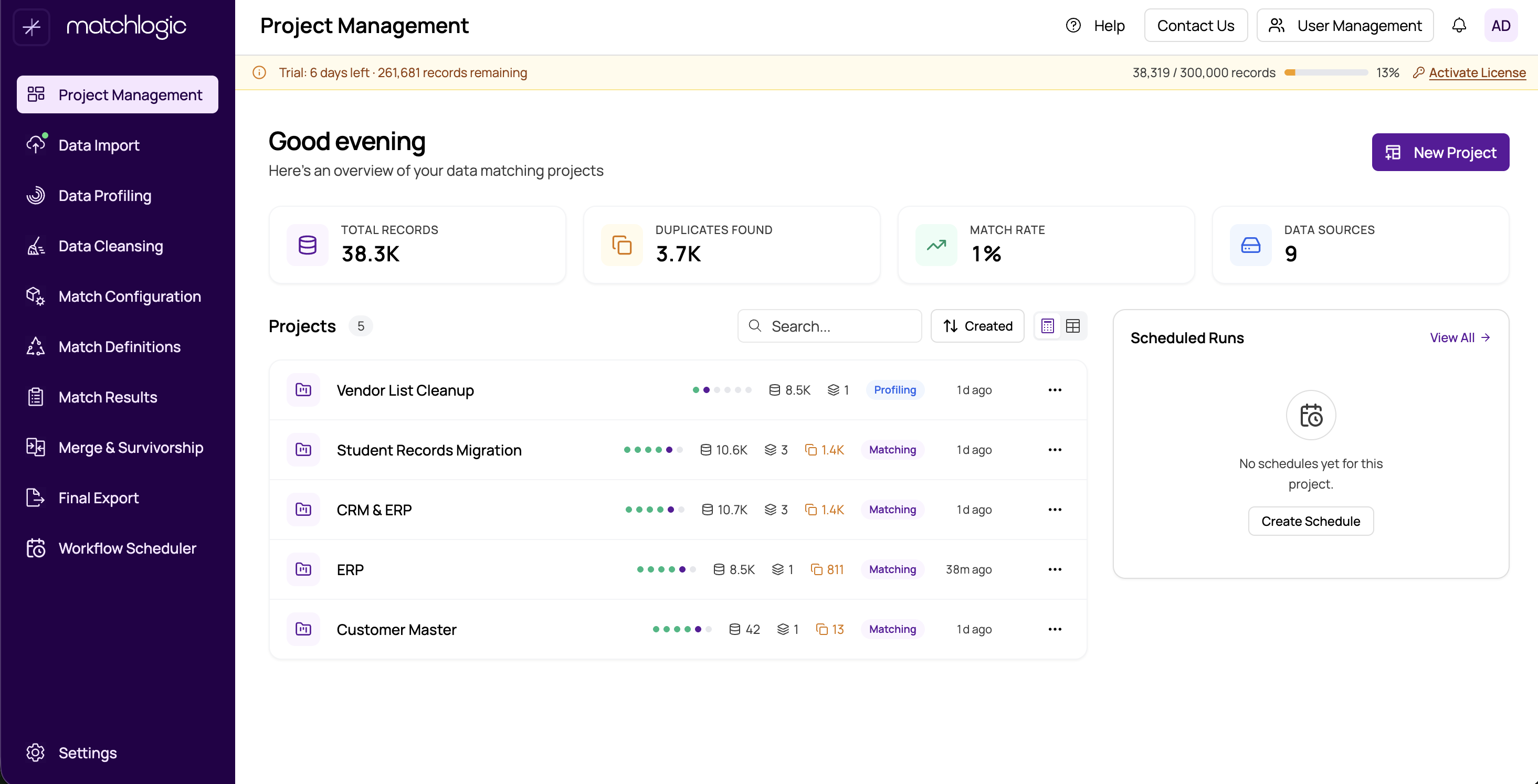
The sidebar runs along the left edge of the screen and provides access to every module in the pipeline. It operates in two modes:
- Collapsed (icon-only) — Shows a narrow strip of icons, one for each pipeline module. Hover over an icon to see its label in a tooltip. This is the default view to maximize workspace.
- Expanded — Shows icons with full text labels. Click the expand/collapse toggle at the top of the sidebar to switch between modes.
The sidebar lists modules in pipeline order from top to bottom:
- Project Management
- Data Import
- Data Profiling
- Data Cleansing
- Match Configuration
- Match Definitions
- Match Results
- Merge & Survivorship
- Final Export
- Workflow Scheduler
Each module icon has a visual state that tells you where you are and what is available:
- Active (highlighted) — The module you are currently viewing.
- Available — The module is unlocked and ready to use. Click to navigate.
- Completed — The module has been run successfully. You can still revisit it.
- Locked (grayed out) — Prerequisites have not been met. Hover over the icon to see a tooltip explaining what is needed. See #pipeline-locking-and-module-availability for details.
The Header Bar
The header bar spans the top of the screen and contains several key elements:
- Breadcrumbs — Show your current location in the pipeline (for example, "Project Name / Match Results"). Click any breadcrumb segment to navigate back to that level.

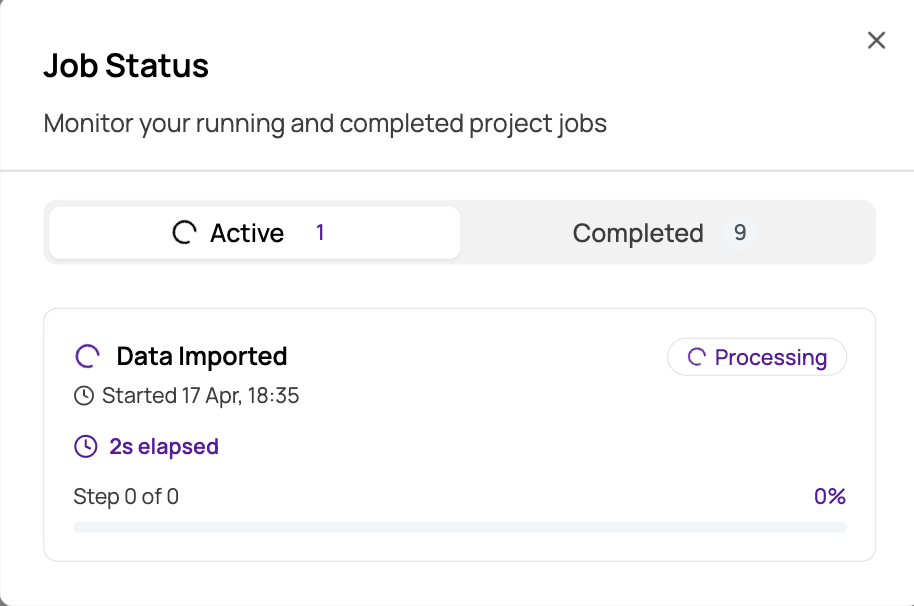
- Job Status Indicator — When a background job is running, a progress indicator appears in the header. Click it to open the Job Status Dialog with details on all active and recently completed jobs.
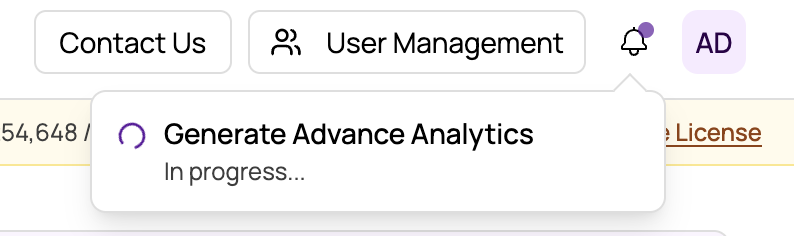
- Notification Bell — Displays a badge when jobs complete or require attention. Click the bell to see a list of notifications with quick-action links such as "View Results."
Active Job Banner
When a long-running job (such as matching or profiling) is active for the current project, a banner appears at the top of the relevant module page. The banner shows the job type, progress status, and elapsed time. You can cancel a running job from this banner.
Switching Projects
To switch to a different project, navigate to Project Management using the sidebar. From the project list, click on the project you want to work with. Once selected, the platform loads that project's data sources, configurations, and results across all modules.
Tip
The currently selected project is always visible in the header breadcrumbs. If you ever lose track of which project you are working in, glance at the first segment of the breadcrumb trail.
Main Content Area
The main content area occupies the rest of the screen and displays the active module. Many modules use tabs to organize content. For example, Match Results has a Summary tab and a Detailed Analysis tab. Data Import uses a step-by-step wizard that walks you through file upload, preview, and confirmation.
Tables throughout the platform support sorting, filtering, searching, and pagination. Click a column header to sort, use the search bar above the table to filter by text, and use the pagination controls at the bottom to navigate through large datasets.
Important
If you are redirected to Project Management or Data Import when trying to access a module, it means a prerequisite is missing. Select a project first, then ensure at least one data source has been imported before accessing downstream modules.