Pipeline Locking and Module Availability
MatchLogic uses progressive unlocking to guide you through the data matching pipeline in a logical order. Each module becomes available only after its prerequisites have been completed. This prevents you from running a match before data has been imported, or exporting results before a match has been executed.
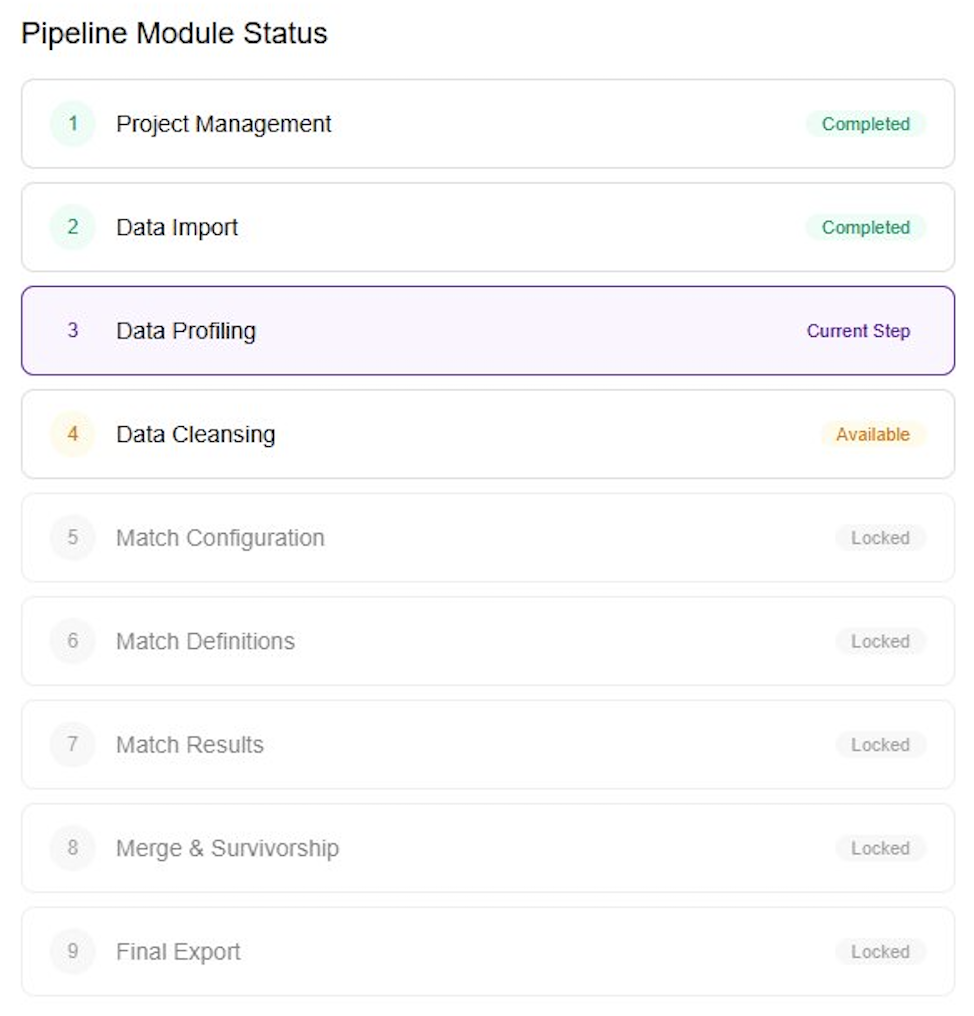
How Locking Works
When you open MatchLogic, only Project Management is fully accessible. As you complete each step, the next module in the pipeline unlocks. Locked modules appear as grayed-out icons in the sidebar. Hovering over a locked icon displays a tooltip explaining what action you need to take to unlock it.
If you try to navigate directly to a locked module (for example, by entering a URL), the platform will redirect you to the appropriate prerequisite page.
Unlock Requirements by Module
The table below lists each module and the conditions that must be met before it becomes available:
| Module | Prerequisite |
|---|---|
| Project Management | Always available. This is the starting point. |
| Data Import | A project must be selected. |
| Data Profiling | At least one data source must be imported into the project. |
| Data Cleansing | At least one data source must be imported into the project. |
| Match Configuration | At least one data source must exist. For cross-source matching, two or more data sources are needed. |
| Match Definitions | A match configuration must be saved with at least one data source pair defined. |
| Match Results | At least one match definition must be saved with criteria configured. |
| Merge & Survivorship | A match job must have completed successfully, producing results to merge. |
| Final Export | Match results must exist. Merge and survivorship steps are recommended but not strictly required. |
Visual Indicators
The sidebar communicates module status through icon styling:
- Grayed out with lock indicator — The module is locked. Hover for a tooltip explaining the prerequisite.
- Normal icon — The module is unlocked and available.
- Highlighted / active — You are currently viewing this module.
- Checkmark or completion indicator — The module's primary action has been completed at least once (for example, a match job has finished).
Tip
Data Profiling and Data Cleansing are optional steps. You can skip directly from Data Import to Match Configuration if your data is already clean and standardized. However, profiling is highly recommended because it reveals quality issues that can reduce match accuracy.
Re-running Earlier Steps
Completing a step does not lock you out of it. You can always return to an earlier module to adjust settings, import additional data sources, or modify match rules. However, be aware that changes to earlier steps may invalidate downstream results:
- Importing a new data source may require updating your match configuration and definitions.
- Changing match definitions will require re-running the match to produce updated results.
- Modifying cleansing rules means you should re-run profiling and matching to reflect the cleaner data.
Important
If you re-import or delete a data source after configuring match rules, your existing match configuration and definitions may become invalid. Review them before running a new match.