Supported Data Formats and Connections
MatchLogic connects to a wide range of data sources for both importing and exporting data. This article lists every supported format and connection type, along with key details for each.
File Formats
You can upload files directly through the MatchLogic interface:
- CSV — Comma-separated values files. MatchLogic auto-detects delimiters and encoding. Large CSV files are handled efficiently through streaming import.
- Excel (XLSX) — Modern Excel workbooks. When an Excel file contains multiple sheets, you can select which sheet to import during the preview step.
- Excel (XLS) — Legacy Excel format. Supported for backward compatibility with older spreadsheets.
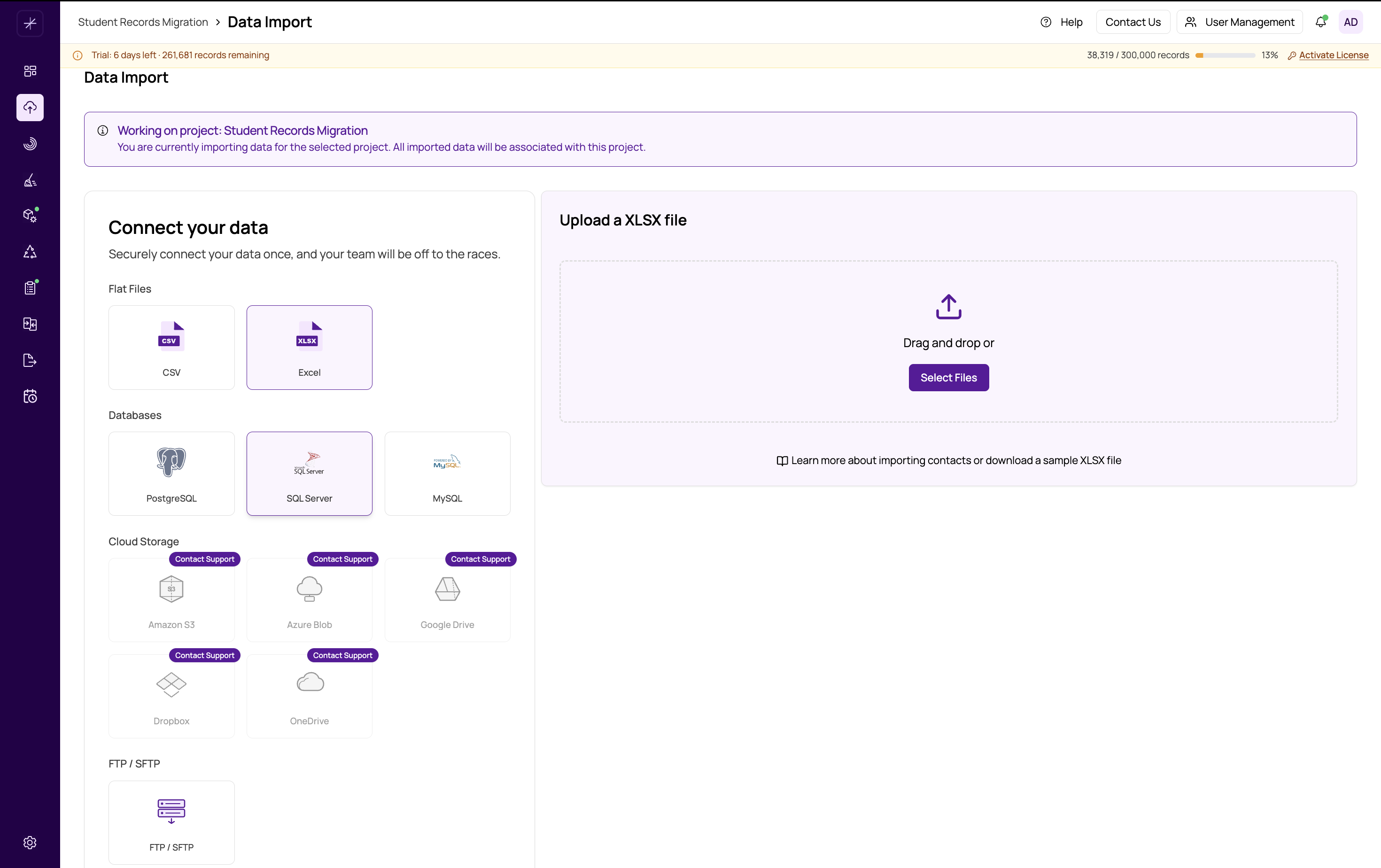
Database Connections
MatchLogic can connect directly to relational databases to import tables or query results:
- PostgreSQL — Connect using host, port, database name, and credentials. Supports schema selection and table browsing.
- MySQL — Standard MySQL connection with host, port, database, and credentials.
- SQL Server — Microsoft SQL Server connection supporting both SQL authentication and Windows authentication.
For all database connections, you can test the connection before importing, browse available databases and tables, preview column structures, and sample data before committing to an import.
Tip
Database connection passwords are encrypted before being stored in MatchLogic. Your credentials are never saved in plain text.
Cloud Storage
Import files stored in cloud storage services without downloading them to your local machine first:
- Amazon S3 — Connect using an access key, secret key, region, and bucket name. Browse folders and select files within the bucket.
- Azure Blob Storage — Connect using a connection string or account name and key. Select a container and browse for files.
- FTP / SFTP — Connect to standard FTP or secure SFTP servers using host, port, and credentials. Browse directories and select files for import.
Cloud Services (OAuth)
MatchLogic integrates with popular cloud file services using OAuth authentication, so you can import files directly from your cloud drives:
- Google Drive — Authenticate with your Google account and browse your Drive to select files.
- Dropbox — Authenticate with your Dropbox account and select files from your folders.
- OneDrive — Authenticate with your Microsoft account and browse OneDrive for files.
For cloud service connections, the authentication flow opens in a popup window. Once authorized, you can browse and select files just as you would on the service's own interface.
Export Destinations
The Final Export module supports all of the above formats and connections as export destinations, plus one additional option:
- CSV file download — Generate and download a CSV file directly from the browser.
- Excel file download — Generate and download an XLSX file.
- Database export — Write results directly to a PostgreSQL, MySQL, or SQL Server table.
- Cloud storage export — Write output files to S3, Azure Blob, or FTP/SFTP.
- Neo4j — Export match results as a graph to a Neo4j database for relationship-based analysis and visualization.
Important
Each connection type has its own configuration form with required fields. Make sure you have the necessary credentials, hostnames, and access permissions before attempting to connect. Use the "Test Connection" button to verify connectivity before importing or exporting.
Connector Configuration
Every connector in MatchLogic presents a dedicated configuration form during the import or export setup. Common fields include:
- Host / endpoint URL
- Port number (pre-filled with defaults where applicable)
- Database or bucket/container name
- Username and password or API keys
- Optional settings such as SSL mode, schema, or file path prefix
For detailed instructions on setting up each connector, see the Data Import section of the knowledge base (https://help.matchlogic.io/category/183-data-import).