Importing from a File
The most common way to bring data into MatchLogic is by uploading a file directly from your computer. MatchLogic supports CSV, XLSX, and XLS file formats, covering the vast majority of flat-file data sources you are likely to encounter.
Step-by-Step File Import
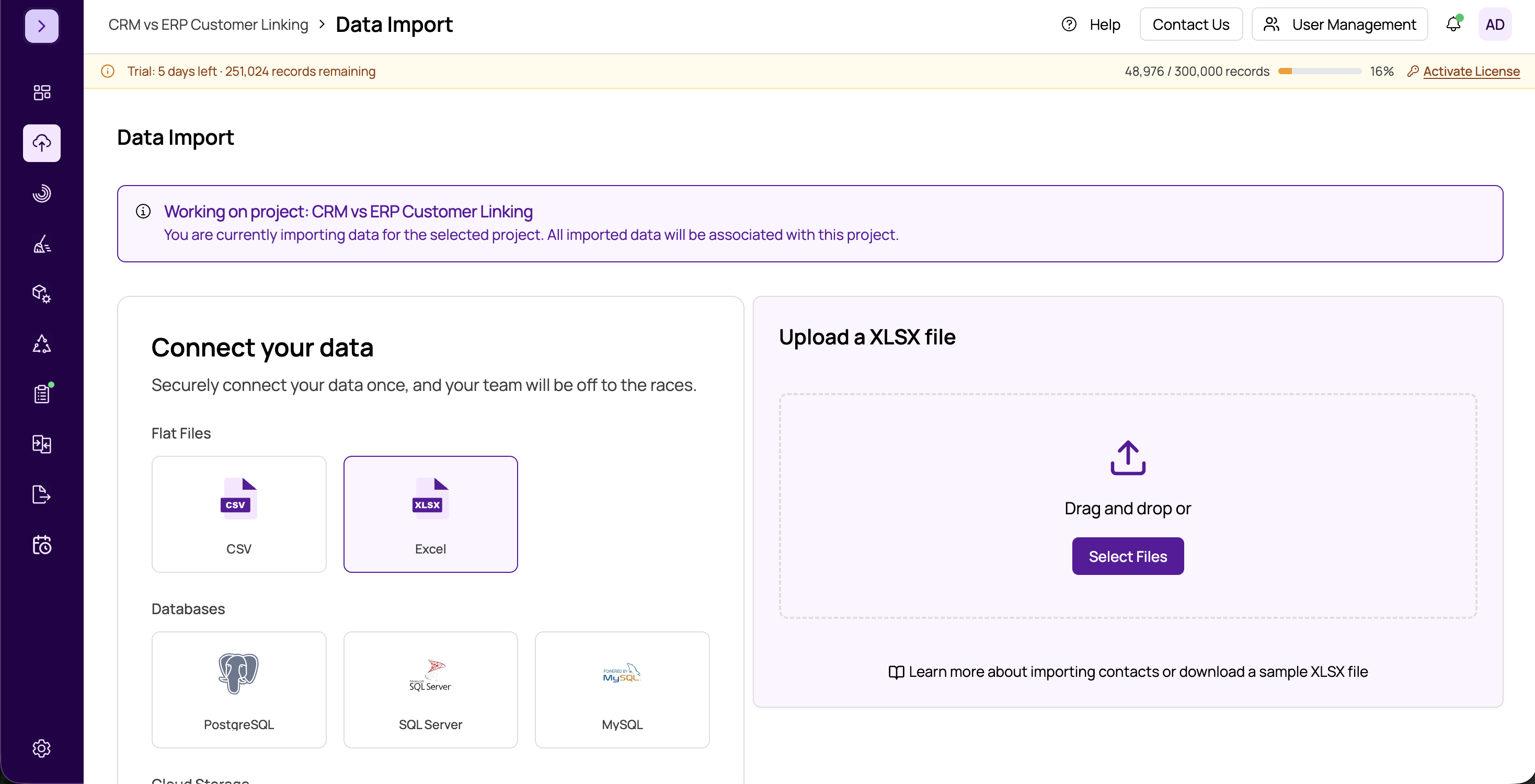
- Select the file type. On the Data Import page, choose either CSV or Excel as your source type. This tells MatchLogic how to parse the file.
- Upload your file. Drag and drop your file onto the upload area, or click the area to open a file browser and select your file. The file will begin uploading immediately.
- Table detection. Once the file is uploaded, MatchLogic scans it and detects the available data. For CSV files, there is typically one table. For Excel files with multiple sheets, each sheet is detected as a separate table.
- Select the sheet (Excel only). If your Excel file contains multiple sheets, select which sheet you want to import. You can import additional sheets later as separate datasources.
- Proceed to column mapping. Click Next to move to the column mapping screen, where you can rename columns, and choose which columns to include or exclude. See #column-mapping for details.
- Configure columns. Review the detected columns. Rename any that need clearer names and uncheck any you want to exclude from the import.
- Click Import. Once you are satisfied with the column configuration, click Import to start the import job.
Supported File Formats
- CSV — Comma-separated values files. MatchLogic handles standard comma delimiters. Other delimiters may be supported through advanced options.
- XLSX — Modern Excel format (Excel 2007 and later). This is the recommended Excel format.
- XLS — Legacy Excel format (Excel 97-2003). Supported for backward compatibility.
What Happens During Import
When you click Import, MatchLogic creates a background job that reads your file, processes the selected columns, and loads the data into the project's database. Depending on the file size, this may take a few seconds to several minutes.
While the import runs, you will see a job status indicator. You can navigate to other parts of the application while waiting. When the import completes, a toast notification will appear with a link to view your imported datasource.
Tip
Before importing a large file, consider using the preview feature to verify that MatchLogic is reading your data correctly. See previewing-data-before-import for more information.
After Import
Once the import finishes, your file appears as a datasource in the datasource list. You can preview its data, check the record count, and proceed to the next stage of the pipeline. To import additional files into the same project, see importing-multiple-datasources.
Important
Make sure your file has a header row. MatchLogic uses the first row of data to determine column names. Files without headers may result in incorrect column names and require manual renaming during the column mapping step.