Custom Regex Patterns
MatchLogic uses regex (regular expression) patterns to validate field values during data profiling. While the platform includes built-in patterns for common data types, you can create custom patterns to validate domain-specific formats unique to your organization.
Important
This is an advanced feature. Custom regex patterns require familiarity with regular expression syntax. If you are not comfortable writing regex, the built-in patterns handle most common validation scenarios.
Accessing Pattern Options
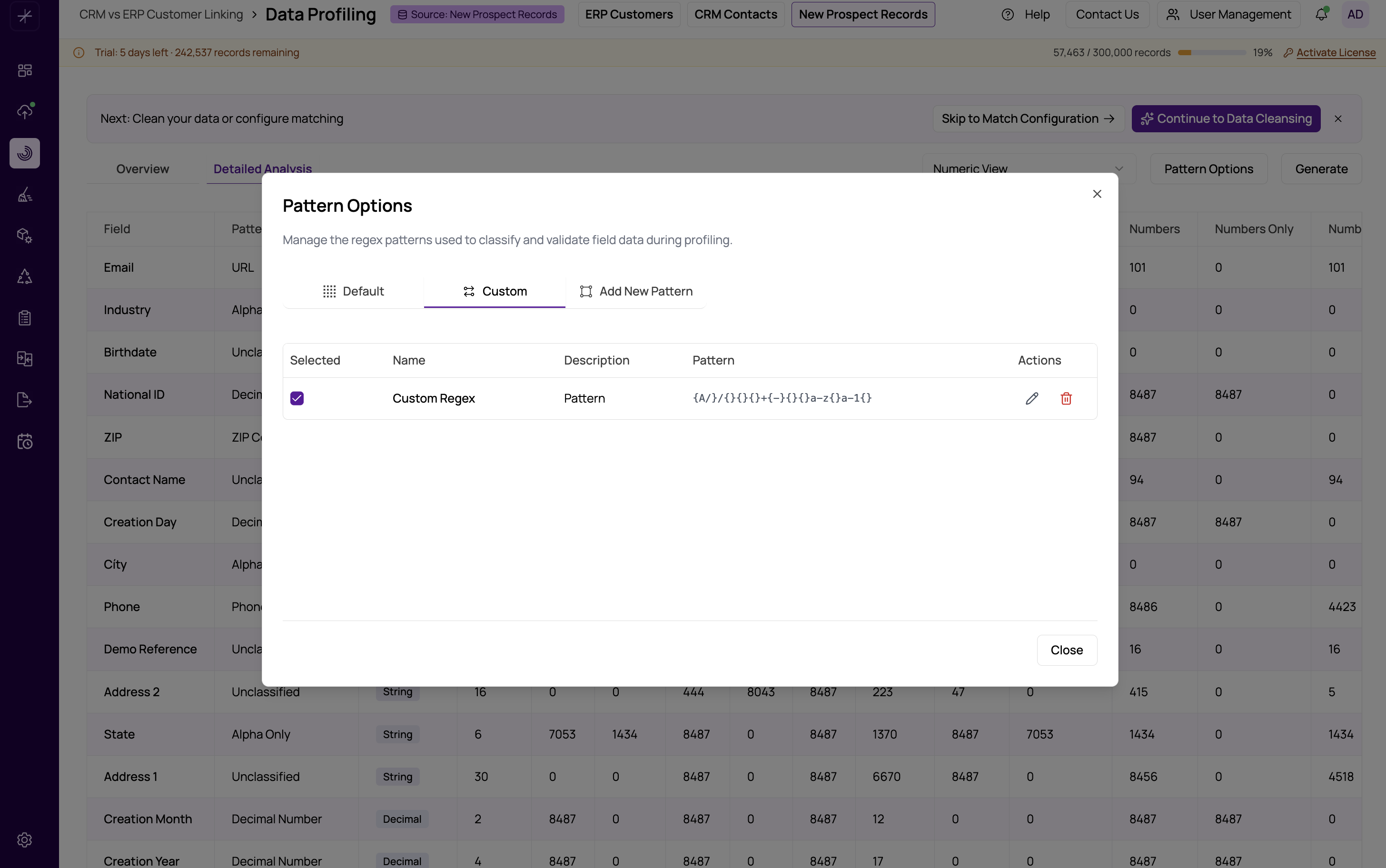
To manage regex patterns, open the Pattern Options modal from the Data Profiling page. The modal has three tabs:
- Default Patterns -- Built-in patterns that ship with MatchLogic. These are read-only and cover common formats like email addresses, phone numbers, dates, postal codes, and URLs.
- Custom Patterns -- Patterns you have created. These are fully editable and can be toggled on or off.
- Add New Pattern -- A form for creating new custom patterns.
Built-In Default Patterns
The default patterns include validators for:
- Email addresses
- US and international phone numbers
- US Social Security numbers
- Zip codes (5-digit and ZIP+4)
- Date formats (multiple variations)
- URLs
- IP addresses
Default patterns cannot be edited or deleted, but you can toggle them on or off to control which patterns are applied during profiling.
Creating a Custom Pattern
To create a new pattern:
- Open the Pattern Options modal.
- Select the Add New Pattern tab.
- Enter a Pattern Name -- a descriptive label like "Employee ID" or "Product SKU".
- Enter the Regex Pattern -- the regular expression that values should match.
- Click Save.
Example Custom Patterns
Here are examples of common custom patterns:
- SSN format:
^\d{3}-\d{2}-\d{4}$-- Matches Social Security numbers in XXX-XX-XXXX format. - Employee ID:
^EMP-\d{6}$-- Matches IDs like EMP-001234. - Product SKU:
^[A-Z]{2,4}-\d{4,8}$-- Matches codes like ABC-12345. - Canadian postal code:
^[A-Za-z]\d[A-Za-z]\s?\d[A-Za-z]\d$-- Matches formats like K1A 0B1. - US state abbreviation:
^[A-Z]{2}$-- Matches two-letter state codes.
Managing Custom Patterns
On the Custom Patterns tab, you can:
- Toggle patterns on/off -- Disabled patterns are not applied during profiling. This lets you keep patterns for future use without affecting current analysis.
- Edit patterns -- Update the name or regex expression of any custom pattern.
- Delete patterns -- Remove patterns you no longer need.
- Reset to defaults -- Restore the built-in default patterns if they have been modified.
How Patterns Affect Profiling
When you run a data profile, all enabled patterns (both default and custom) are tested against every field. Fields whose values match a pattern are reported as valid for that pattern type. This drives the validity scores and pattern classification shown in the https://help.matchlogic.io/article/228-validity-and-pattern-analysis charts.
Tip
Start with the default patterns and only add custom patterns when you have domain-specific formats that the defaults do not cover. Too many custom patterns can slow down profiling on very large datasources.