WordSmith Dictionaries
WordSmith is a dictionary-based replacement system that maps data variations to canonical (standardized) values. Instead of creating dozens of individual Replace nodes, you define a dictionary of known variations and their correct replacements, then apply the entire dictionary to a field in a single operation. WordSmith is ideal for industry-specific standardization like company name variations, address abbreviations, and title normalization.
How WordSmith Works
A WordSmith dictionary is a collection of rules. Each rule maps a word (the variation to find) to a replacement (the standardized value). When you apply a WordSmith node to a field, every value in that field is checked against all rules in the selected dictionary, and matching words are replaced with their standardized equivalents.
Example dictionary for address standardization:
- "St" → "Street"
- "St." → "Street"
- "Str" → "Street"
- "Ave" → "Avenue"
- "Ave." → "Avenue"
- "Blvd" → "Boulevard"
- "Dr" → "Drive"
- "Ln" → "Lane"
- "Rd" → "Road"
- "Ct" → "Court"
Creating a Dictionary
There are two ways to create a WordSmith dictionary:
Upload a File
- Prepare a TSV (tab-separated values) file with two columns: the word to find and its replacement.
- Navigate to the WordSmith dictionary management interface.
- Click Upload and select your TSV file.
- The rules from the file are imported into a new dictionary.
Create Manually
- Create a new dictionary and give it a descriptive name.
- Add rules one at a time by entering the word and its replacement value.
- Set the priority for each rule (higher priority rules are applied first when conflicts exist).
Managing Dictionary Rules
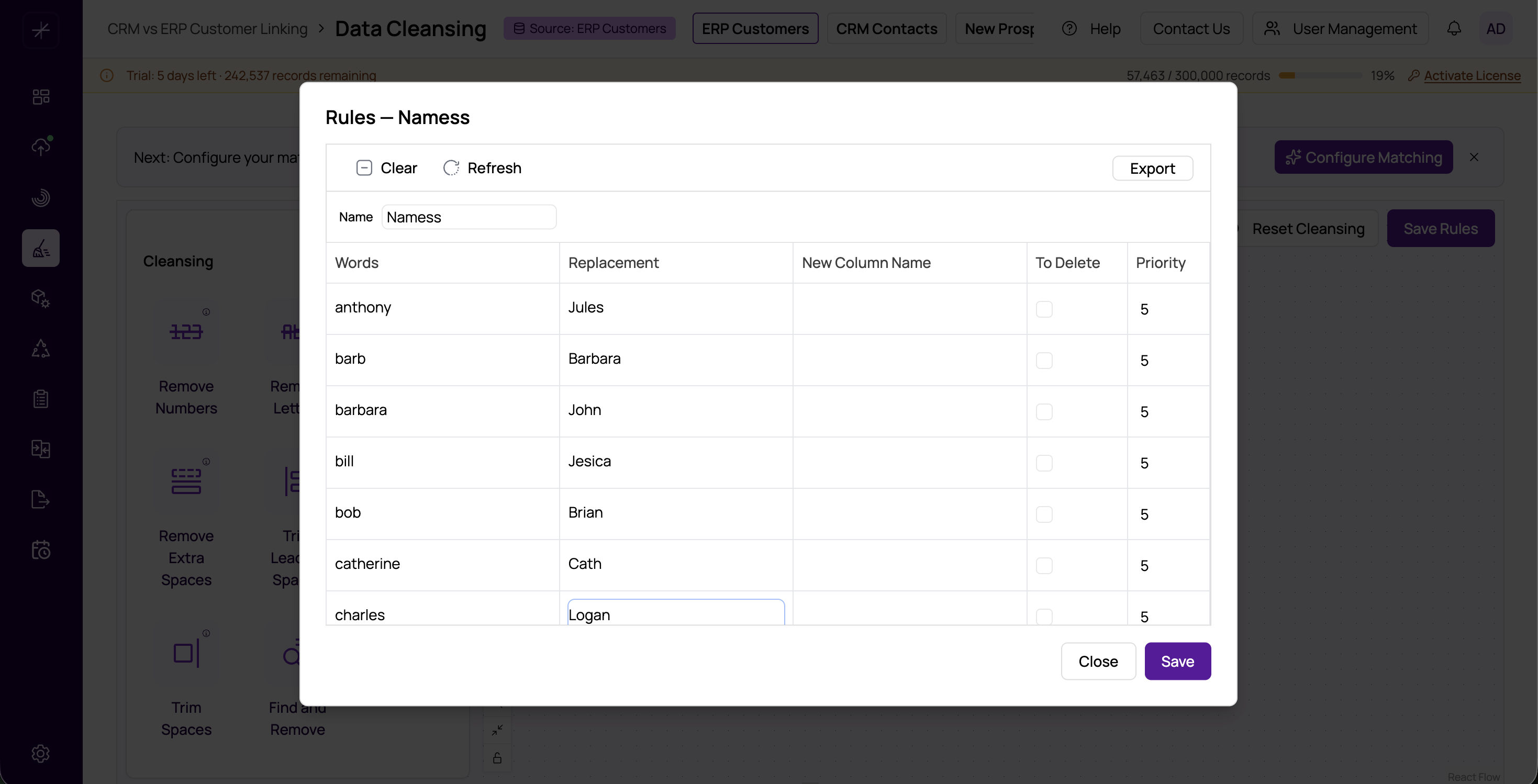
Each dictionary displays its rules in a paginated list. For each rule, you can see and edit:
- Word -- The text pattern to search for.
- Replacement -- The standardized value to substitute.
- Priority -- Determines order of application when multiple rules could match the same text.
You can add, edit, and delete individual rules, or clear the entire dictionary and start fresh. Dictionaries can also be exported for backup or sharing with colleagues.
Applying a WordSmith Dictionary
- Drag the WordSmith node from the Smart Operations category onto the canvas.
- Connect it into your workflow.
- In the properties panel, select the target field and the dictionary to apply.
Common Use Cases
- Address abbreviations -- Standardize street type abbreviations (St, Ave, Blvd) to full words.
- Company name variations -- Map "IBM", "I.B.M.", "International Business Machines" to a single canonical name.
- Title standardization -- Map "VP", "V.P.", "Vice Pres" to "Vice President".
- Country name normalization -- Map "USA", "US", "United States", "U.S.A." to a single value.
- Nickname resolution -- Map common nicknames to formal names: "Bill" to "William", "Bob" to "Robert".
Tip
You can also create a dictionary from existing column data using the "Create from Column" option. This analyzes the values in a selected column and helps you build a dictionary from the actual variations found in your data.
Important
WordSmith dictionaries are shared across your entire MatchLogic instance, not per-project. A dictionary you create for one project can be reused in others. Be thoughtful about naming and organizing your dictionaries.