Undo, Redo, and Workflow History
Building a cleansing workflow is an iterative process. You may add a node, realize it is in the wrong position, delete it, and then want it back. The Undo and Redo functionality in the flow builder lets you step backward and forward through your recent changes with confidence.
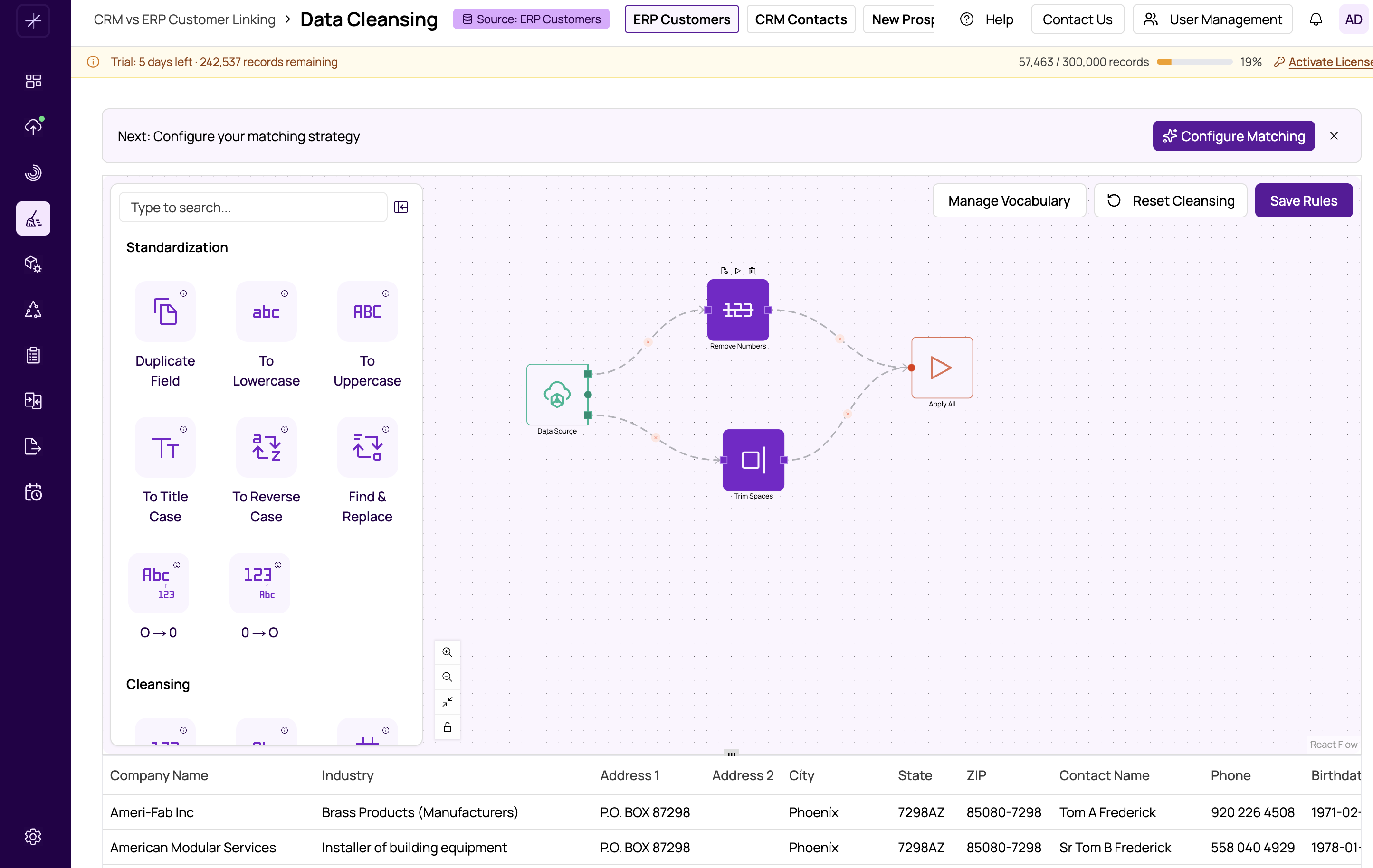
How Undo and Redo Work
The flow builder maintains a history of changes you make to the workflow. Each action you perform — adding a node, deleting a node, creating a connection, removing a connection, or changing a node property — is recorded as a step in the history.
- Undo — Reverts the most recent change, restoring the workflow to its previous state. You can undo multiple times to step further back through the history.
- Redo — Re-applies a change that was undone. This is only available after you have used Undo. If you make a new change after undoing, the redo history is cleared.
What Is Tracked
The following actions are recorded in the undo/redo history:
- Node additions — Dragging a new node onto the canvas.
- Node deletions — Removing a node from the canvas.
- Connection changes — Creating or deleting edges between nodes.
- Property changes — Modifying a node's configuration (e.g., changing the selected field or the replacement value).
- Node repositioning — Moving nodes to different positions on the canvas.
Using the Toolbar Buttons
The Undo and Redo buttons are located in the flow builder toolbar at the top of the canvas:
- Click the Undo button (or use the keyboard shortcut) to revert the last change.
- Click the Redo button to re-apply an undone change.
- The buttons are grayed out when there is nothing to undo or redo.
History Reset
The undo/redo history is reset when you save the workflow. After saving, the current state becomes the new baseline, and previous undo steps are no longer available. This means:
- If you save and then want to revert to a pre-save state, you will need to manually undo your changes or reload the last saved version.
- The history is also reset when you navigate away from the Data Cleansing module or switch to a different datasource.
Tip
If you are about to make a risky change — such as deleting several nodes or rearranging a complex workflow — save your work first. That way, if the changes do not work out, you can reload the saved version as a fallback.
Tip
Undo is especially useful when you accidentally delete a connection between nodes. Rather than manually reconnecting, just press Undo to restore the edge instantly.