Including and Excluding Field Mappings
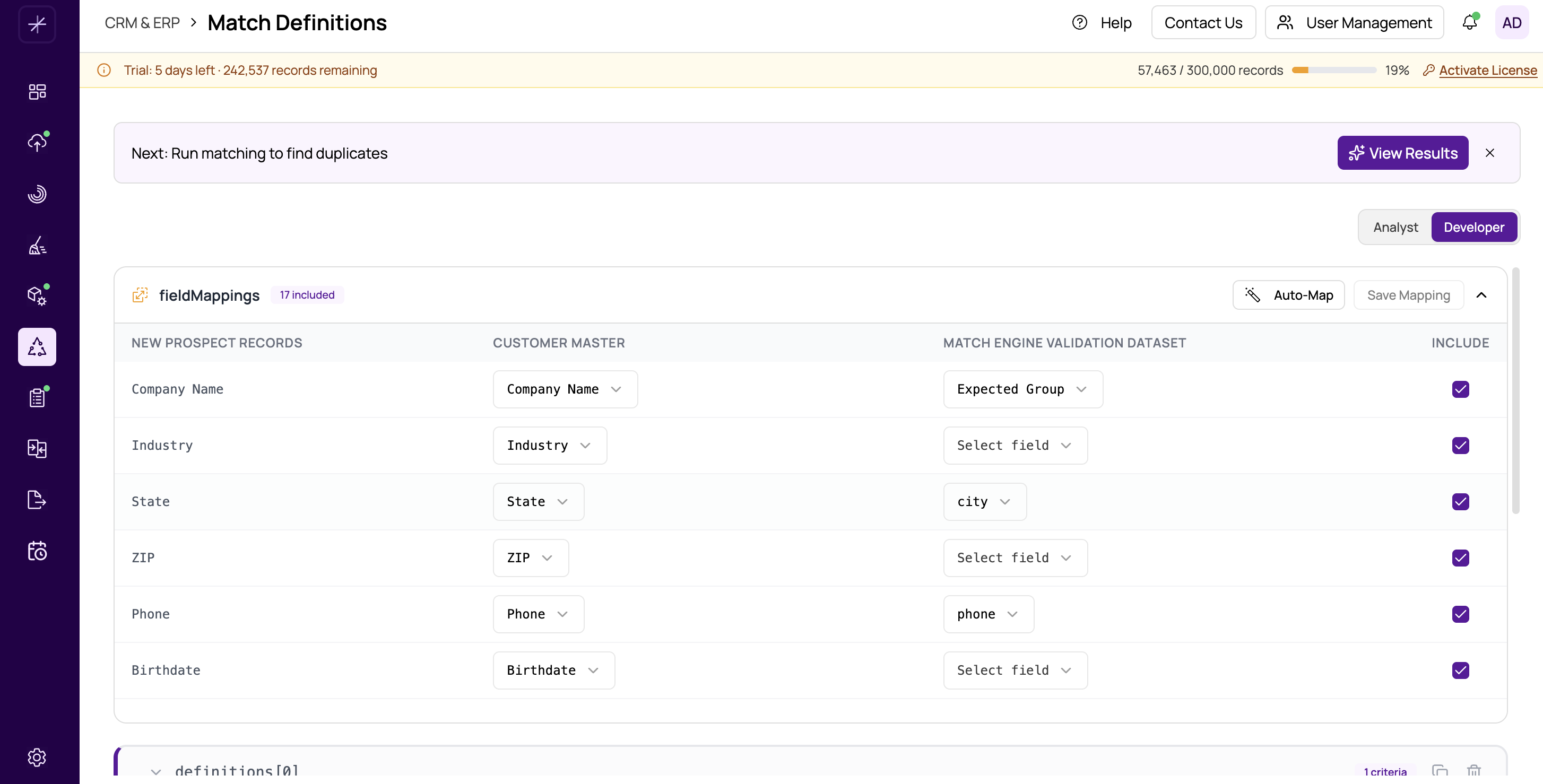
Each field mapping in the Field Mapping panel has an include/exclude checkbox that controls whether it is available for use in match definitions. This feature allows you to manage your mappings without permanently adding or removing them.
How It Works
In the field mapping table, every row has a checkbox on the left side:
- Checked (included) — the mapping is active. The mapped field pair appears in the criteria dropdown when configuring match definitions.
- Unchecked (excluded) — the mapping is grayed out and inactive. The field pair is not available as a match criterion. Any existing criteria referencing this mapping will be affected.
Excluding a mapping does not delete it. The mapping configuration (source field, target field) is preserved. You can re-include it at any time by checking the box again.
Why Exclude Instead of Delete
Excluding a mapping is a non-destructive operation. There are several situations where this is preferable to deleting:
- Testing and experimentation — temporarily remove a field from matching to see how it affects results, then add it back.
- Iterative refinement — exclude fields that produce too many false positives without losing the mapping configuration.
- Preserving work — if you spent time setting up a complex mapping (especially in multi-datasource scenarios), excluding it is safer than deleting and recreating it later.
Tip
Use the include/exclude feature to run A/B tests on your matching configuration. Run a match with all fields included, note the results, then exclude one field and run again. Compare the two result sets to determine each field's impact on match quality.
Effect on Match Definitions
When you exclude a mapping, the corresponding field pair is no longer available in the criteria selection for match definitions. If any existing match definitions already reference an excluded mapping, you will need to review and update those definitions before running a match.
Important
Always check your match definitions after excluding a mapping. A definition that references an excluded field may become invalid or produce unexpected results.
Workflow
- Open the Field Mapping panel on the Match Definitions page
- Review your current mappings
- Uncheck any mappings you want to temporarily exclude
- Click Save Mapping to persist the changes
- Update your match definitions if needed
- Run the match and review results
See https://help.matchlogic.io/article/397-field-mapping-between-datasources for the full guide on setting up mappings.