The Master Record Rules Tab
The Master Record Rules tab is where you define how field values are selected when creating the golden record for each duplicate group. Each rule targets a single field and specifies which operation to use and which data sources to consider.
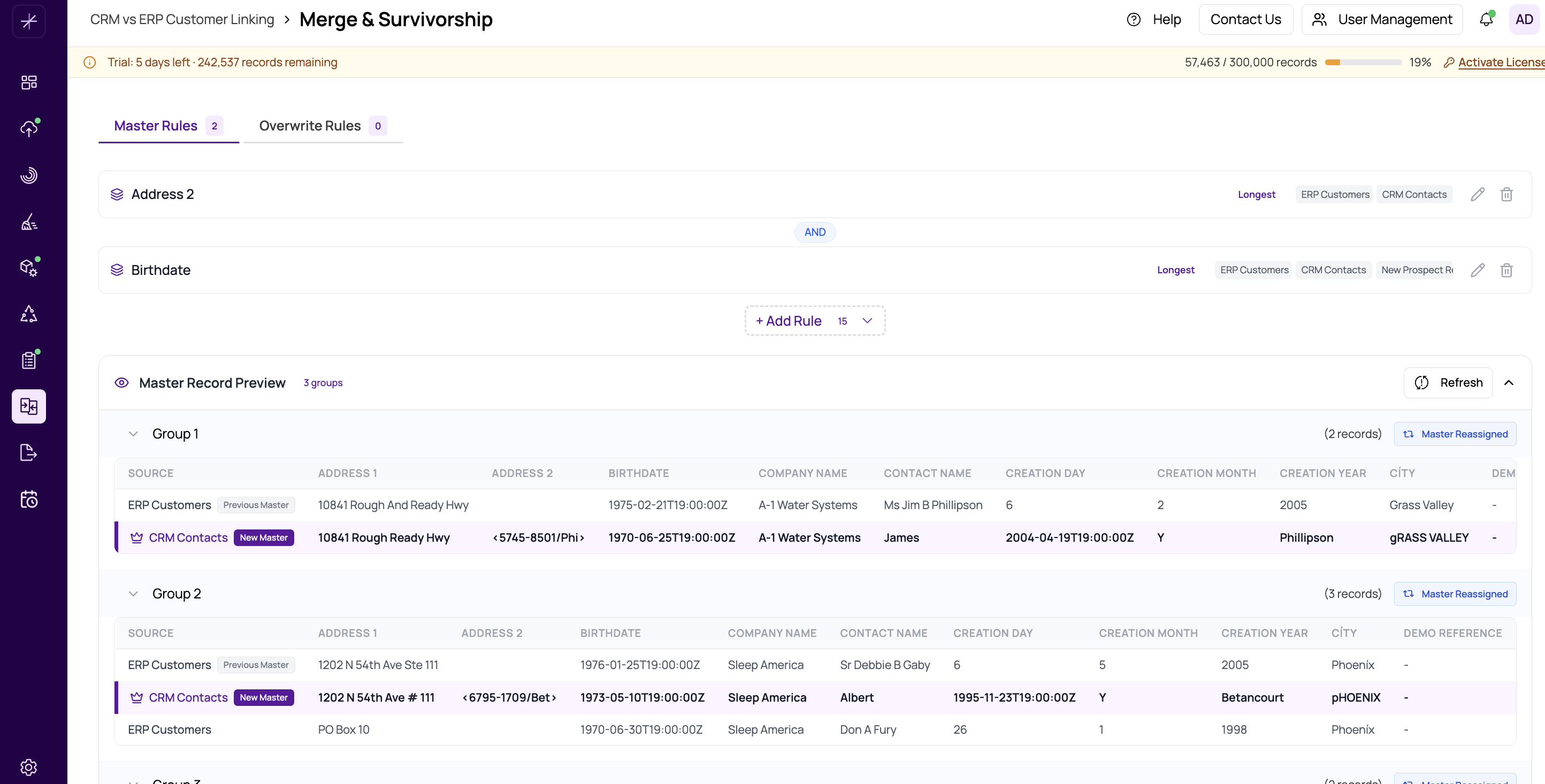
Rule Cards
Each configured field appears as a card showing:
- Field icon and name — the target field
- Operation badge — e.g., Longest, Max, Most Popular
- Active data sources — chips showing which sources are included
- Edit button (pencil icon) — opens the rule configuration dialog
- Delete button (trash icon) — removes the rule after confirmation
Adding a Rule
Click the Add Rule dropdown at the top of the rule list. It shows all fields that don't yet have a rule configured. Select a field to open the configuration dialog where you can set the operation and data sources.
Tip
You don't need rules for every field. Fields without rules simply take their value from the master record as determined by overall rule evaluation.
Configuring a Rule
In the rule configuration dialog:
- Take data from — Select one or more data sources to include in the comparison. Only values from selected sources are considered.
- Operation — Choose how to select the winning value: Longest, Shortest, Max, Min, Most Popular, First Non-Null, etc.
Click Save to activate the rule. It will appear in the rule card list and be included in the next preview or execution.
Preview
The Master Record Preview accordion at the bottom of the page shows sample output for 3 groups. Expand a group to see the resulting master record with all field values highlighted. A "Master Reassigned" badge appears if rules changed which record was selected as master.
For available operations, see Longest and Shortest, Max and Min, and Most Popular.