Adding and Configuring Rules
Rules are the core building blocks of the Merge and Survivorship process. This article walks through how to add a new rule on either the Master Rules or Overwrite Rules tab and how to configure it through the rule dialog.
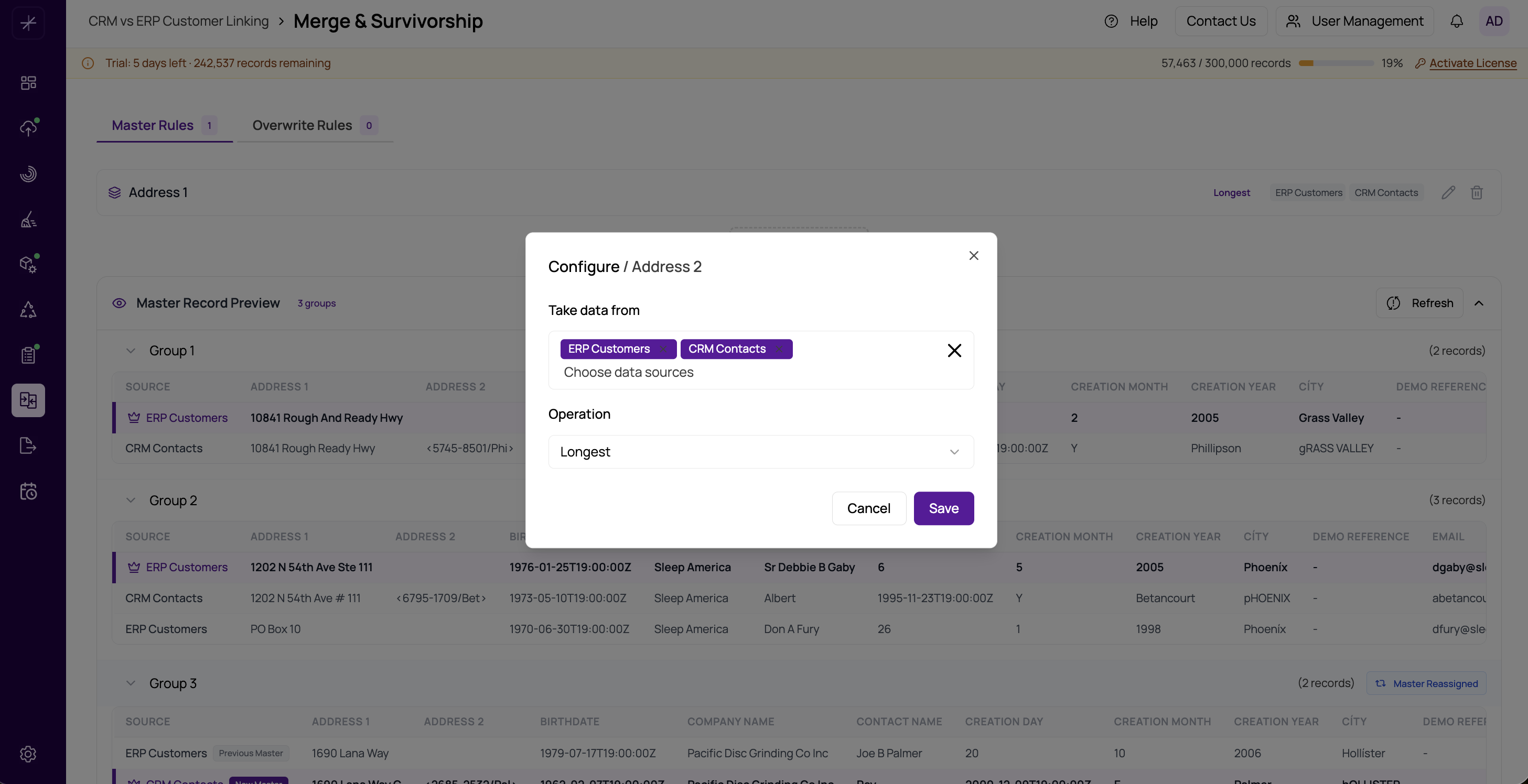
Adding a New Rule
- Navigate to either the Master Rules or Overwrite Rules tab on the Merge and Survivorship page.
- Click the Add Rule button. A dropdown appears listing all fields from your dataset that do not yet have a rule configured.
- Select the field you want to configure. The rule configuration dialog opens immediately.
Tip
Fields that already have a rule are not shown in the dropdown. If you cannot find a field, it likely already has a rule configured — scroll through the existing rule cards to find it.
The Rule Configuration Dialog — Master Rules
For a Master Record Rule, the dialog presents:
- Field name — pre-filled from the field you selected, read-only.
- Data Sources — a multi-select list of all data sources in the project. Select the sources whose records should be considered for this rule. Deselect sources you want to exclude.
- Operation — choose how the winning value is determined: Longest, Shortest, Max, Min, Most Popular, or Prefer Data Source. See the individual operation articles for guidance on choosing the right one.
The Rule Configuration Dialog — Overwrite Rules
For an Overwrite Rule, the dialog has the same field and data source controls, plus two additional settings:
- Operation — all Master Rule operations, plus From Master, From Best Record, and Merge All Values.
- Condition — when this rule should apply. Defaults to No Condition (always apply). See Overwrite Conditions for all options.
Saving the Rule
Click Save in the dialog to create the rule. It appears immediately as a new card on the relevant tab. New rules are enabled by default. The rule is not persisted to the server until you click Save Rules (the main save button on the page) or Save and Execute.
Important
Adding or modifying a rule in the dialog only updates the local UI state. You must click Save Rules or Save and Execute to commit your changes to the server. If you navigate away without saving, your changes will be lost.
Editing an Existing Rule
To modify a rule you have already created:
- Locate the rule card on the Master Rules or Overwrite Rules tab.
- Click the pencil icon on the card. The same configuration dialog opens, pre-populated with the current settings.
- Adjust the operation, data sources, or condition as needed.
- Click Save to apply the changes to the card.
- Click Save Rules or Save and Execute to persist to the server.
Deleting a Rule
Click the trash icon on the rule card to delete it. The card is removed immediately from the UI. As with edits, the deletion is not committed to the server until you save.