Export to Remote Storage
MatchLogic supports exporting your processed data directly to remote storage services, including Amazon S3, Azure Blob Storage, and FTP servers. This is ideal for automated workflows where the output needs to land in a shared storage location accessible by other systems or team members.
Supported Storage Services
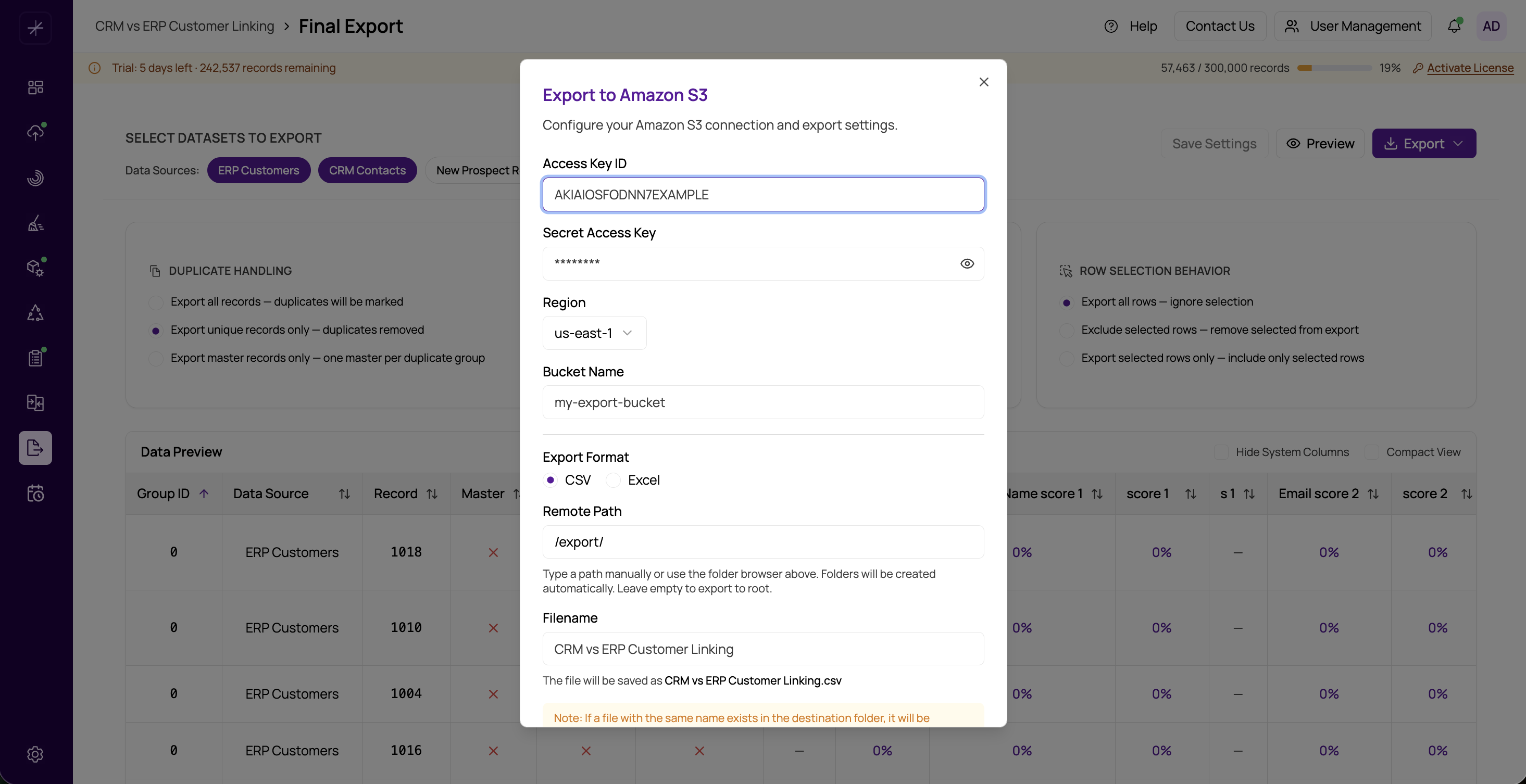
Amazon S3
Export directly to an S3 bucket. Provide the following connection details:
- Access Key ID and Secret Access Key — Your AWS credentials with write access to the target bucket.
- Region — The AWS region where the bucket is hosted (e.g.,
us-east-1). - Bucket Name — The name of the target S3 bucket.
- Path — The folder path within the bucket where the file will be placed (e.g.,
exports/2024/).
Azure Blob Storage
Export to an Azure Blob container. Provide:
- Connection String — The Azure Storage connection string, which includes the account name and access key.
- Container Name — The name of the blob container.
- Path — The virtual directory path within the container.
FTP
Export to an FTP or FTPS server. Provide:
- Host — The FTP server address.
- Port — The FTP port (default: 21).
- Username and Password — FTP credentials with write access.
- Path — The directory on the FTP server where the file will be uploaded.
File Format
After configuring the storage destination, choose the file format for the exported file:
- CSV — With configurable delimiter settings (see https://help.matchlogic.io/article/298-export-to-csv).
- Excel — XLSX format (see https://help.matchlogic.io/article/299-export-to-excel).
The file is generated locally and then uploaded to the specified remote location.
Step by Step
- Select the remote storage type (S3, Azure Blob, or FTP).
- Enter the connection credentials and target path.
- Choose CSV or Excel as the output format.
- Configure any format-specific settings (delimiter, sheet name, etc.).
- Click Export to generate and upload the file.
Tip
The connection forms for remote storage export are the same as those used during data import. If you have already configured a connection for importing data from one of these services, you can use the same credentials and settings.
Important
Ensure your credentials have write permissions to the target location. Read-only credentials will cause the export to fail after the data is processed, wasting processing time.