Retry Configuration
Scheduled workflows can fail for reasons that are temporary — a database connection that times out, a network hiccup during file import, or a brief resource contention on the server. Retry configuration lets the scheduler automatically attempt the workflow again after a failure, without requiring manual intervention.
Configuring Retries
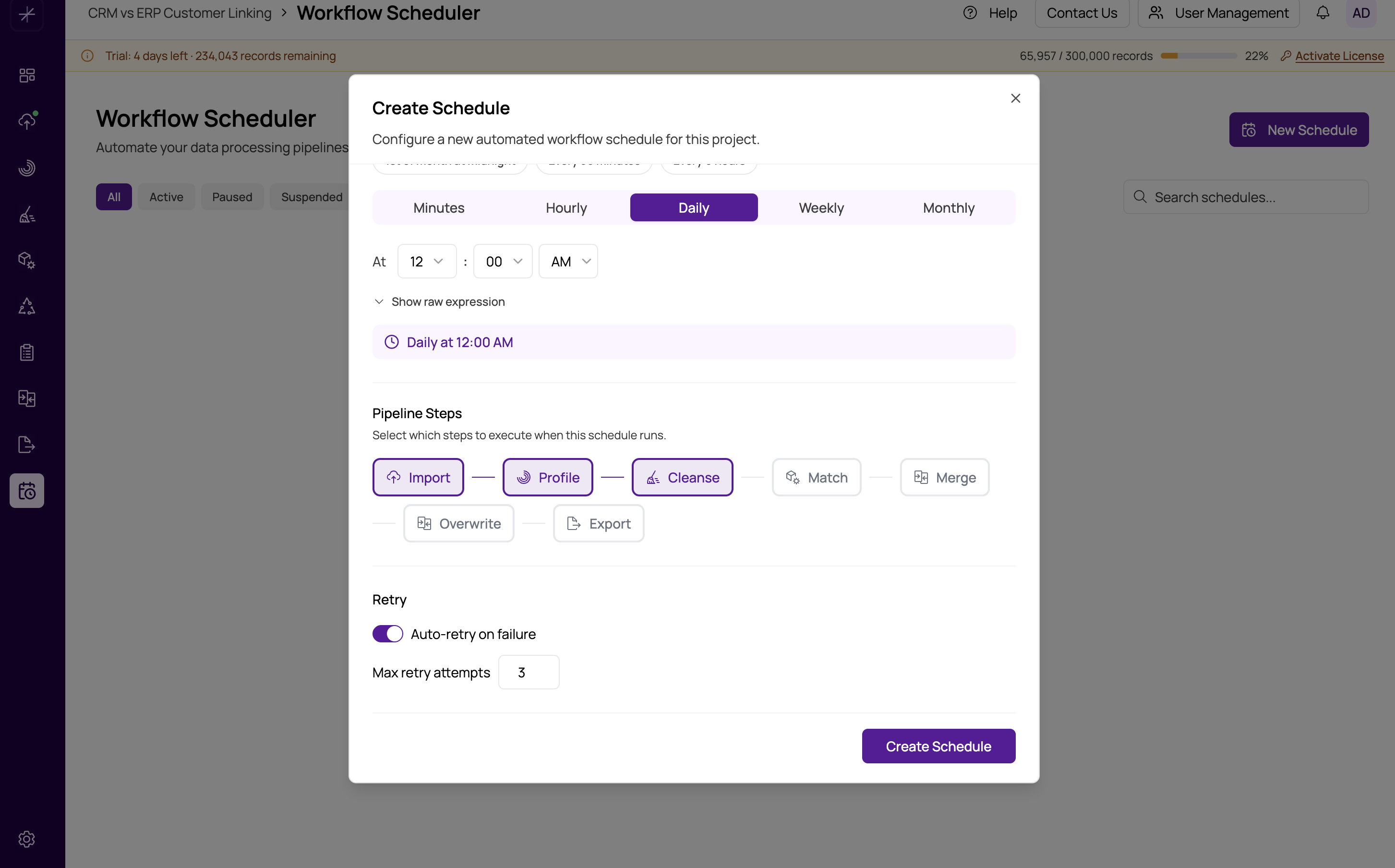
The retry setting is found in the workflow creation form and in the edit panel, in the Advanced Settings or Retry section. You select the maximum number of retry attempts:
- 0 retries — no automatic retries. If the workflow fails, it is marked Failed immediately and a notification is sent (if configured).
- 1 retry — one additional attempt after the initial failure.
- 2 retries — up to two additional attempts.
- 3 retries — up to three additional attempts (maximum).
How Retries Work
When a workflow execution fails, the scheduler waits a short delay before attempting the retry. The delay increases between attempts (exponential backoff) to give transient issues time to resolve:
- After the 1st failure: retries after approximately 1 minute.
- After the 2nd failure: retries after approximately 5 minutes.
- After the 3rd failure: retries after approximately 15 minutes.
Each retry runs the full workflow from the beginning — it does not resume from the step that failed. This ensures data consistency across all steps.
Retries count as separate execution attempts in the Execution History. You will see each attempt listed with its outcome, making it easy to trace whether a failure resolved on retry or persisted through all attempts.
When the Last Retry Fails
If all retry attempts are exhausted and the workflow still fails, the execution is marked Failed. At this point:
- A failure notification is sent (if configured in Notification Settings).
- The workflow remains Active — it will still attempt to run at the next scheduled time.
- If the workflow repeatedly fails over multiple scheduled runs, the scheduler may auto-suspend it to prevent resource waste. See Managing Schedule Lifecycle for details on the Suspended state.
When to Use Retries
Retries are most valuable for:
- Database-connected imports — network timeouts or brief connection limits on the source database are common and usually resolve within a few minutes.
- Remote storage access — file imports from network shares or remote storage (S3, FTP) that may experience intermittent availability.
- High-load environments — servers where occasional resource contention causes jobs to fail under load but succeed when retried during a quieter moment.
Retries are less useful for:
- Configuration errors — if Match fails because no match definitions exist, retrying will produce the same result. Fix the underlying configuration issue instead.
- Data errors — if Import fails because the source file is malformed or the source database table has been dropped, retrying will not help. Investigate the root cause.
Setting 3 retries on a workflow that fails due to a persistent configuration problem will delay failure notification by up to 20 minutes (the total backoff time). For workflows where the failure cause is likely non-transient, set retries to 0 so you are alerted immediately and can investigate sooner.