Viewing Execution History
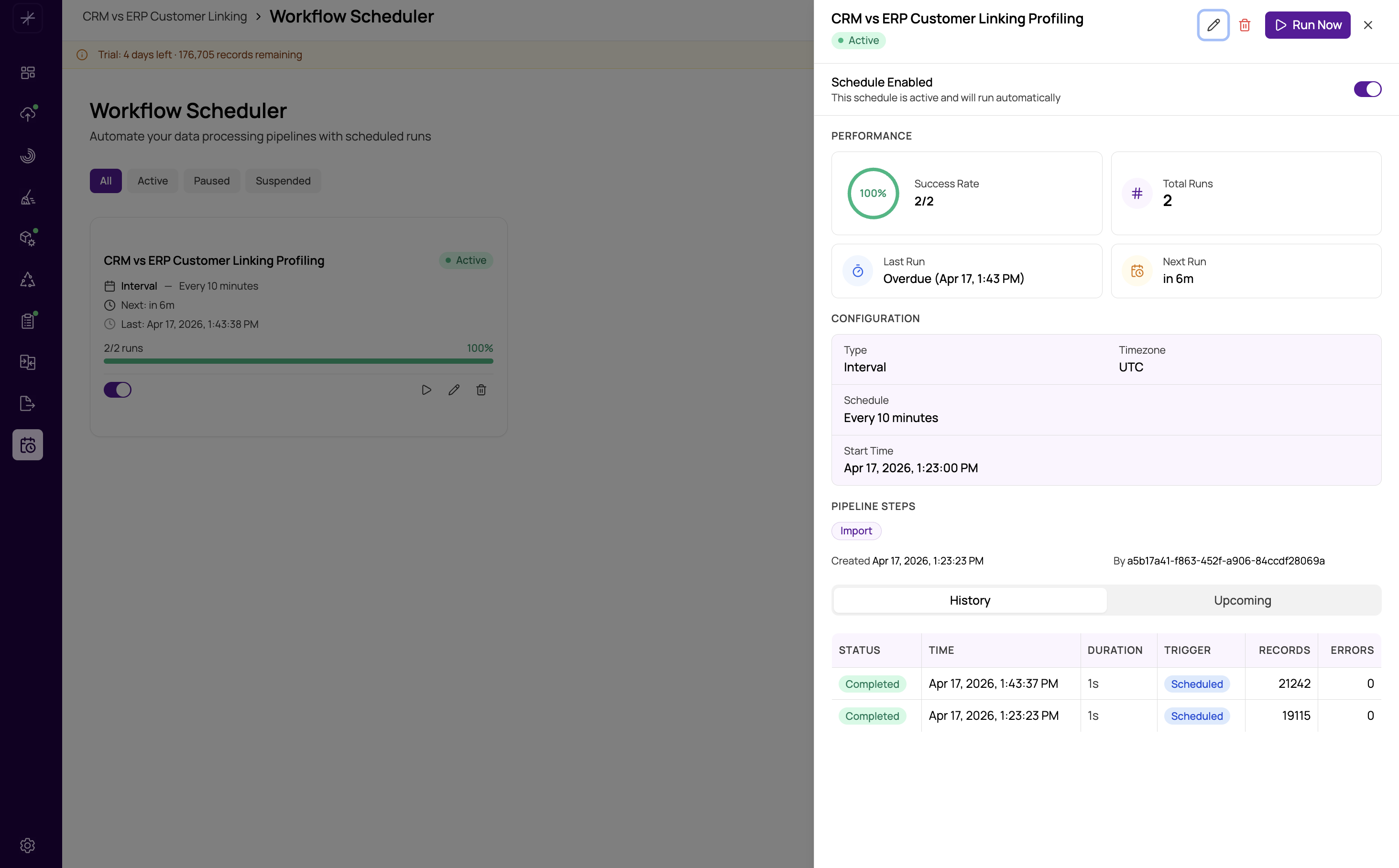
Every time a scheduled workflow runs — whether triggered automatically by its schedule, manually via Run Now, or as a retry — the result is recorded in the Execution History. This log gives you a complete audit trail of past runs and is the primary place to diagnose failures.
Accessing Execution History
Open a workflow's detail page by clicking its name or card in the scheduler list. The detail page has an Execution History tab that lists all past runs for that workflow.
What the History Table Shows
Each row in the execution history represents one run attempt. The columns are:
- Date / Time — when the execution started.
- Status — the outcome: Success, Failed, or Cancelled.
- Duration — how long the execution took from start to finish (or to the point of failure).
- Records Processed — the number of records that passed through the pipeline (typically the record count of the imported dataset).
- Trigger — whether the run was scheduled automatically or triggered manually.
- Error — for failed runs, a brief summary of the error message.
Expanding a Run for Step-Level Details
Click any row in the execution history to expand it and see a per-step breakdown of the execution. This shows each pipeline step that ran, its individual status, how long it took, and any error message it produced.
The step-level view is critical for diagnosing failures. Rather than just knowing "the workflow failed," you can see exactly which step failed and what the error was. Common failure patterns visible here include:
- Import succeeded but Match failed with "No match configuration found" — the match definitions were not set up in the project.
- Import failed with a connection error — the source database was unavailable.
- Cleanse succeeded but Export failed — the export destination (file path, database, or remote storage) was not reachable.
- Match succeeded but Merge failed — survivorship rules reference a field that no longer exists in the data.
For a deeper explanation of what each column in the step breakdown means, see Step-Level Execution Statistics.
Status Meanings
- Success — all selected pipeline steps completed without error.
- Failed — one or more steps failed and all retries (if configured) were exhausted.
- Cancelled — the execution was manually cancelled before it completed, or it was cancelled because the workflow was paused or archived while running.
Using History to Track Trends
Beyond diagnosing individual failures, execution history is useful for tracking patterns over time:
- Is the pipeline getting slower as the dataset grows? Compare duration across older and newer runs.
- Are failures clustering around a specific time of day? This might indicate resource contention during peak server load.
- How many records is the pipeline processing per run? A sudden drop in records processed might indicate an upstream data source issue.
Execution history is retained for a rolling period. Older entries are eventually purged. If you need to retain execution records for compliance or audit purposes, export or document them before they age out.