A Module Is Locked
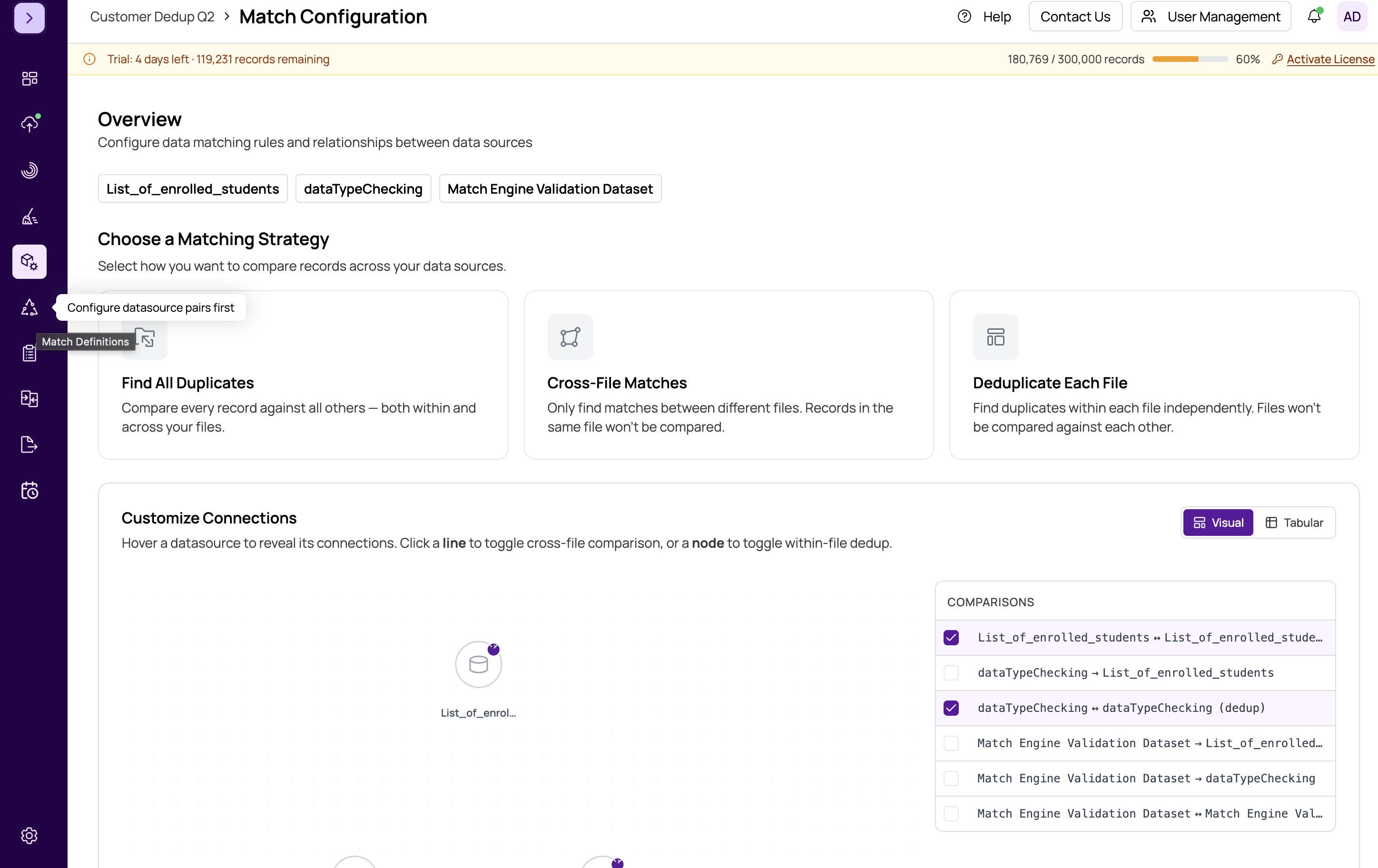
MatchLogic guides you through a structured pipeline. Each module unlocks only after its prerequisites are complete. If you see a lock icon on a sidebar item, a prior step needs to be finished before you can proceed.
Pipeline Unlock Order
The modules unlock in this sequence:
- Data Import — always available once a project is selected
- Data Profiling — requires at least one datasource successfully imported
- Data Cleansing — requires Data Profiling to have been run on at least one datasource
- Match Configuration — requires at least one datasource imported
- Match Definitions — requires Match Configuration to be saved with at least one datasource pair
- Match Results — requires Match Definitions to be configured and the matching job to have been run
- Merge & Survivorship — requires a completed matching job in Match Results
- Final Export — requires matching to be completed
How to Diagnose Which Step Is Missing
Look at the left sidebar. Each pipeline step shows a status indicator:
- Filled circle — step completed
- Empty circle — step not yet started or incomplete
- Lock icon — step cannot be accessed yet
Find the first step that is not filled and complete it. That will unlock the next module in the chain.
Common Scenarios
- Match Definitions is locked — go to Match Configuration, configure your datasource pairs, and click Save.
- Merge & Survivorship is locked — go to Match Results, run the matching job, and wait for it to complete.
- Data Cleansing is locked — open Data Profiling and run the profiling job on your datasource first.
- Match Results is locked even though definitions are set — you need to click "Run Match" inside Match Results to trigger the matching job. Saving definitions alone does not run the job.
Note: Match Configuration and Data Profiling both require only an imported datasource, so they can be accessed independently of each other once import is complete.
Steps Still Locked After Completing Prerequisites?
If a module remains locked after you believe you have completed the prerequisites:
- Refresh the page — the sidebar status may not have updated.
- Verify the correct project is selected — check the project name at the top of the sidebar.
- Confirm the job finished — open the Job Status Dialog (clock icon in the header) and verify the relevant job shows "Completed," not "In Progress" or "Failed."
- If a job failed, fix the underlying issue and re-run it before proceeding.
Important: Navigating away while a job is running does not cancel it. Background jobs continue running and will unlock the next module when they finish. You do not need to stay on the page.