My Import Failed
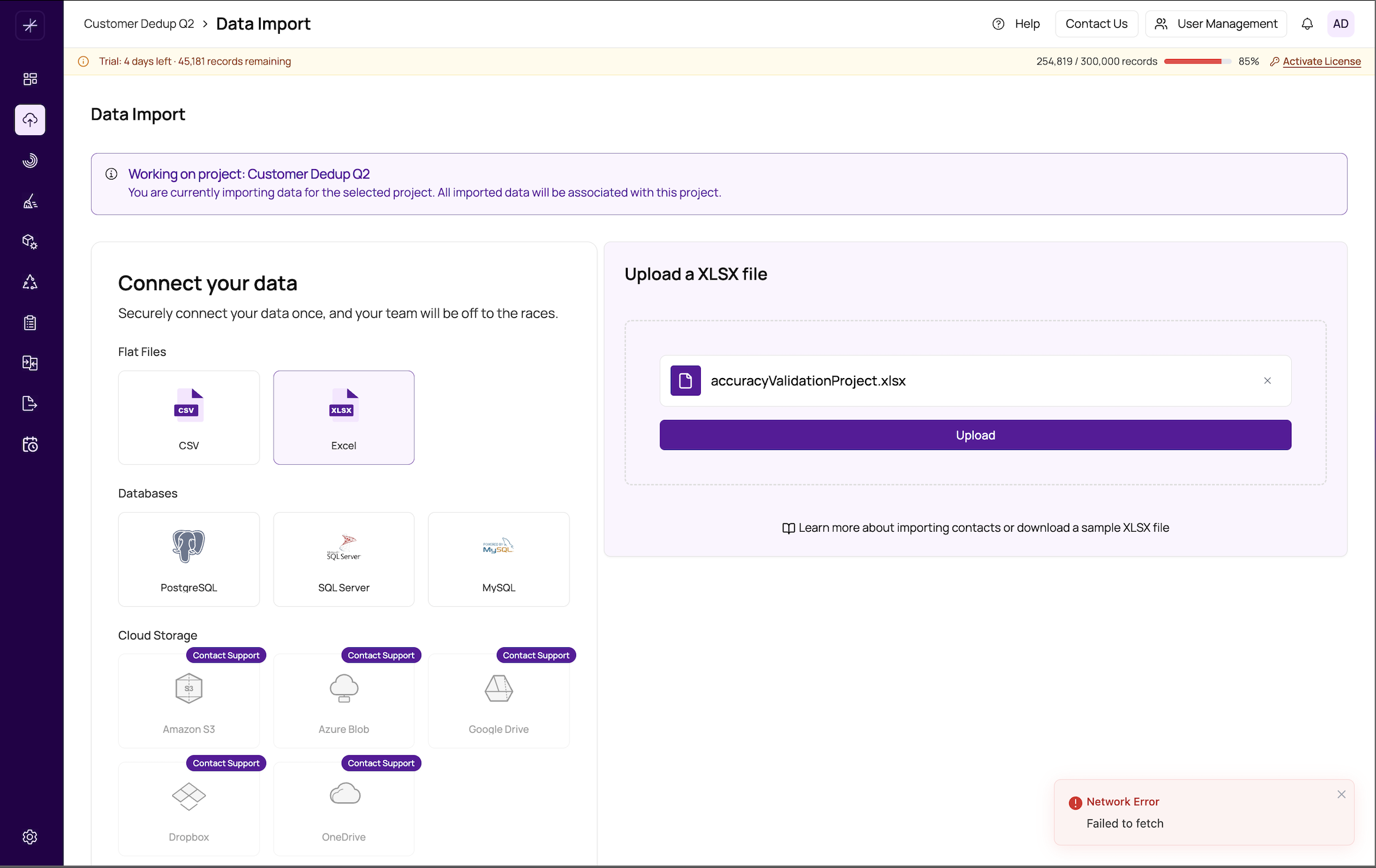
Import failures are usually caused by file formatting issues, connection problems, or configuration mismatches. The error message shown in the Job Status Dialog is the best starting point for diagnosis.
How to View the Error
Click the clock icon in the top header to open the Job Status Dialog. Find the failed import job and expand it to see the error detail. The message will usually indicate whether the issue is with the file itself, the connection, or the table structure.
File-Based Import Issues
File Encoding
CSV files must be encoded in UTF-8. Files saved in Latin-1, Windows-1252, or other encodings may fail or import garbled characters. To fix this, open the file in a text editor (e.g., VS Code or Notepad++) and re-save it with UTF-8 encoding.
Excel Files with Merged Cells or Multi-Row Headers
MatchLogic expects a flat table: one header row followed by data rows. Files with merged cells, multiple header rows, summary rows at the top, or data split across multiple worksheets will fail or import incorrectly. Flatten the structure in Excel before importing.
Large Files
Large files (hundreds of thousands of rows or more) take time to process. The import runs as a background job — do not close the browser prematurely. If the job appears to be taking over 30 minutes, check the Job Status Dialog for any error or progress indication.
Tip: There is no file size limit enforced by MatchLogic. Very large files will simply take longer to import and profile.
Database Import Issues
Connection Refused
If the connection is refused, verify the server address, port number, and that no firewall is blocking the connection. The MatchLogic server (not your browser) initiates the database connection, so the database must be reachable from the server's network location.
Wrong Credentials
Double-check the username and password. Passwords are case-sensitive. If you recently changed the database password, update it in MatchLogic and re-test the connection before importing.
Table Does Not Exist
If the selected table or view no longer exists — or was renamed — the import will fail. Return to the table selection step and verify the table is still present in the database. On some database systems, table names are case-sensitive.
Schema Changed Since Last Import
If you are refreshing an existing datasource and the underlying table's column structure has changed, the import may fail. Delete the existing datasource and re-import with fresh column mappings.
After fixing the issue: Return to Data Import, select or re-upload your source, and re-run the import. Failed imports do not leave a partial datasource — you will need to start a new import.