Database Connection Won't Connect
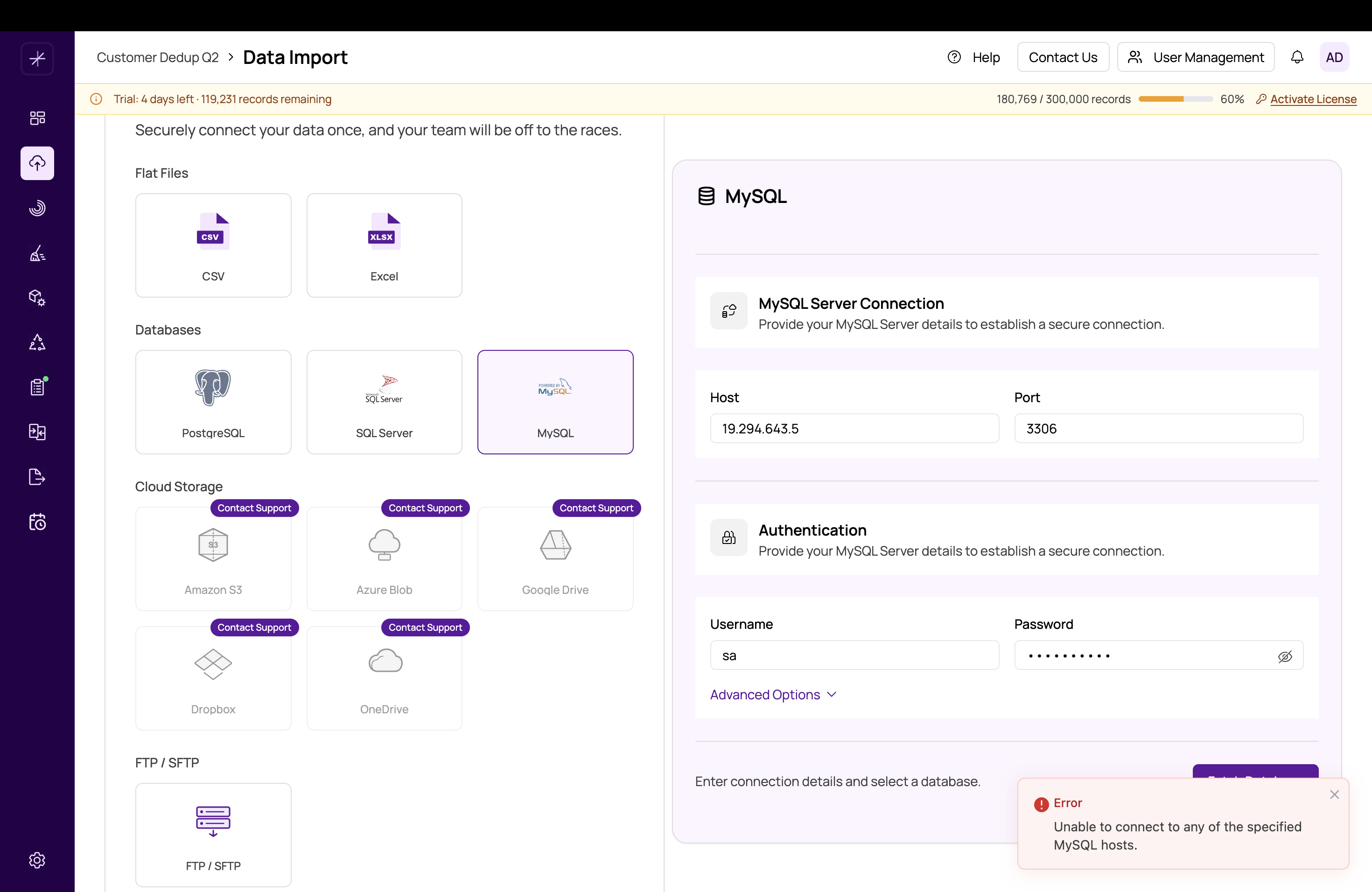
If the "Test Connection" button returns an error or the import fails immediately, work through this checklist to identify the cause.
Always use "Test Connection" on the connection form before attempting an import. It confirms the connection parameters are valid before any data is transferred.
Connection Checklist
1. Hostname or IP Address
Verify the server hostname or IP address is correct and reachable from the MatchLogic server — not just from your local machine. If MatchLogic is hosted remotely, the database must be accessible from that server's network.
2. Port Number
Confirm the correct port is open and not blocked by a firewall:
- SQL Server: 1433 (default)
- MySQL: 3306 (default)
- PostgreSQL: 5432 (default)
- Snowflake: 443 (HTTPS)
If your database runs on a non-standard port, enter it explicitly in the port field.
3. Firewall Rules
The database server's firewall must allow inbound connections from the MatchLogic server's IP address on the database port. Contact your database or network administrator to verify and update firewall rules if needed.
4. Authentication Type (SQL Server)
SQL Server supports two authentication modes:
- SQL Server Authentication: Use a SQL login username and password.
- Windows Authentication: Uses the service account running MatchLogic. This requires MatchLogic and SQL Server to be on the same domain.
Confirm which mode your SQL Server instance requires and configure accordingly.
5. SSL/TLS and Certificate Trust
If your database requires SSL/TLS and uses a self-signed certificate, the connection will fail with a certificate validation error. Enable the Trust Server Certificate option in the connection settings to bypass strict certificate validation for self-signed certificates.
6. Database Name
The database name must be spelled exactly as it exists on the server. Database names are case-sensitive on Linux-hosted MySQL and PostgreSQL instances. Verify the name in your database management tool before entering it in MatchLogic.
7. User Permissions
The database user must have at minimum SELECT permission on the target table or view. If the user exists but lacks permissions, the connection test may succeed while the actual data preview or import fails. Grant appropriate read permissions to the user.
Still Failing?
If all settings appear correct but the connection still fails:
- Try connecting to the database from the MatchLogic server directly using a command-line client (e.g.,
sqlcmd,mysql, orpsql) to rule out application-level issues. - Check the MatchLogic server logs for a detailed error message — connection errors are logged with the underlying driver's error text.
- Verify the database service is running on the target server.
Snowflake note: Snowflake connections require the account identifier in the format orgname-accountname or the legacy account.region format. Incorrect account identifiers are a common source of connection failures.