OAuth Connection Issues
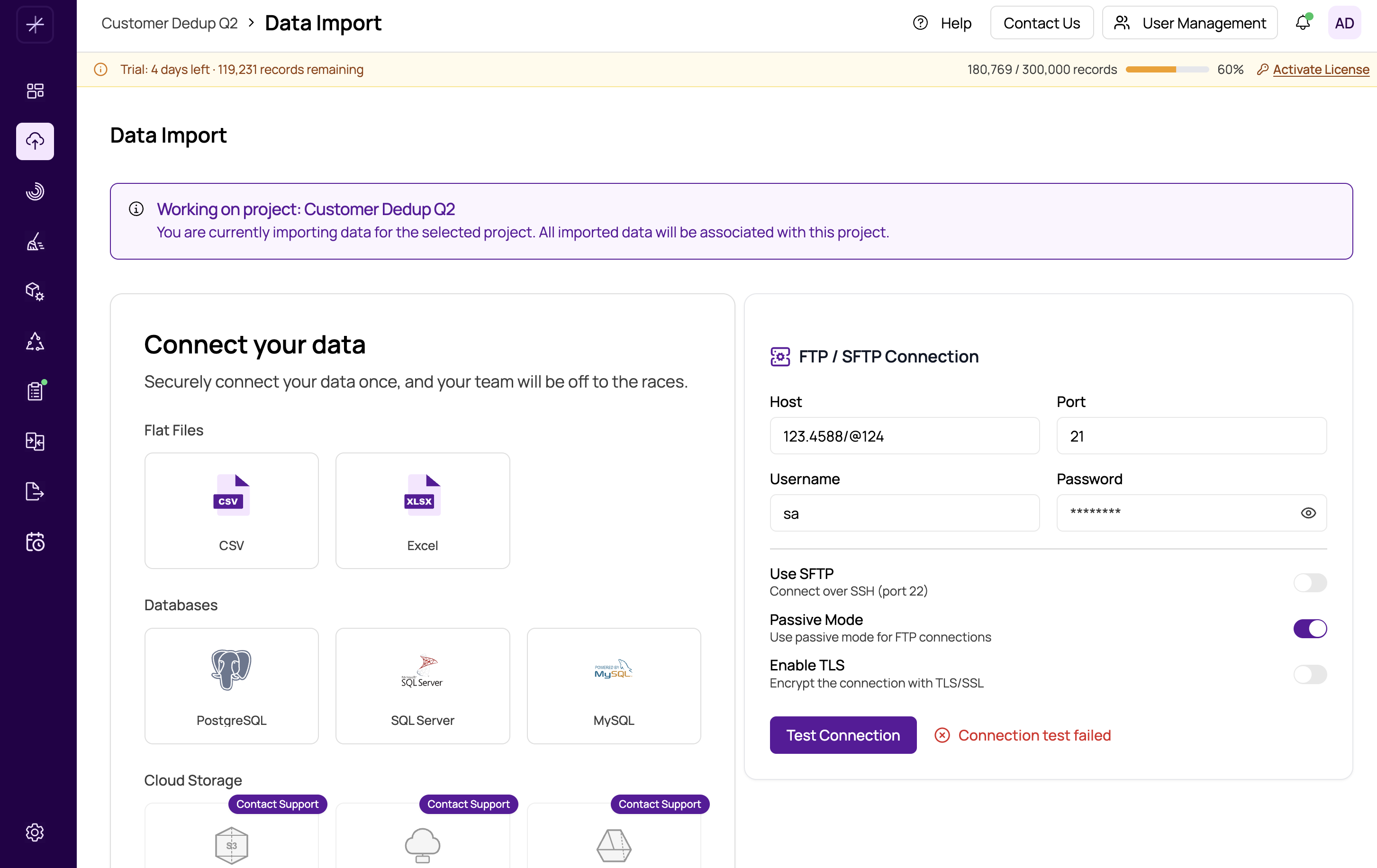
MatchLogic can connect to cloud storage providers — Google Drive, Dropbox, and OneDrive — using OAuth for authentication. OAuth tokens are time-limited, so connections that worked previously may stop working when the token expires or is revoked.
Token Expired
OAuth access tokens typically expire after a short period (often 1–2 hours), while refresh tokens last longer but can also expire if unused. When you see an authentication error on a previously working cloud connection:
- Open Data Import and select the cloud storage source type.
- Click Re-authenticate next to the connected account.
- Complete the login flow in the popup window.
- Retry the import.
Tip: Re-authenticating does not delete your existing datasource or import history. It simply refreshes the token used for future connections.
Account Permissions Revoked
If a user or administrator has revoked MatchLogic's access in the cloud provider's settings, re-authentication will be required even if the token has not yet expired. To resolve this:
- Log in to your cloud provider (e.g., Google Account settings, Dropbox app authorizations, Microsoft account permissions).
- Find MatchLogic in the list of connected applications.
- Re-authorize or remove and re-add the application.
- Return to MatchLogic and re-authenticate.
Browser Popup Blocked
OAuth authentication opens a popup window for the provider's login page. If your browser blocks popups, the authentication flow will silently fail. To fix this:
- Look for a popup-blocked notification in your browser's address bar.
- Click it and choose Always allow popups from the MatchLogic domain.
- Click Re-authenticate again to restart the flow.
Wrong Account Linked
If you authenticated with the wrong Google, Dropbox, or Microsoft account and the files you need are in a different account:
- Click Disconnect on the cloud connection.
- Click Connect again and complete the OAuth flow with the correct account.
- If the browser automatically signs in with the wrong account, sign out of that account in the browser first, then retry.
FTP and S3 Connection Issues
FTP and S3 connections use credential-based authentication rather than OAuth:
- FTP: Verify the host, port (default 21 for FTP, 22 for SFTP), username, and password. Ensure the server allows connections from the MatchLogic server's IP.
- S3: Verify the Access Key ID, Secret Access Key, bucket name, and region. The IAM user must have
s3:GetObjectands3:ListBucketpermissions on the target bucket.
After re-authenticating: Always retry the import from scratch rather than resuming a previously failed job. The failed job's context is cleared once authentication is reset.