Background Job Stuck or Won't Cancel
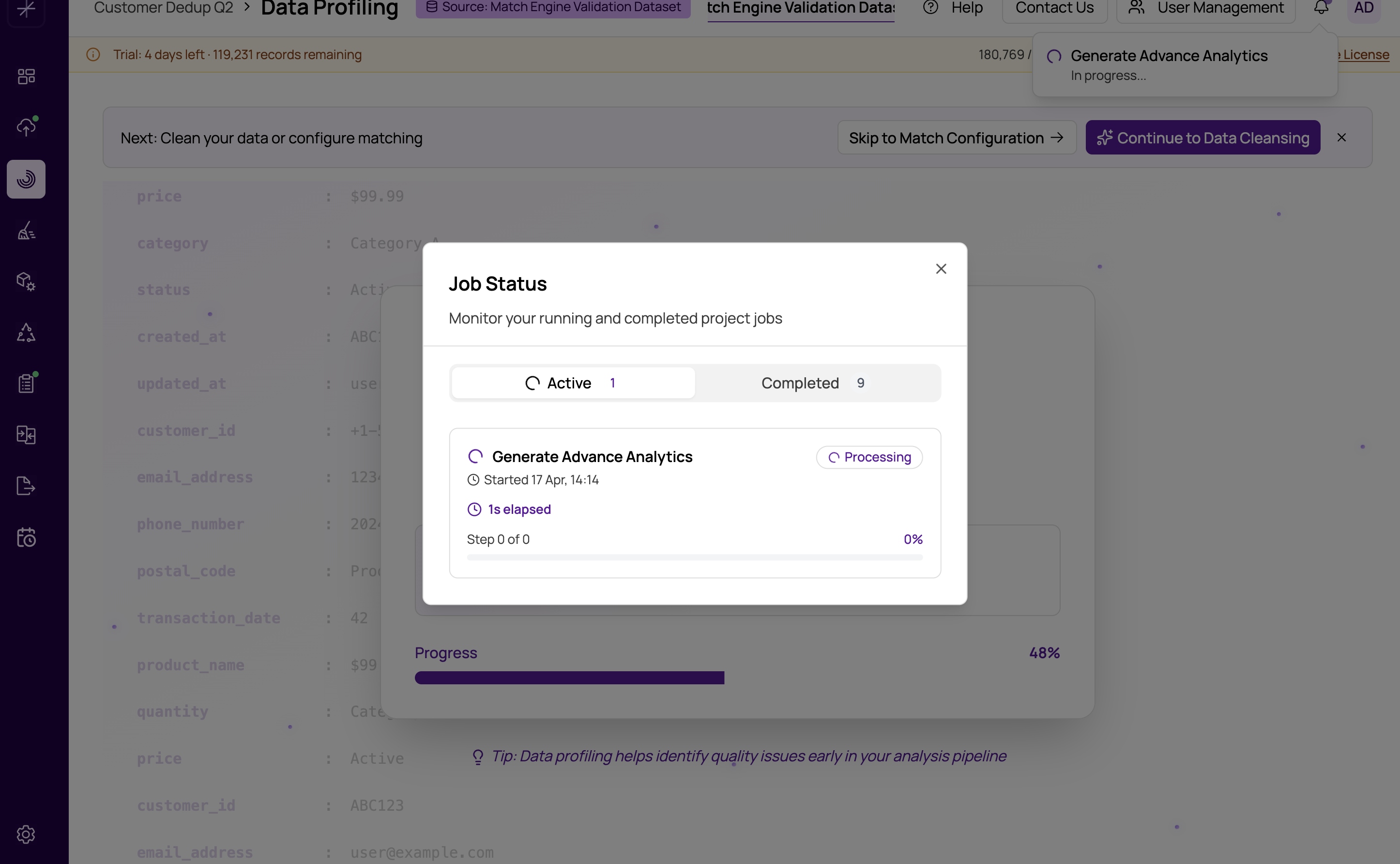
Long-running jobs (import, profiling, matching, export) run as background processes on the MatchLogic server. Occasionally a job may appear to be stuck — not progressing and not failing. This article explains how to assess the situation and what to do.
Before Assuming It Is Stuck
Some jobs legitimately take a long time. Wait for the following durations before concluding a job is stuck:
- Import: Up to 15 minutes for very large files or slow database connections.
- Profiling: Up to 60 minutes for datasets with 1M+ rows and many columns.
- Matching: Up to 60 minutes for large datasets with multiple match definitions.
- Export: Up to 30 minutes for large database exports with slow write speeds.
Check the Job Status Dialog. Open it via the clock icon in the header. It may show progress details or an error message that the main page is not displaying. A job showing "In Progress" with a recent timestamp is still running normally.
Steps to Take If the Job Is Genuinely Stuck
1. Cancel and Retry
In the Job Status Dialog, click Cancel on the stuck job. Wait for the cancellation to be confirmed (status changes to "Cancelled"). Once cancelled, fix any underlying issue and re-run the job from the relevant module.
2. If Cancel Does Not Respond
Cancellation is a request — the job must reach a cancellable checkpoint to honor it. Jobs that are in the middle of a large database write or a memory-intensive computation may not respond to cancel immediately.
- Wait 2–3 minutes after clicking Cancel before concluding it is not responding.
- If still unresponsive, the job is likely in a non-interruptible phase. Wait for it to complete or fail naturally — forcing a cancel may leave data in an inconsistent state.
- As a last resort, restart the MatchLogic API service. This will terminate all running jobs. Re-run them after the service restarts.
3. Refresh the Browser
Sometimes the job completes but the browser's UI state does not update, making it appear stuck. A full page refresh will re-sync the frontend with the current job state. If the job actually completed, the relevant module will be unlocked and results will be available.
4. Check Server Logs
If you have access to the MatchLogic server, check the application logs for errors or warning messages related to the stuck job. Common causes logged include out-of-memory errors, database timeouts, and unhandled exceptions in the processing pipeline.
5. Check Server Resources
A job that is processing but using 100% CPU or all available memory may appear frozen from the UI's perspective. Check the server's CPU and memory utilization. If resources are fully saturated, the job is running but extremely slowly.
Do not start a new job of the same type while an existing one is running. Running duplicate jobs concurrently on the same datasource or project can cause data corruption and unpredictable results. Always confirm a job has completed or been cancelled before starting a new one.