Scheduled Workflow Failed
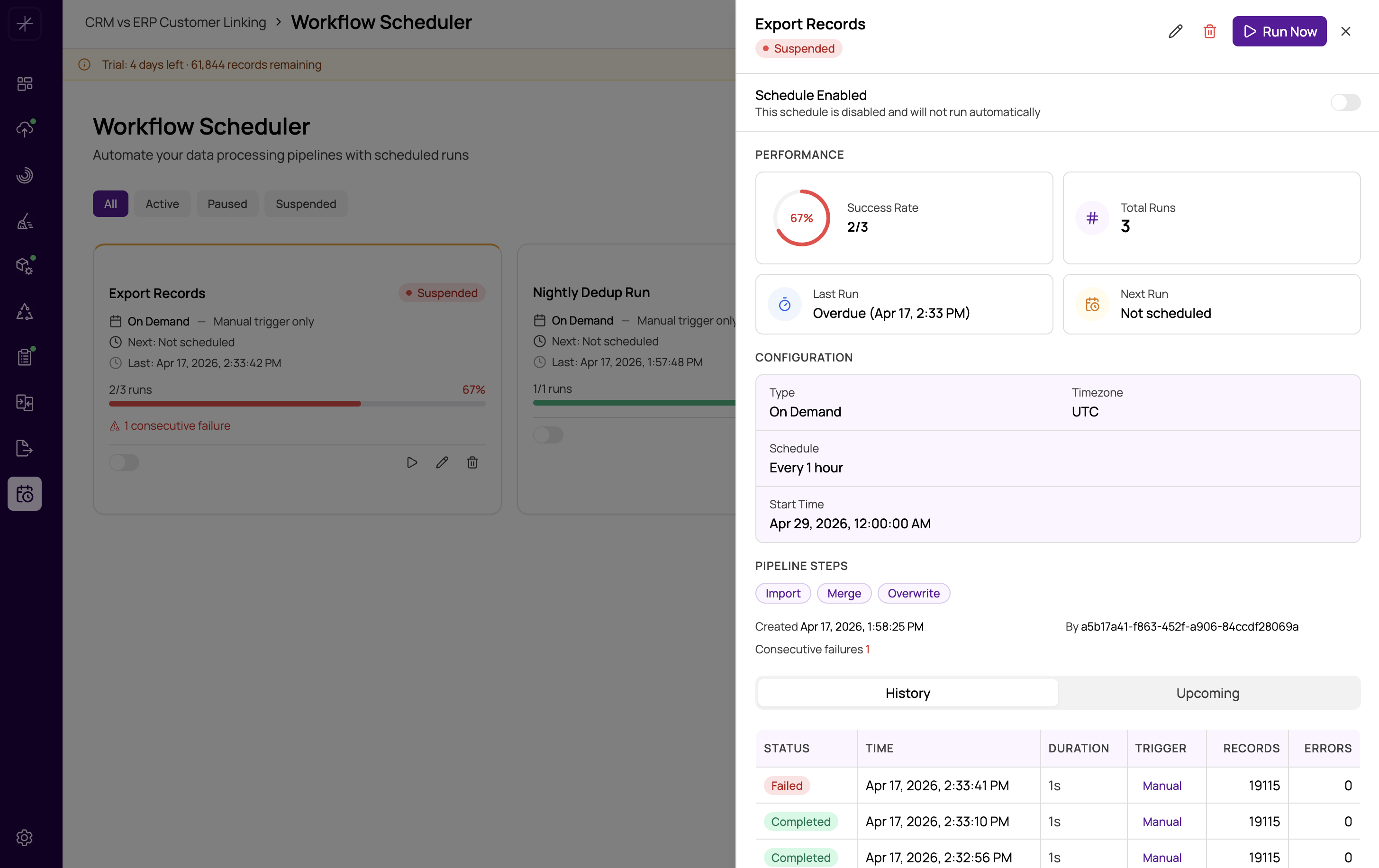
Scheduled workflows automate the MatchLogic pipeline to run on a recurring basis without manual intervention. When a scheduled run fails, the execution history provides a detailed breakdown of which step failed and why.
How to Find the Error
- Navigate to the Workflow Scheduler module.
- Find the workflow that failed — it will show a red status indicator.
- Click into the workflow and open the Execution History tab.
- Click on the failed run to expand it and see which pipeline step failed.
- Read the error message displayed for the failed step — this is the most specific indicator of the cause.
Common Failure Causes
Source Data Schema Changed
If a database table or file used as the import source has had columns added, removed, or renamed since the workflow was configured, the import step will fail or produce incorrect mappings.
Fix: Open Data Import, update the column mappings to reflect the new schema, and manually re-run the workflow to verify it works before leaving it on schedule.
Database Credentials Expired
Database passwords and OAuth tokens can expire, causing connection failures during scheduled import or export steps.
Fix: Update the connection credentials in Data Import (for source connections) or Final Export (for destination connections). Re-authenticate OAuth connections. Then retry the scheduled run.
Match Definitions Misconfigured
If match definitions reference fields that no longer exist (because the datasource schema changed) or have been deleted, the matching step will fail.
Fix: Go to Match Definitions, review the field mappings and criteria, update them as needed, then use "Run Now" in the scheduler to test the full workflow manually before relying on the schedule.
Export Destination Unavailable
The export destination (database server, S3 bucket, FTP server) may have been unavailable at the time the scheduled run executed — due to maintenance, network issues, or credential expiry.
Fix: Verify the destination is accessible, fix any credential or connectivity issue, and manually trigger the workflow to confirm the export step completes successfully.
Retry Manually to Test
After identifying and fixing the root cause, always run the workflow manually before re-enabling the schedule:
- Open the scheduler and find the workflow.
- Click Run Now.
- Monitor the execution — open the Job Status Dialog to track each step.
- Confirm all steps complete successfully.
- Only then rely on the scheduled execution going forward.
Retry Settings
If the workflow is configured with automatic retries, it may have already attempted the run multiple times before marking it as failed. Check the retry count in the execution history to understand how many attempts were made and whether successive attempts got further in the pipeline.
Failure Notifications
Configure email notifications on scheduled workflows so you are alerted immediately when a run fails. Early notification reduces the time your data pipeline is stalled and allows faster remediation.
Best practice: After any change to source data structure, datasource connections, or match definitions, manually trigger the scheduled workflow once to verify end-to-end execution before the next scheduled run occurs.