Card View vs. List View
The Project Management dashboard offers two ways to display your projects: Card View and List View. You can switch between them at any time using the view toggle buttons located near the search bar at the top of the dashboard.
Card View
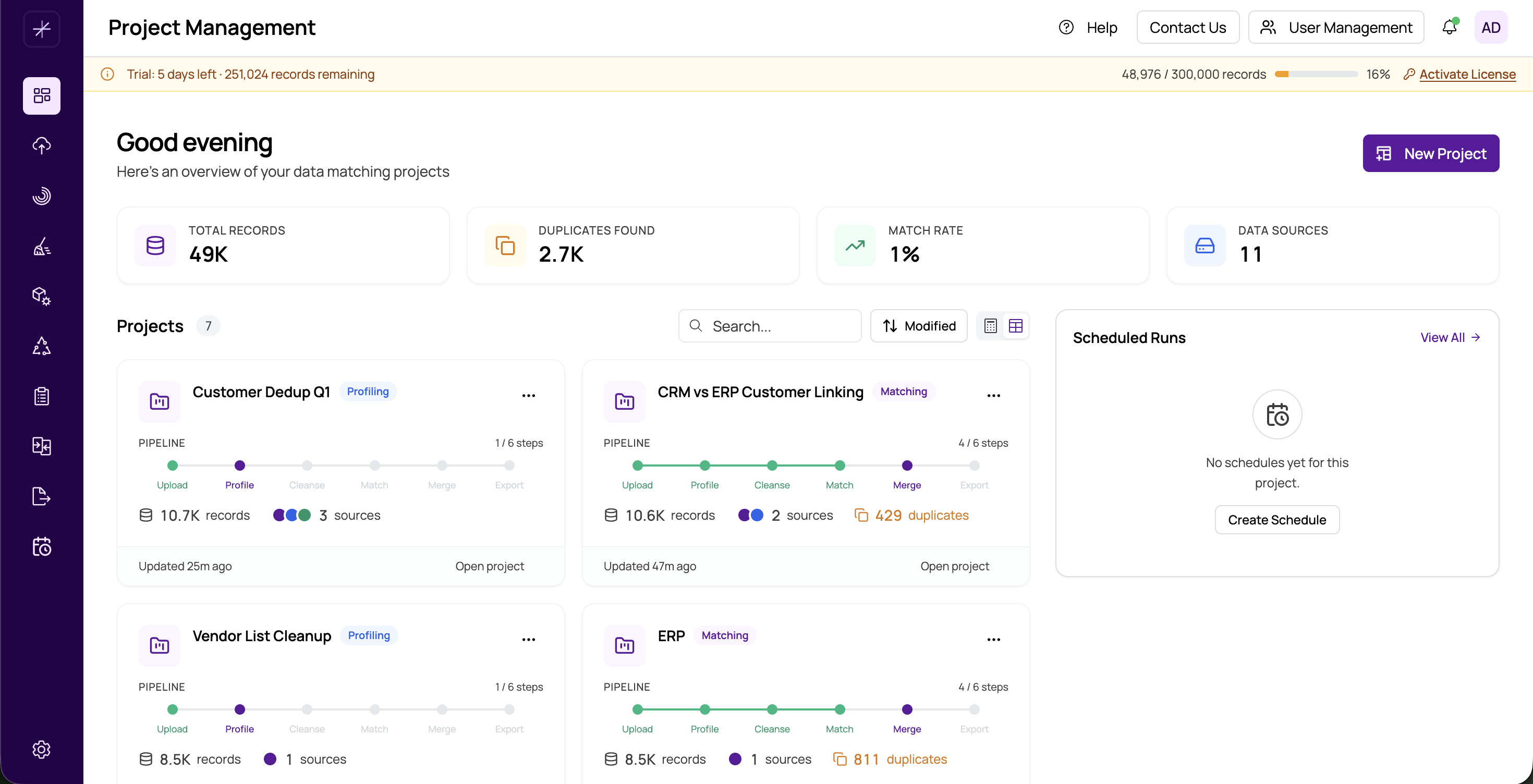
Card View is the default layout. It displays each project as a visual card arranged in a responsive grid. Each card includes:
- Project name prominently displayed at the top
- Pipeline progress bar showing colored segments for each completed stage
- Datasource count and record count
- Last updated timestamp
- Context menu (three-dot icon) for Edit and Delete actions
Card View works best when you want a visual overview of your projects. The pipeline progress bar makes it easy to see at a glance which projects are fully processed and which still have steps remaining. The grid layout is also well-suited for smaller collections of projects where you want to browse visually.
List View
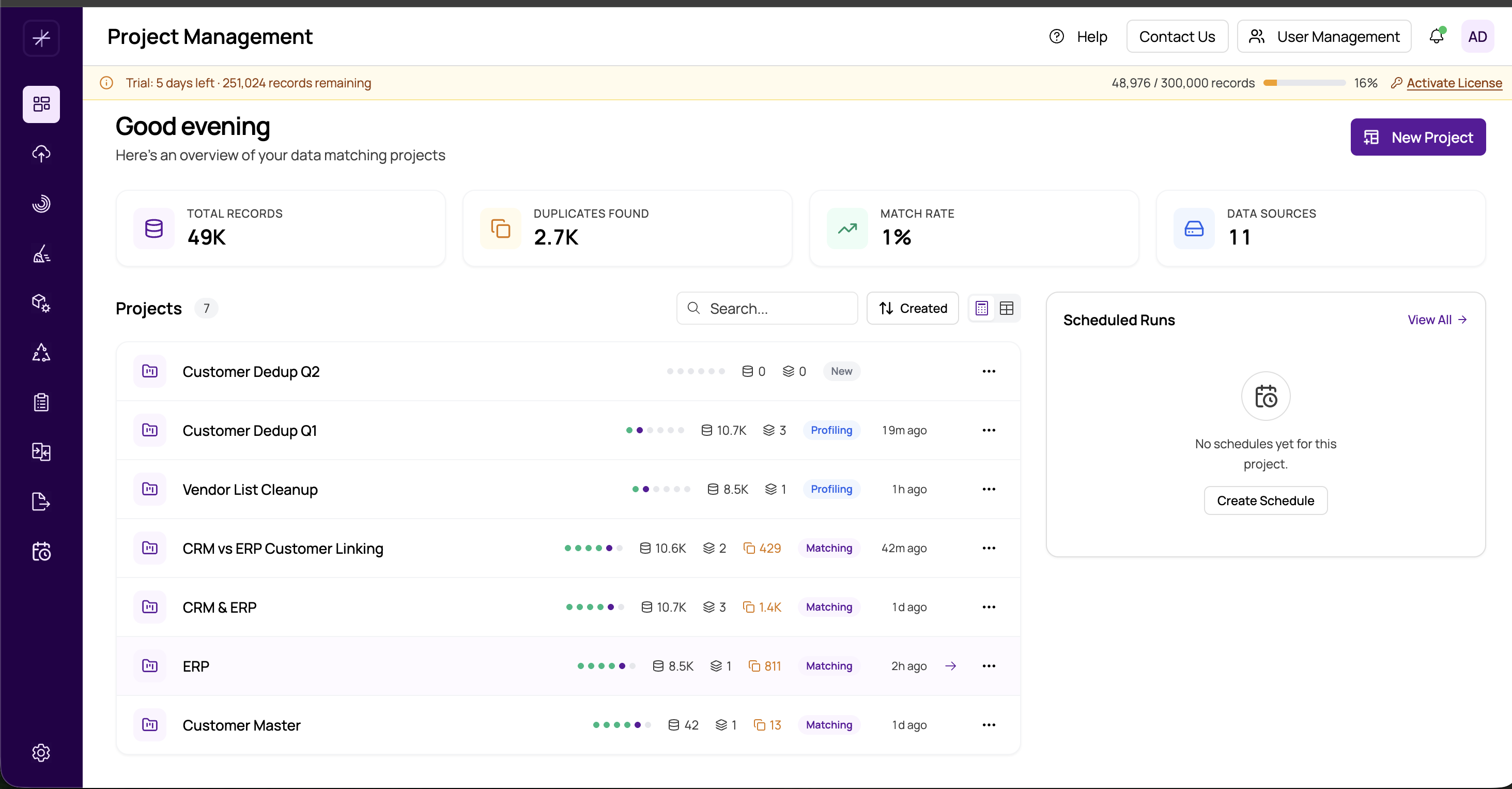
List View displays your projects in a compact table format with the following columns:
- Name — The project name, clickable to select the project
- Description — A short summary of the project's purpose
- Last Modified — When the project was last updated
- Created Date — When the project was originally created
- Actions — Edit and Delete buttons
List View is more efficient when you have many projects and need to scan through them quickly. The tabular format makes it easier to compare dates and sort by different columns. It also takes up less vertical space, so you can see more projects at once without scrolling.
When to Use Each View
| Scenario | Recommended View |
|---|---|
| Checking pipeline progress across projects | Card View |
| Browsing a small number of projects (fewer than 10) | Card View |
| Managing a large number of projects | List View |
| Sorting projects by date or name | List View |
| Finding a specific project by scanning descriptions | List View |
Tip
Your view preference is saved and persists across sessions. If you always prefer List View, you only need to switch once and MatchLogic will remember your choice the next time you visit the dashboard.
Searching and Sorting in Both Views
Regardless of which view you choose, you can use the search bar to filter projects by name. Sorting options are available in both views, though List View makes sorting feel more natural since the results display in a structured table format. In Card View, the cards simply rearrange based on your chosen sort order.
For more about the information displayed on each project, see https://help.matchlogic.io/article/207-the-project-dashboard and project-statistics.