The Project Dashboard
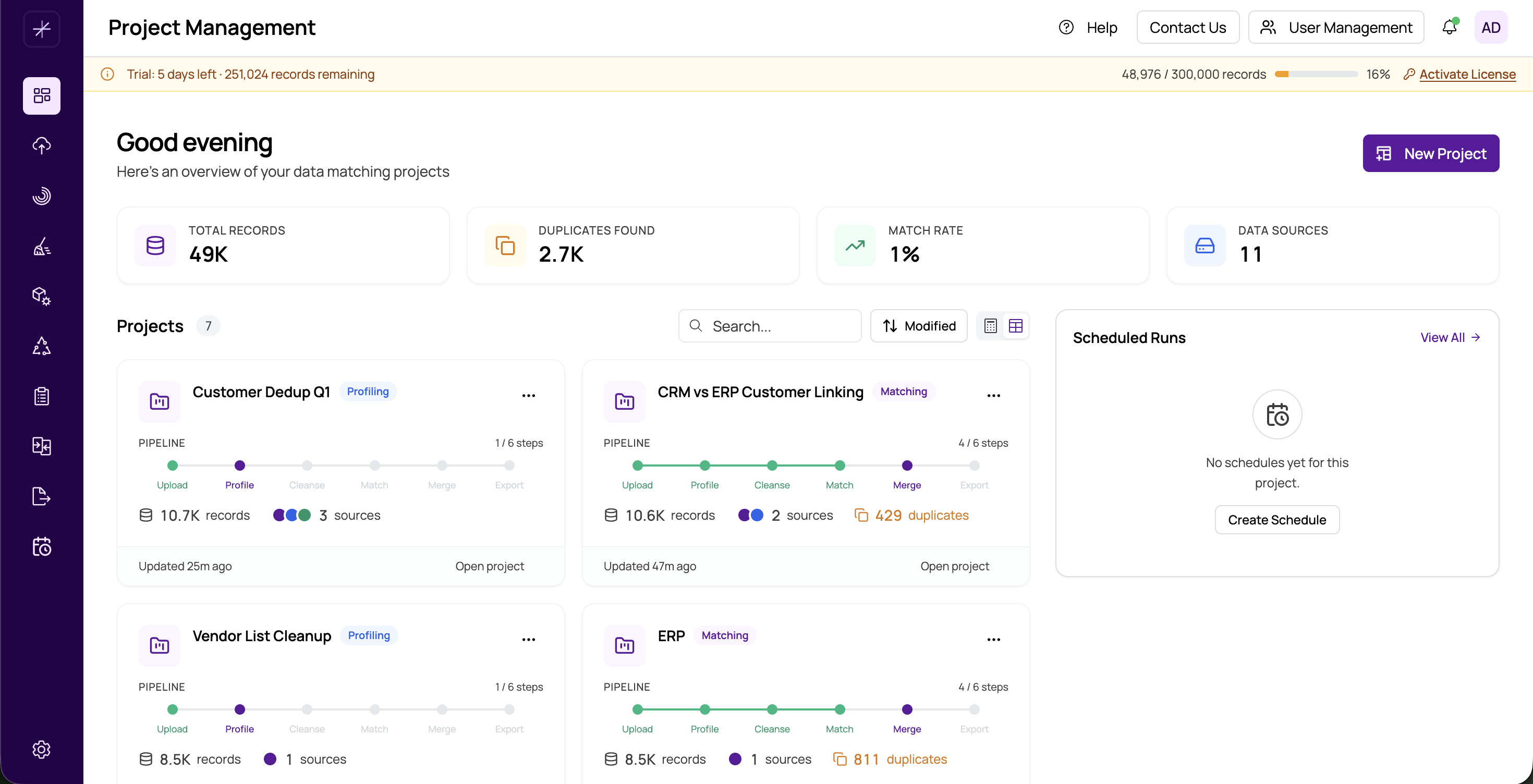
The Project Dashboard is the first screen you see when you open MatchLogic. It serves as your command center, giving you an at-a-glance view of all your projects, their progress through the data matching pipeline, and key statistics about your data.
Welcome Header
At the top of the dashboard, a welcome header greets you and provides context about your workspace. If you are a first-time user, you will also see an onboarding card that walks you through the basic steps of creating a project, importing data, and running your first match.
Global Statistics Row
Just below the header, a row of summary statistics gives you a high-level picture of your entire MatchLogic workspace:
- Total Records — The combined record count across all datasources in all projects.
- Total Duplicates — The aggregate number of duplicate records identified across all projects that have completed matching.
These numbers update automatically as you import new data and run matching jobs.
Project Cards
The main area of the dashboard displays your projects. In the default Card View, each project is represented by a visual card that includes:
- Project Name — The name you assigned when creating the project.
- Datasource Count — How many datasources have been imported into this project.
- Record Count — The total number of records across all datasources in the project.
- Last Updated — When the project was last modified (e.g., after an import, match, or export).
- Pipeline Progress Bar — A colored bar showing how far the project has advanced through the pipeline stages. See pipeline-progress-tracking for details.
Click any project card to select it and begin working. The selected project becomes your active context for all other modules.
Searching and Sorting
Use the search bar at the top of the project list to filter projects by name or description. You can also sort projects by name, creation date, or last modified date using the sort controls. This is especially useful when you have many projects in your workspace.
Tip
You can switch between Card View and List View using the toggle buttons near the search bar. List View is more efficient when you have a large number of projects. See card-view-vs-list-view for a comparison.
First-Time User Experience
If you have not yet created any projects, the dashboard displays an onboarding card with a step-by-step guide to help you get started. This card disappears once you create your first project, but you can always refer to this documentation for guidance.