Pipeline Progress Tracking
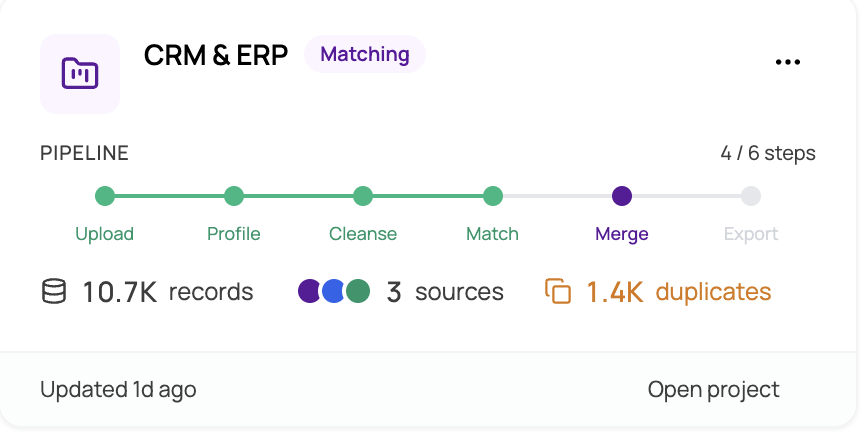
Every project in MatchLogic moves through a defined pipeline of stages, from importing raw data to exporting the final deduplicated output. The pipeline progress indicator on each project card gives you a visual summary of where a project stands in this workflow.
Pipeline Stages
The MatchLogic pipeline consists of the following stages, executed in order:
- Upload — Bringing data into the project from files, databases, or cloud storage
- Profile — Analyzing data quality, patterns, and statistics for each column
- Cleanse — Applying transformation rules to standardize and clean the data
- Match Configuration — Setting up which datasources to compare
- Merge & Survivorship — Determining master records and applying field-level overwrite rules
- Export — Outputting the final deduplicated dataset
Status Indicators
Each stage in the pipeline has one of three statuses:
- Not Started — The stage has not been initiated. It appears as an empty or grayed-out segment in the progress bar.
- In Progress — The stage is currently running as a background job. An animated indicator shows activity. You can continue working in other areas while a job runs.
- Complete — The stage has finished successfully. It appears as a filled, colored segment in the progress bar.
Reading the Progress Bar
The progress bar on each project card is divided into colored segments, one per major stage. As each stage completes, its segment fills in. The overall percentage shown represents the number of completed stages divided by the total number of stages in the pipeline.
For example, if you have completed Import and Profile out of all pipeline stages, the progress bar will show those segments filled and display the corresponding completion percentage.
Tip
Not every stage is required for every project. For instance, you may choose to skip Data Cleansing if your data is already clean, or skip Merge and Survivorship if you only need a match report. However, the progress bar always shows all stages for consistency.
Resuming Work on a Project
When you click on a project card, MatchLogic opens the project at its last visited module. This means you can pick up exactly where you left off. If you last worked on Match Definitions, clicking the project will take you directly to that page rather than starting from the beginning.
Background Jobs and Progress
Some pipeline stages (Upload, Profile, Match, and Export) run as background jobs that may take several minutes depending on your data size. While a job is running:
- The progress indicator shows an animated state for that stage
- You will see a job status dialog with a progress description
- You can navigate to other projects or modules while waiting
- When the job completes, a toast notification appears with a link to view the results
Important
Do not close the browser tab while a background job is running. While the job executes on the server and will complete regardless, you will miss the completion notification and may need to manually refresh to see updated results.
For more details about what each pipeline stage involves, refer to the documentation for each module starting with https://help.matchlogic.io/article/212-importing-from-a-file.