Running a Data Profile
Data profiling is a critical first step before matching. It analyzes every column in your datasource to reveal data quality metrics, patterns, and potential issues that could affect match accuracy. Running a profile gives you the insight you need to decide whether your data is ready for matching or needs cleansing first.
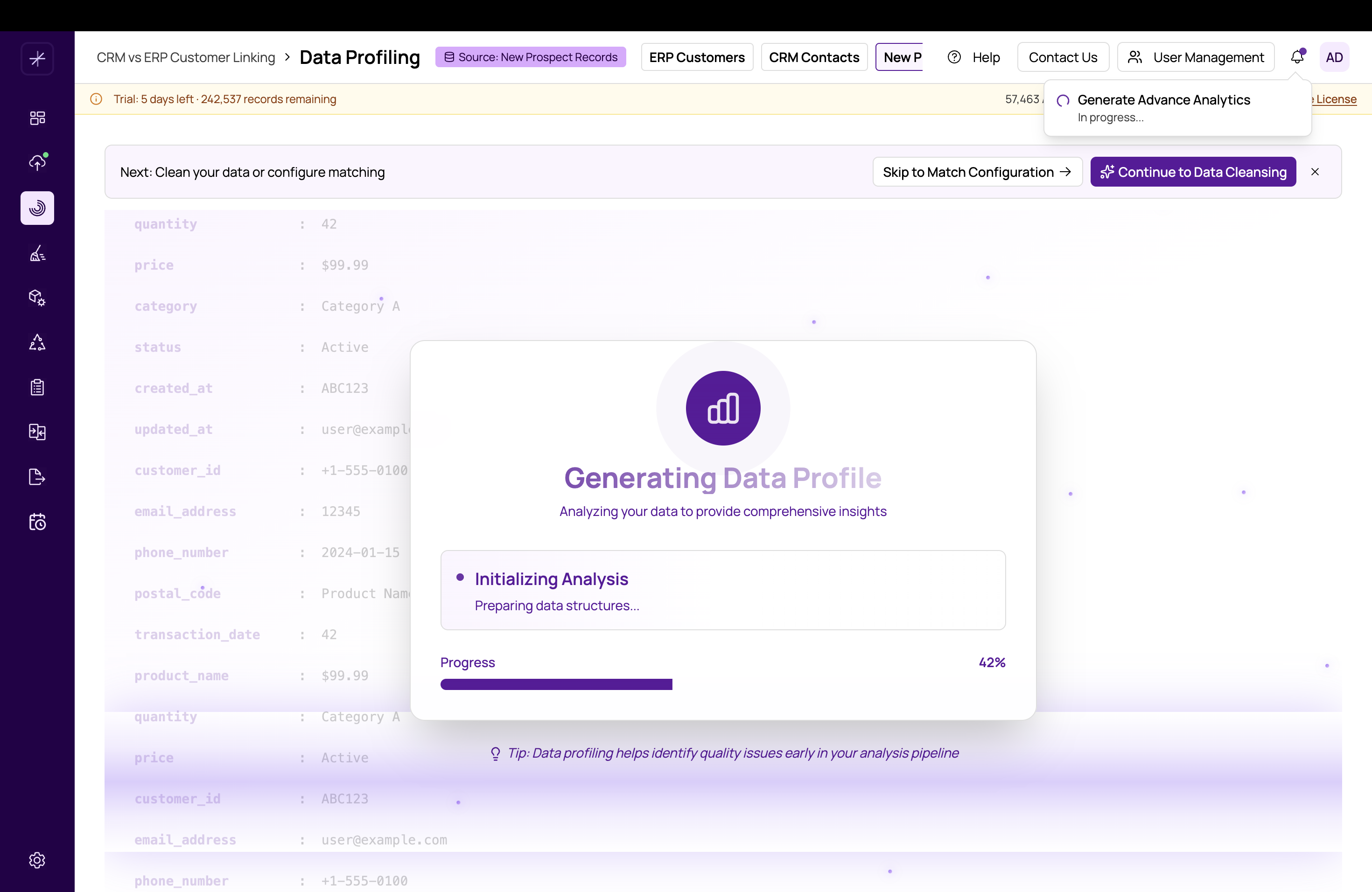
How to Generate a Profile
- Navigate to Data Profiling from the sidebar.
- Select the datasource you want to profile from the dropdown at the top of the page. Only datasources that have been successfully imported into the current project will appear.
- Click the Generate Profile button.
- The profiling job begins running in the background. You will see a progress indicator in the Job Status Dialog, which you can access from the header bar at any time.
- Once the job completes, the Overview tab loads automatically with charts and metrics for your datasource.
What Happens During Profiling
When you generate a profile, MatchLogic examines every column in your datasource and calculates a comprehensive set of quality metrics, including:
- Completeness -- how many records have values versus nulls
- Data type detection -- whether values are text, numeric, dates, emails, phone numbers, etc.
- Uniqueness -- how many distinct values exist
- Validity -- whether values match expected patterns
- Pattern discovery -- recurring formats and structures in your data
- Anomaly detection -- values that deviate significantly from the norm
- Character composition -- the mix of letters, numbers, and special characters
Monitoring Job Progress
Profiling runs as a background job, so you can continue working in other areas of MatchLogic while it processes. Click the job status icon in the header to open the Job Status Dialog, where you can see the current progress of your profiling job. When the job finishes, a toast notification appears with a View Results button that takes you directly to the profiling results.
Re-Generating a Profile
You can re-generate a profile at any time. This is useful after you have applied data cleansing transformations and want to see how your data quality has improved. Simply click Generate Profile again, and the new results will replace the previous ones.
Tip
Run a profile both before and after data cleansing to measure the improvement in data quality. This helps you confirm that your cleansing rules are having the desired effect.
Important
Profiling large datasources with millions of records may take several minutes. The Job Status Dialog will keep you updated on progress. Do not navigate away from the application while the job is running -- it will continue in the background.
Next Steps
Once your profile is generated, explore the results starting with the https://help.matchlogic.io/article/223-the-profile-overview-dashboard. From there, you can drill into specific metrics like https://help.matchlogic.io/article/225-completeness-filled-vs-null, https://help.matchlogic.io/article/226-data-type-distribution, and https://help.matchlogic.io/article/227-uniqueness-and-duplicate-indicators to understand your data in detail.