Introduction to the Flow Builder
The Data Cleansing module in MatchLogic uses a visual drag-and-drop flow builder to design data transformation pipelines. Instead of writing scripts or configuring rules in a spreadsheet, you build a visual workflow on an interactive canvas where each operation is represented as a node and data flows through connected nodes from start to finish.
The Canvas
The canvas is the central workspace of the flow builder. It displays your cleansing pipeline as a directed graph of connected nodes. You can pan the canvas by clicking and dragging on empty space, and zoom in or out using your scroll wheel or the zoom controls in the bottom-left corner. A mini-map in the corner gives you an overview of the entire workflow, which is especially helpful for large pipelines with many nodes.
Every workflow starts with a Start node that represents your raw datasource input and ends with an End node that represents the cleansed output. Between these two anchors, you place transformation nodes that modify the data as it flows through them.
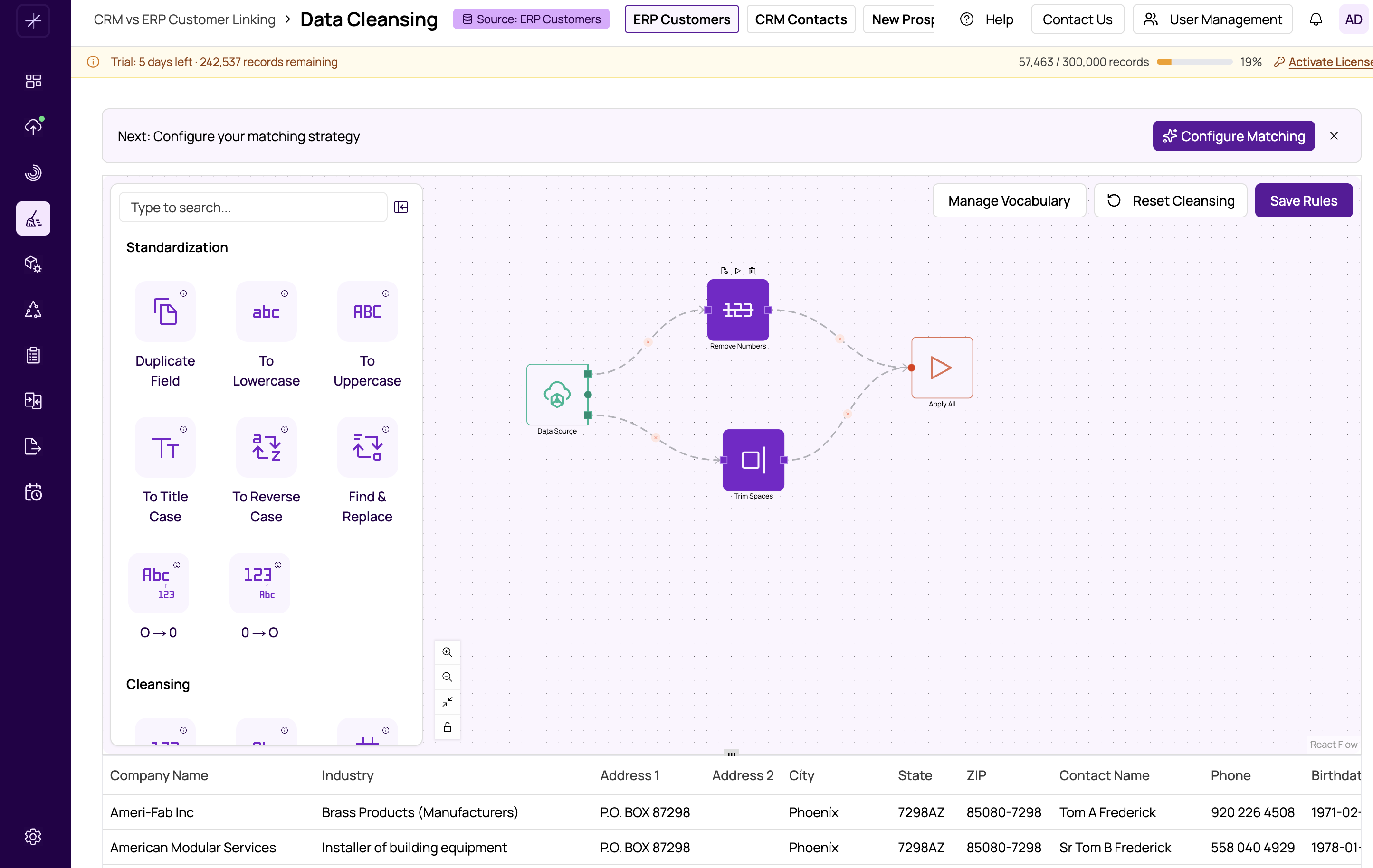
Layout of the Flow Builder
The flow builder interface is divided into four areas:
- Left sidebar (Node Library) — Lists all available transformation operations, organized by category (Standardization, Cleansing, and Smart Operations). You can search by name or browse categories, then drag a node onto the canvas.
- Canvas (center) — The main workspace where you build your workflow by placing and connecting nodes. Powered by ReactFlow, it supports smooth zooming, panning, and a mini-map for navigation.
- Properties panel (right) — When you click a node on the canvas, this panel appears with configuration options specific to that node type, such as the target field, replacement value, or regex pattern.
- Preview panel (bottom) — Displays a table of your cleansed data so you can verify the effect of your transformations. See #previewing-cleansed-data for details.
How Data Flows
Data flows through your workflow in the order that nodes are connected:
- The Start node provides the raw data from your selected datasource.
- Each transformation node applies its operation to the data it receives from the previous node.
- The output of one node becomes the input for the next connected node.
- The End node receives the final cleansed result.
Nodes execute sequentially along each path of connections. This means the order in which you connect nodes matters — applying uppercase conversion before removing special characters produces a different result than the reverse.
Available Node Categories
The left sidebar organizes transformation operations into three categories:
- Standardization — Case conversion (uppercase, lowercase, title case, proper case, reverse case), copy field, and replace operations.
- Cleansing — Trim, remove whitespace, remove characters by type (numbers, letters, special characters, non-printable), and more.
- Smart Operations — Advanced transformations including address parsing, WordSmith dictionary lookup, and regex pattern extraction.
Each category is covered in detail in subsequent articles. See building-a-cleansing-workflow to learn how to assemble your first workflow.
Tip
Start simple. Begin with a few basic operations like trimming whitespace and standardizing case. Preview the results, then add more complex transformations as needed. You can always undo changes or rearrange nodes.
Important
The flow builder works on one datasource at a time. Select the datasource you want to cleanse before building your workflow. Each datasource in your project can have its own separate cleansing workflow.