Replace and Remove Operations
The Replace and Remove nodes are the workhorses of data cleansing. Replace lets you substitute specific text values with alternatives, while Remove strips unwanted text entirely. Together, these operations handle the majority of data standardization tasks like normalizing abbreviations, correcting known errors, and cleaning up formatting artifacts.
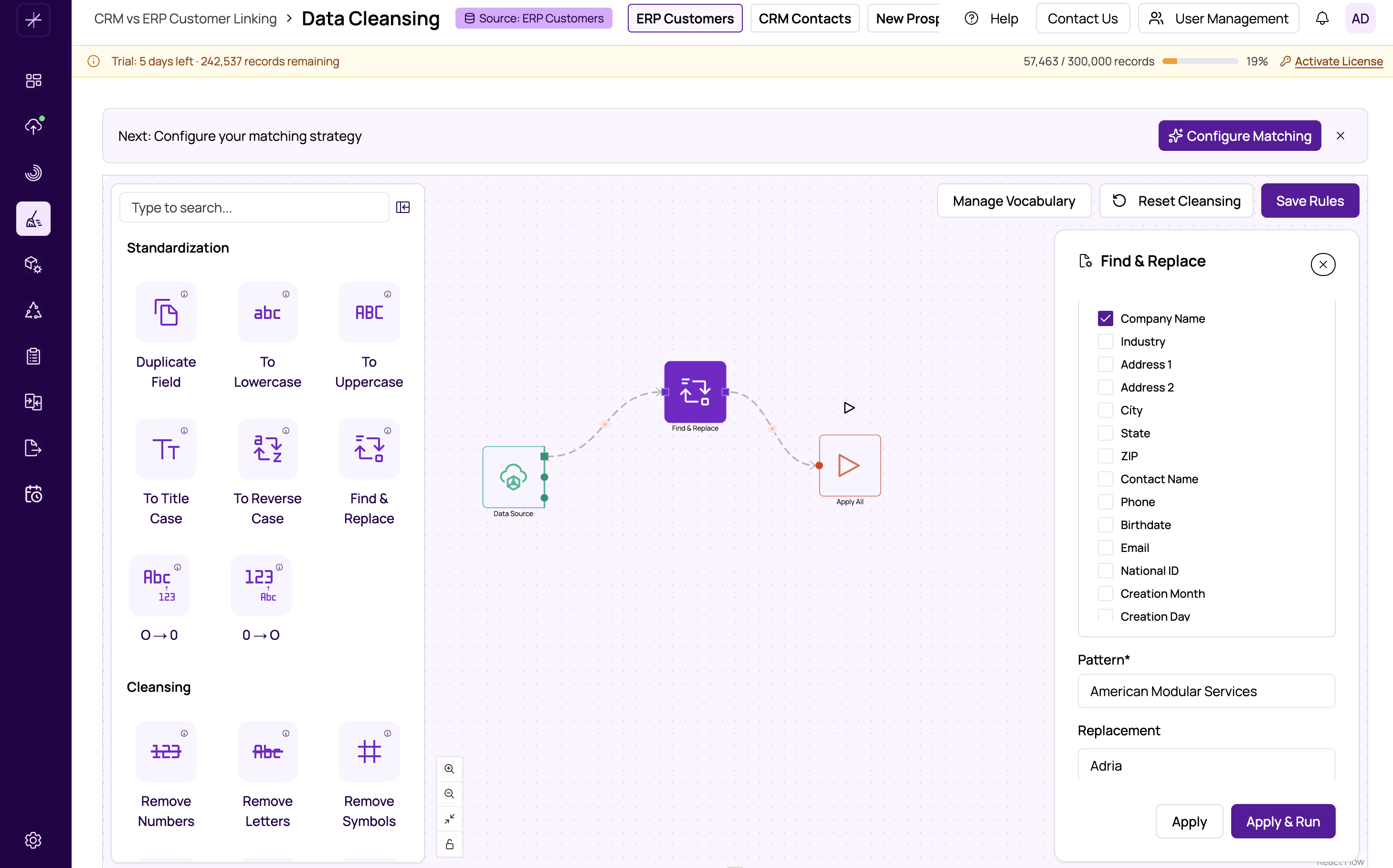
The Replace Node
The Replace node finds a specific text value in the target field and substitutes it with a replacement value. To configure it:
- Drag the Replace node from the Standardization category onto the canvas.
- Connect it into your workflow.
- Click the node and configure in the properties panel:
- Target field -- The column to search within.
- Find -- The text to search for.
- Replace With -- The text to substitute in its place.
Common Replace examples:
- "St." replaced with "Street"
- "Ave" replaced with "Avenue"
- "Corp." replaced with "Corporation"
- "Jr" replaced with "Junior"
- "N/A" replaced with "" (empty string, effectively removing it)
The Remove Node
The Remove node deletes all occurrences of a specified text pattern from the target field. It is functionally equivalent to a Replace with an empty replacement, but is provided as a separate node for clarity. To configure it:
- Drag the Remove node from the Cleansing category onto the canvas.
- Connect it into your workflow.
- Click the node and configure:
- Target field -- The column to modify.
- Pattern -- The text to remove from all values.
Common Remove examples:
- Remove "#" from address fields
- Remove "Mr." or "Mrs." prefixes from name fields
- Remove parentheses and dashes from phone numbers
- Remove currency symbols like "$" or "EUR" from amount fields
When to Use Replace vs Remove
- Use Replace when you want to substitute one value for another -- standardizing abbreviations, correcting known misspellings, or normalizing variations.
- Use Remove when you want to strip characters or text entirely without leaving anything in their place.
Chaining Multiple Operations
You will often need multiple Replace and Remove nodes for a single field. For example, to standardize an address field, you might chain:
- Replace "St." with "Street"
- Replace "Ave." with "Avenue"
- Replace "Blvd" with "Boulevard"
- Remove "#" characters
Each node in the chain processes the output of the previous node, so the order generally does not matter for independent replacements. However, be careful when one replacement might affect another -- if you first replace "St" with "Street", a subsequent replacement of "Street" with something else would apply to the already-replaced values.
Tip
For large-scale vocabulary standardization (dozens or hundreds of replacements), consider using the wordsmith-dictionaries feature instead of chaining many individual Replace nodes. WordSmith dictionaries are designed for exactly this purpose.
Important
Replace and Remove operations are case-sensitive. "St." and "st." are treated as different values. Apply a case conversion first (see https://help.matchlogic.io/article/391-standardization-case-conversion) if you want replacements to match regardless of case.