Removing Characters by Type
MatchLogic provides a set of character-type removal nodes that strip specific categories of characters from field values. These operations are essential for isolating the relevant content in a field -- extracting just the digits from a phone number, removing numbers from a name field, or stripping special characters from an address.
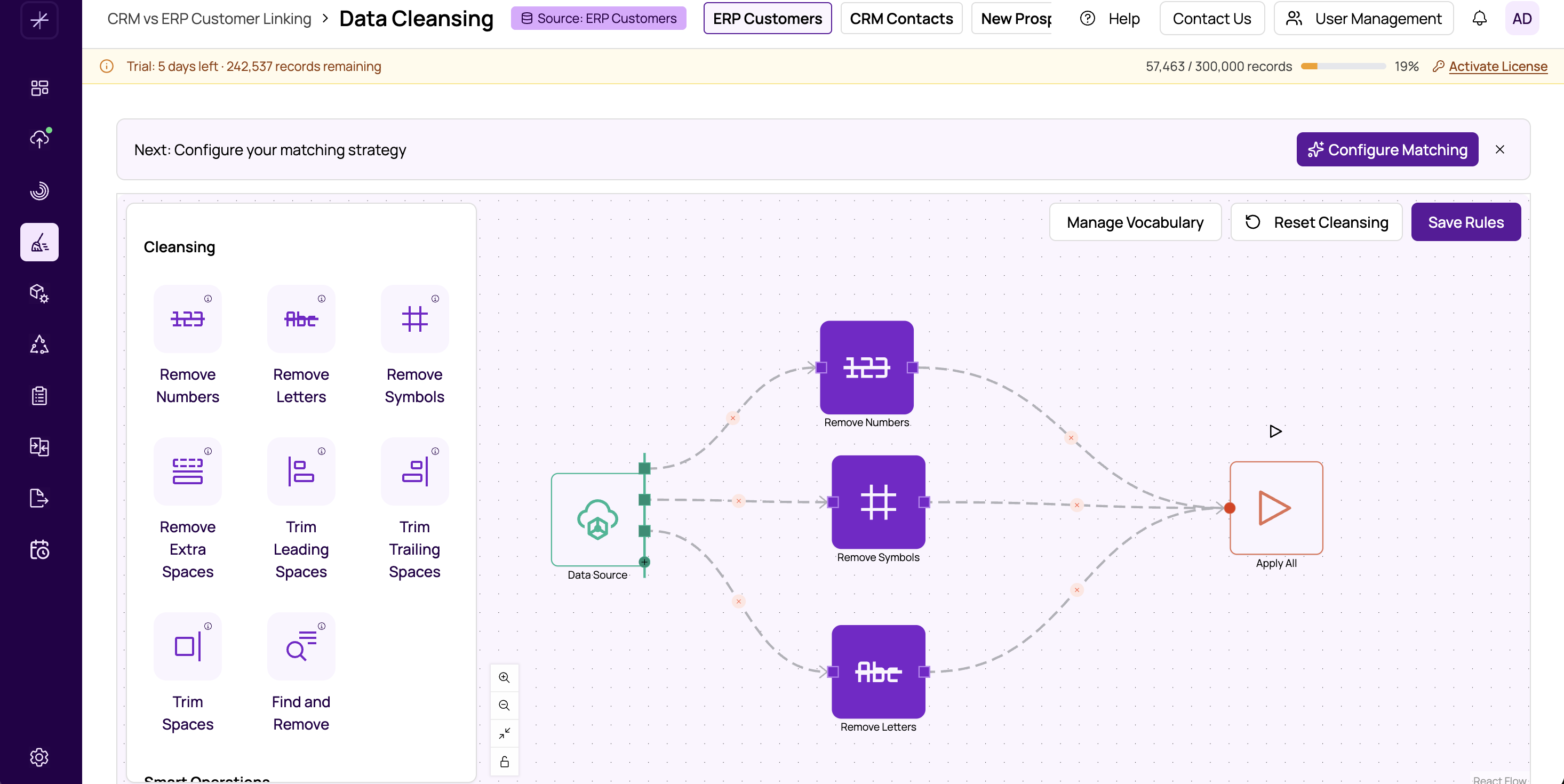
Available Character Removal Nodes
-
Remove Numbers
Strips all digit characters (0-9) from values. "Suite 100" becomes "Suite ". Use on name or text fields where numeric content is unwanted.
-
Remove Letters
Strips all alphabetic characters (A-Z, a-z) from values. "Phone: 555-1234" becomes ": 555-1234". Use to extract numeric content from mixed fields.
-
Remove Symbols
Strips punctuation and symbols (periods, commas, hyphens, slashes, brackets, etc.) while preserving letters, numbers, and spaces. "O'Brien-Smith" becomes "OBrienSmith". Use to normalize names and addresses that contain inconsistent punctuation.
Common Use Cases
Normalizing Phone Numbers
Phone numbers are stored in countless formats: (555) 123-4567, 555-123-4567, 555.123.4567, +1 555 123 4567. Apply Remove Non-Numeric to reduce all of these to a consistent digit string like "5551234567", which can then be matched exactly.
Cleaning Name Fields
Name fields sometimes contain numbers (from concatenated IDs) or special characters (from encoding issues). Apply Remove Numbers to strip digits, then Remove Non-Printable to handle invisible characters.
Creating Match Keys
Use Remove Non-Alphanumeric to create simplified versions of fields for blocking or exact comparison. "123 Main St., Apt #4" becomes "123MainStApt4".
Order of Operations
When combining character removal with other transformations, consider the order:
- Remove non-printable characters first (always safe).
- Apply character-type removal next.
- Then trim whitespace (removal operations may leave extra spaces).
- Apply case conversion last.
Tip
Before applying a character removal operation, use #copy-field to duplicate the field. Apply removal to the copy and keep the original for reference. This way you can compare original and cleansed values in the preview.
Important
Character removal operations cannot be undone once applied to your data. However, within the flow builder, you can use undo-redo-and-workflow-history to reverse workflow changes, and you can always re-import or re-profile your original data.