Running the Match Process
Once you have configured your datasource pairs in https://help.matchlogic.io/article/394-configuring-datasource-pairs and defined your matching criteria in https://help.matchlogic.io/article/255-what-are-match-definitions, you are ready to run the match. The matching process compares every record pair according to your definitions, scores them, and groups related records together.
Starting the Match
Navigate to the Match Results page from the sidebar. If no match has been run yet, you will see a prompt with a Run Match button. Click it to begin.
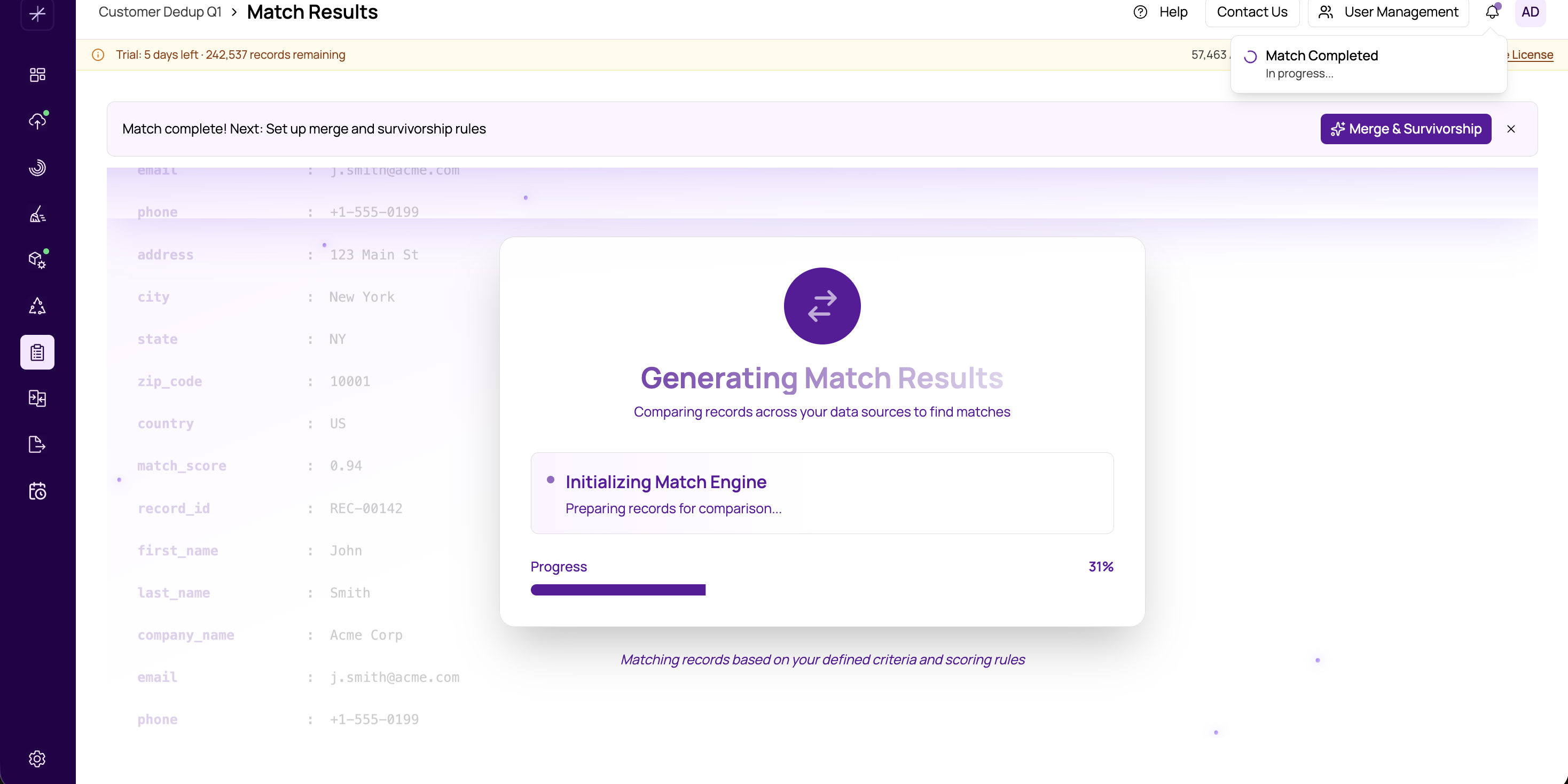
MatchLogic submits the match as a background job. This means you do not need to stay on the page while the process runs. The system handles everything in the background and notifies you when the work is complete.
Monitoring Progress
After clicking Run Match, the Job Status Dialog appears automatically. It displays step-by-step progress through the matching pipeline:
- Initializing — preparing data and loading definitions
- Blocking — partitioning records into candidate groups to reduce comparisons
- Scoring — comparing record pairs and calculating match scores
- Grouping — building transitive closure groups from matched pairs
- Finalizing — writing results to the database
Each step shows a checkmark when complete and a loading animation for the step currently in progress. The stage name updates in real time so you always know what the system is doing.
Monitoring from Elsewhere
If you navigate away from the Match Results page, you can still monitor the job. Click the notification bell icon in the header to see all active and recently completed jobs. The bell displays a badge when a job is running.
Tip
You can continue working in other modules while a match runs. MatchLogic processes jobs in the background, so importing new data or reviewing profiles will not interfere with the active match.
When the Match Completes
Once the job finishes, MatchLogic automatically transitions you to the results view. If you are on another page, a toast notification appears with a View Results button that takes you directly to the Match Results page.
Important
If the match fails, the Job Status Dialog will show an error message with details about what went wrong. Common causes include missing field mappings or empty datasources. Review the error, fix the issue, and run the match again.
Re-running a Match
You can re-run the match at any time by clicking Run Match again. This is useful after adjusting definitions, changing weights, or adding new datasources. Each new run replaces the previous results entirely.