Compact View
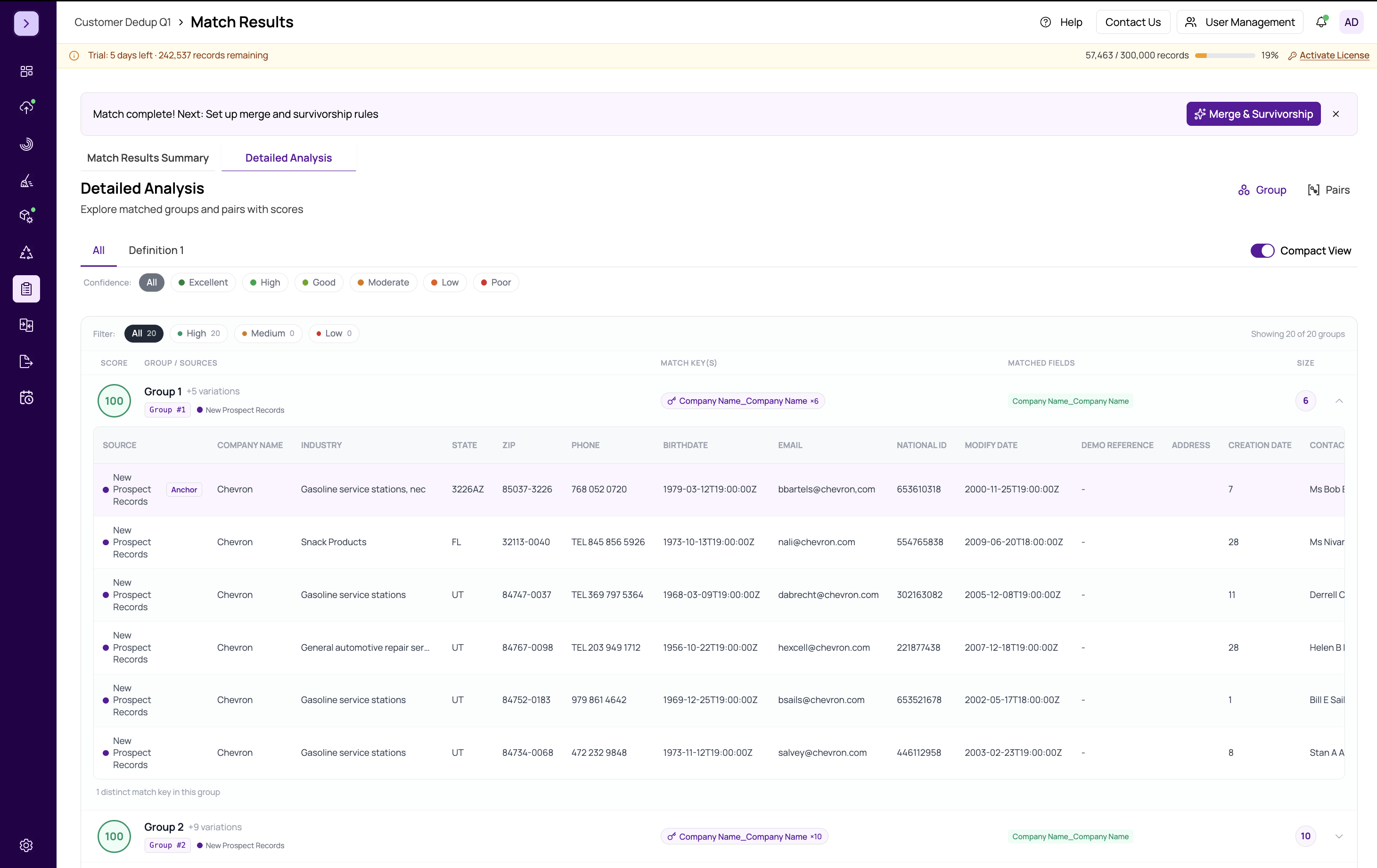
The Compact View is an alternative layout for reviewing match groups that presents each group as a visual card rather than a table row. It is designed for quickly scanning groups and identifying those that need closer inspection, without the visual density of the full table.
Enabling Compact View
Toggle Compact View using the Compact View switch located in the toolbar above the results table. When enabled, the table is replaced with a card-based layout. Toggle it off to return to the standard table view.
What Each Card Shows
Each group card displays a summary of the group's key information:
- Group ID — the unique identifier for the group
- Record Count — how many records belong to this group
- Average Confidence Gauge — a small circular gauge showing the mean match score across all pairs in the group, color-coded by confidence level
- Confidence Label — a text label such as "Excellent," "High," or "Moderate" corresponding to the average score band
- Data Sources — badges showing which datasources contributed records to the group
- Matching Keys — the field names that produced the match (for example, "FirstName + LastName")
- Field Badges — compact indicators of the key field values, giving you a preview without expanding
Expanding a Card
Click on any card to expand it and reveal the full record table for that group. The expanded view shows the same detailed information as the standard Groups view, including all data fields, scores, and the Master/Selected/Not Duplicate checkboxes.
When to Use Compact View
Compact View is most useful when:
- You have many groups and want to quickly scan confidence levels
- You need to identify low-confidence groups that require manual review
- You prefer a visual overview before diving into detailed record comparisons
Tip
Use Compact View for initial triage, then switch to the standard https://help.matchlogic.io/article/274-groups-view for detailed review and setting Master/Selected/Not Duplicate flags. The compact cards give you a fast way to prioritize which groups to examine first.