The Overwrite Rules Tab
Once the master record has been identified, Overwrite Rules go further — they control which record's value wins for each individual field. While Master Record Rules decide which record becomes the master, Overwrite Rules refine the golden record field by field after that decision is made.
How Overwrite Rules Differ from Master Rules
Think of it in two phases:
- Master Record Rules — Examine all records in the group and designate one as the master based on field-level wins across the group.
- Overwrite Rules — Take the designated master record and potentially replace specific field values with better values sourced from other records in the group.
For example, you might choose the master record based on the most complete name, but then overwrite the email field with the most recent value from another source.
Available Operations
Each overwrite rule assigns one operation to the target field:
- Longest — Use the longest non-null value across matching records.
- Shortest — Use the shortest non-null value across matching records.
- Max — Use the highest numeric or alphabetically latest value.
- Min — Use the lowest numeric or alphabetically earliest value.
- Most Popular — Use the value appearing most frequently in the group.
- From Master — Explicitly copy the field value from the designated master record.
- From Best Record — Copy the value from the record with the highest overall match score.
- Merge All Values — Concatenate all unique non-null values from the group into a single delimited string.
Tip
From Master and From Best Record are unique to Overwrite Rules — they are not available in Master Record Rules. See Overwrite: From Master and From Best Record for details on when to use each.
Conditions
Each overwrite rule also has an optional condition that controls when the overwrite is applied. For instance, you can configure a rule to only overwrite a field if the master's current value is empty, or only pull a value from records marked as selected. See Overwrite Conditions for the full reference.
Rule Cards
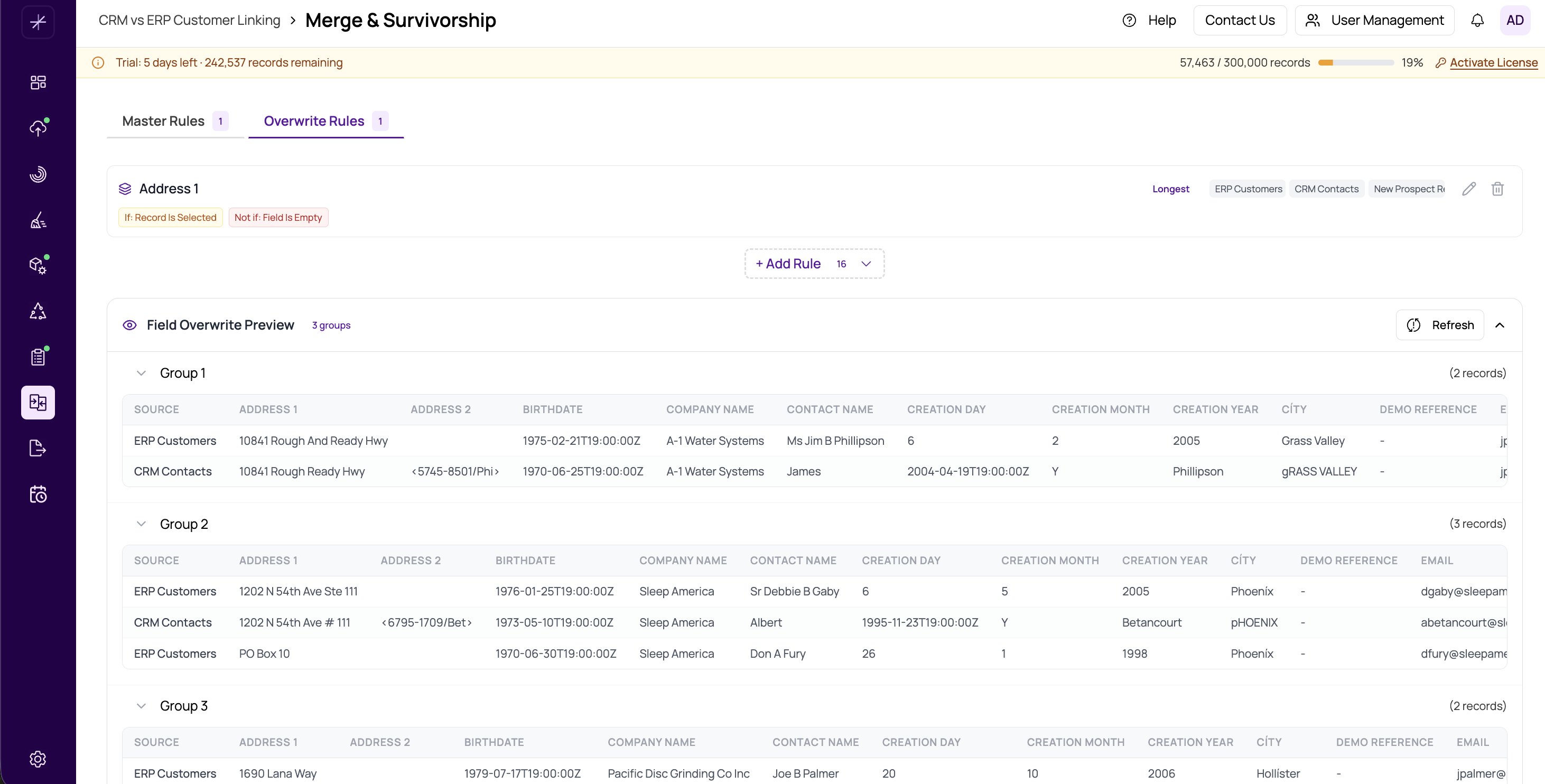
The Overwrite Rules tab displays one card per configured rule. Each card shows:
- The target field name
- The selected operation
- The active condition (if any)
- An enable/disable toggle
- A pencil icon to open the configuration dialog
To add a new rule, click the Add Rule button and select the field you want to configure. Fields that already have a rule are hidden from the dropdown. See Adding and Configuring Rules for the full walkthrough.
Important
Overwrite Rules only take effect if you have already run the Master Record determination step. Execute Master Rules first, then configure and run Overwrite Rules to refine the golden record's field values.