Export to Neo4j
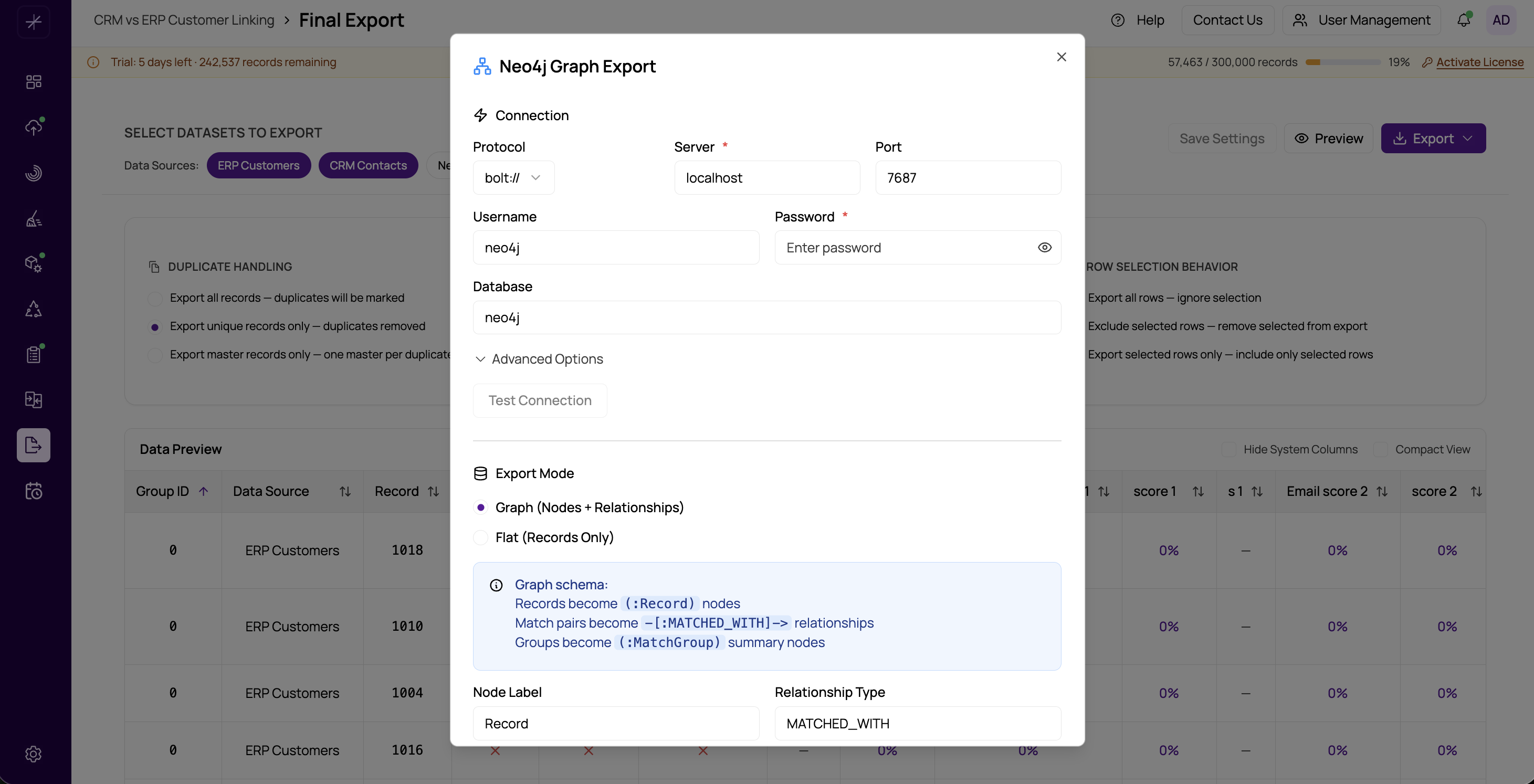
MatchLogic can export your matched data directly into Neo4j, a graph database. This is particularly powerful for record linkage results, because the relationships between matched records map naturally to graph structures where records are nodes and matches are edges.
Export Modes
Flat Mode
In flat mode, each record is exported as a node in the graph. No relationships are created between nodes. This is useful when you want to load your data into Neo4j for further graph analysis but plan to create relationships yourself using Cypher queries or other tools.
Graph Mode
In graph mode, records are exported as nodes and match relationships are exported as edges connecting those nodes. Each edge represents a match found by MatchLogic, carrying the match score and definition name as properties. This gives you a ready-made graph where you can immediately explore clusters of related records, visualize match networks, and run graph algorithms.
Configuration Options
- Node Labels — The label assigned to record nodes in Neo4j (e.g.,
Person,Company,Record). This determines how you query and filter nodes in the graph. - Relationship Types — The type name for match relationship edges (e.g.,
MATCHED_WITH,DUPLICATE_OF). Only applicable in graph mode. - Batch Size — The number of nodes or relationships created per transaction. Larger batches improve throughput but increase memory usage on the Neo4j server.
- Create Indexes — When enabled, MatchLogic creates indexes on key properties (such as record ID and group ID) to improve query performance after the export.
- Clear Existing Data — When enabled, all existing nodes and relationships with the specified label are deleted before the export begins. Use this for a clean reload.
Step by Step
- Select Neo4j as your export destination.
- Enter the Neo4j connection details (host, port, username, password).
- Choose between Flat Mode and Graph Mode.
- Configure node labels and (for graph mode) relationship types.
- Set the batch size and choose whether to create indexes and clear existing data.
- Click Export to begin writing to Neo4j.
Tip
Graph mode works especially well with the Cross-Reference export action (see https://help.matchlogic.io/article/294-choosing-an-export-action), as it gives you both the record data and the relationship structure in a single export.
Important
If you enable "Clear Existing Data," all nodes matching your configured label will be deleted from the Neo4j database, including any that were not created by MatchLogic. Use this option carefully in shared databases.