Choosing Pipeline Steps
When creating or editing a scheduled workflow, you choose which pipeline steps to include. Getting this selection right is important — including unnecessary steps wastes execution time, while omitting required steps can produce stale or incorrect results.
How Step Selection Works
The six pipeline steps are presented as checkboxes in order:
- Import
- Profile
- Cleanse
- Match
- Merge
- Overwrite
- Export
Steps must be selected as a contiguous block starting from Import. Enabling any step automatically enables all preceding steps. For example, selecting Match will also check Import, Profile, and Cleanse. This reflects the data dependency chain — each step produces the output that feeds the next.
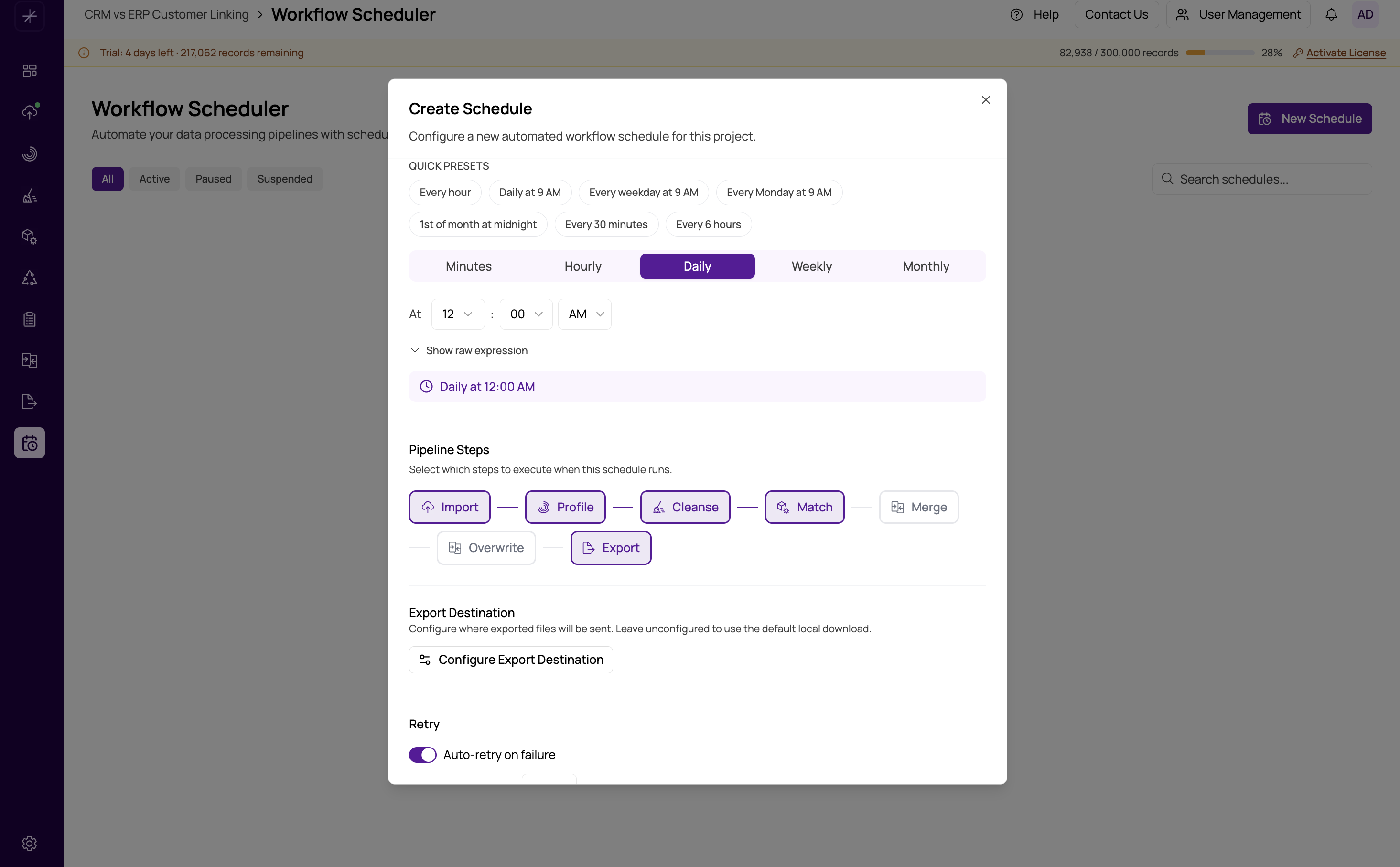
What Each Step Does in a Scheduled Run
- Import — Re-fetches data from the configured data sources (files or database connections). The existing data source configuration is used — no manual file upload is needed for scheduled runs against database or remote sources.
- Profile — Runs advanced data profiling to generate updated quality statistics for each column.
- Cleanse — Applies the saved transformation workflow (regex rules, replacements, etc.) to the freshly imported data.
- Match — Executes the matching process using the project's match definitions to find duplicate or related records.
- Merge — Applies master record determination and field-level survivorship rules to produce a single best record per group.
- Overwrite — Define field-level survivorship logic applied after the master record is selected. These rules determine which record’s value is retained for each individual field, ensuring the golden record is built using the most reliable, complete, or preferred data across all matched records
- Export — Writes the final output to the configured export destination (file, database, or remote storage).
Common Step Combinations
Full Pipeline (Import → Export)
Use when source data changes frequently and schema may vary between runs. This is the most common configuration for production workflows where you want a fully refreshed golden record on each run.
Import + Match + Export (Skip Profile and Cleanse)
Use when the data schema is stable and your cleansing rules do not need to change between runs. Profiling and cleansing can be time-consuming on large datasets. If you ran Cleanse recently and the data format has not changed, you can skip those steps and go straight to matching on the freshly imported raw data.
Skipping Cleanse means the match runs on uncleansed data. Only do this if your source data is already clean or if you are deliberately matching on raw values. Skipping Profile is safe in most recurring runs — it adds overhead without changing the match output.
Match + Merge + Export (No Import)
Use when data is imported through a separate process and you want the scheduler to handle only the analytical steps. For example, an external ETL tool writes data to the MatchLogic data source, and this workflow picks up from matching onward.
On-Demand Export Only
Use an On-Demand workflow with only the Export step if you want to regenerate an export file from existing match results without re-running the full pipeline. Trigger it manually whenever you need a fresh export.
Steps Must Be Pre-Configured
Including a step in a scheduled workflow does not configure it — it only tells the scheduler to execute it. Each step must be fully set up in the project's respective module:
- Import requires configured data sources in Data Import.
- Cleanse requires a saved transformation workflow in Data Cleansing.
- Match requires saved match definitions in Match Definitions.
- Merge requires saved survivorship rules in Merge and Survivorship.
- Overwrite requires configured field-level overwrite rules in Merge and Survivorship.
- Export requires saved export settings in Final Export.
If a step is included but not configured, the execution will fail when it reaches that step. The failure will be logged in Execution History with a descriptive error message.