Managing Schedule Lifecycle
Every scheduled workflow has a lifecycle state that controls whether it runs automatically. Understanding these states — and how to transition between them — lets you manage workflows safely without losing configuration.
Workflow States
Active
An Active workflow runs on its configured schedule. Newly created workflows start in Active state. When a workflow is Active, the scheduler will fire it at every scheduled occurrence and display the next run time on the workflow card.
Paused
A Paused workflow is temporarily suspended. No scheduled runs will fire while the workflow is paused, but all configuration is preserved. Use Pause when:
- You are making changes to the project's pipeline configuration and do not want an automatic run to occur mid-change.
- The source data system is undergoing maintenance and imports would fail.
- You need to pause production runs for an investigation without deleting the workflow.
To pause a workflow, click the Pause button on the workflow card or detail page. To resume, click Resume — the workflow returns to Active state and will fire at its next scheduled occurrence.
Suspended
A Suspended workflow has been automatically disabled by the system due to repeated failures. The scheduler suspends a workflow as a self-protection mechanism when it detects that the workflow is consistently failing (for example, failing on every run for several consecutive executions).
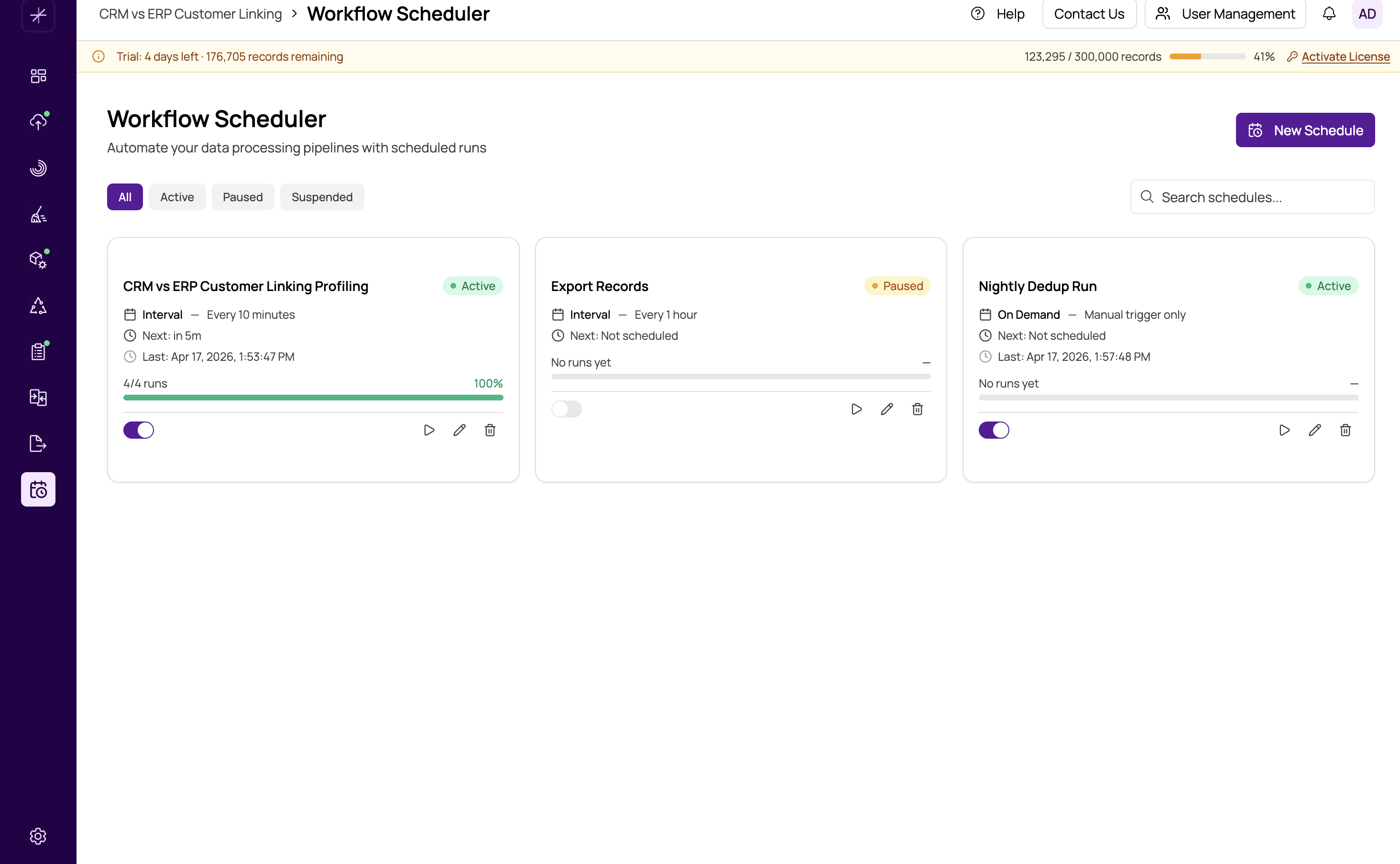
When a workflow is suspended:
- It will not fire automatically until you explicitly resume it.
- A warning is displayed on the workflow card indicating it was suspended and showing the reason.
- A failure notification is sent (if configured).
Before resuming a suspended workflow, investigate the root cause of the repeated failures in Execution History and fix the underlying problem. Resuming without fixing the issue will likely result in the workflow being suspended again.
Do not confuse Suspended (system-initiated) with Paused (user-initiated). A suspended workflow requires attention — there is a persistent failure that needs to be resolved before the workflow can run successfully.
Archived
An Archived workflow is retired and kept for historical reference only. Archived workflows do not run and cannot be triggered manually. Their execution history is preserved for review.
Archive a workflow when it is no longer needed but you want to retain the record of its past executions — for example, when a project has been decommissioned or when you are replacing one workflow with a newer version.
To archive a workflow, open its detail page and select Archive from the actions menu. Archiving cannot be undone from the UI — if you need the workflow to run again, create a new one with the same configuration.
Cancelled
A Cancelled workflow is permanently deactivated. Unlike Archived, Cancelled is typically used for workflows that were stopped midway through their intended lifetime or were created in error. Cancelled workflows do not run and their history may eventually be pruned.
State Transition Summary
- Active → Paused: Click Pause. Resumes with the Resume button.
- Active → Suspended: Automatic, due to repeated failures. Resumes with the Resume button after fixing the issue.
- Active / Paused → Archived: Manual action from the detail page. Irreversible.
- Active / Paused → Cancelled: Manual action. Permanent.
- Paused → Active: Click Resume.
- Suspended → Active: Click Resume (after resolving the failure cause).
You can still view execution history for Paused, Suspended, and Archived workflows. The history is read-only but remains fully accessible for as long as the records are retained.