Creating a New Project
Every workflow in MatchLogic begins with a project. A project is the container that holds all of your datasources, matching configurations, results, and exports. Before you can import data, run matches, or do anything else in the platform, you need to create and select a project.
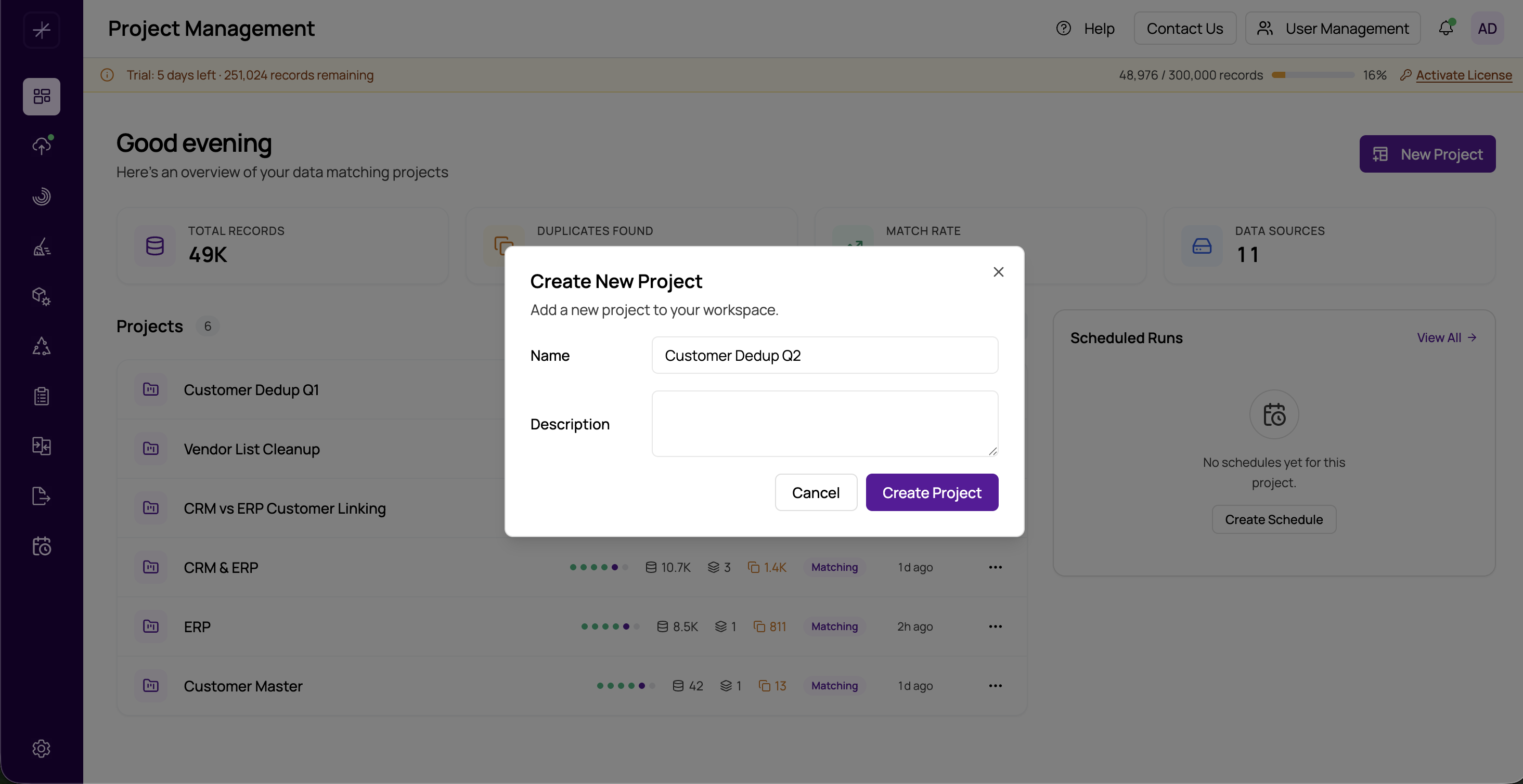
How to Create a Project
- Navigate to the Project Management page. This is the landing page you see when you first open MatchLogic.
- Click the New Project button in the upper-right area of the dashboard.
- In the dialog that appears, enter a Project Name. This field is required and must be unique across your projects.
- Optionally, enter a Description to help you and your team remember what this project is for. For example: "Q1 2026 customer dedup" or "Vendor master consolidation."
- Click Create to save your new project.
Your new project will immediately appear in the project dashboard as a card (or row, if you are using list view). It will show zero datasources and zero records until you begin importing data.
Selecting a Project
After creating a project, you need to select it to start working. Click on the project card or row to make it your active project. Once selected, the sidebar navigation unlocks and you can access all pipeline modules: Data Import, Data Profiling, Data Cleansing, Match Configuration, and so on.
Important
You must select a project before you can navigate to any other module. If you try to access a page like Data Import without an active project, MatchLogic will redirect you back to the Project Management dashboard.
What Happens Behind the Scenes
When you create a project, MatchLogic stores it in the backend database and assigns it a unique identifier. This identifier is used throughout the entire pipeline to associate datasources, match configurations, results, and exports with your project. The project ID is also reflected in the URL, so you can bookmark specific projects for quick access.
Naming Tips
- Use descriptive names that indicate the purpose or dataset, such as "Customer Dedup - January 2026."
- Avoid generic names like "Test" or "Project 1" unless you are experimenting. It becomes difficult to distinguish projects later.
- Descriptions are searchable, so include keywords that will help you find the project later.
Tip
If you are new to MatchLogic, start with a small sample dataset in your first project. This lets you explore all the pipeline stages without waiting for large data processing jobs to complete.
Next Steps
Once your project is created and selected, head to Data Import to bring in your first datasource. See https://help.matchlogic.io/article/212-importing-from-a-file or https://help.matchlogic.io/article/213-connecting-to-a-database.