Connecting to a Database
MatchLogic can import data directly from relational databases, eliminating the need to export data to a file first. This is ideal for large datasets or scenarios where you want to work with the most current data in your database.
Supported Databases
- SQL Server — Microsoft SQL Server (all supported versions)
- MySQL — MySQL 5.7 and later
- PostgreSQL — PostgreSQL 10 and later
Entering Connection Details
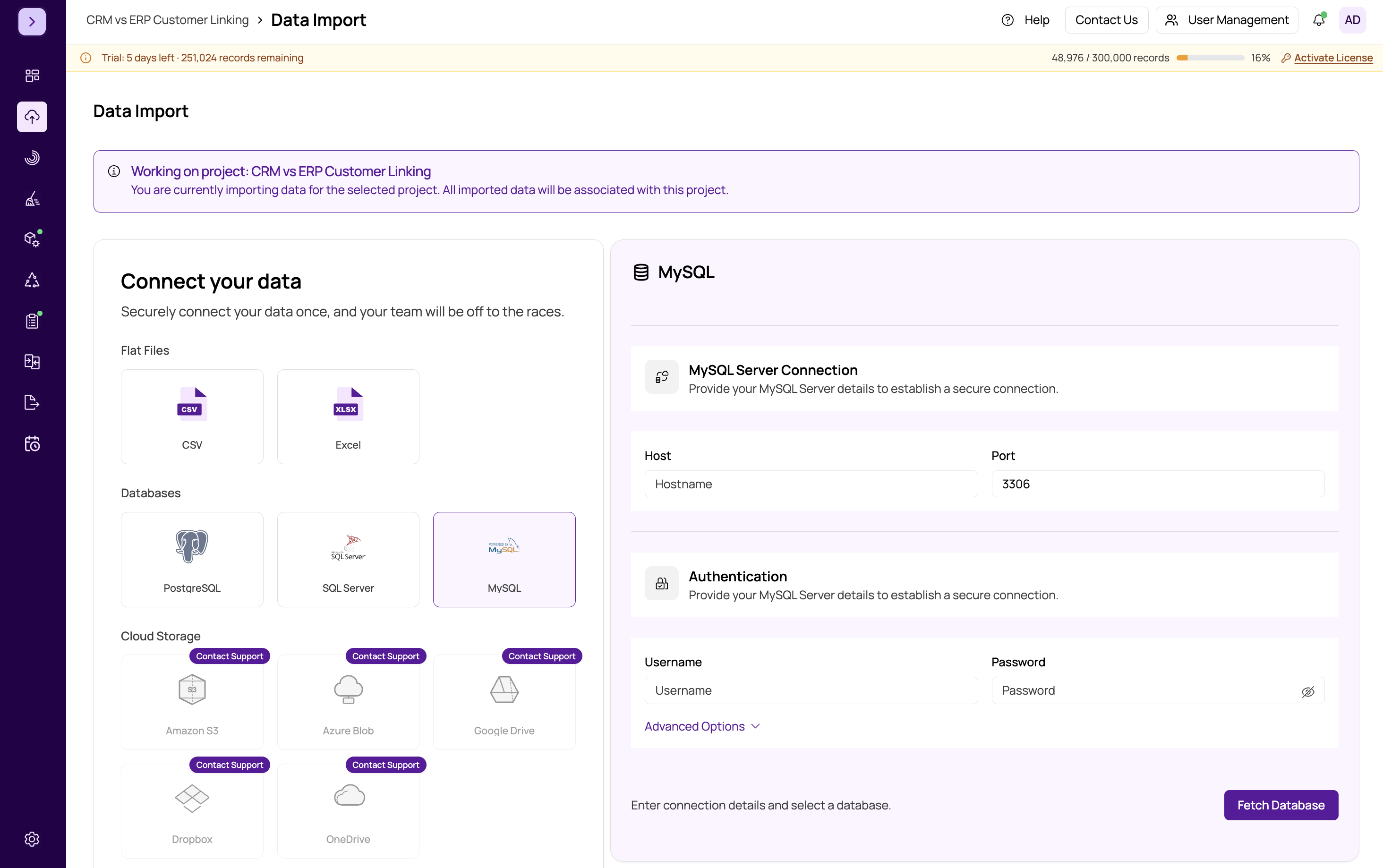
After selecting your database type on the Data Import page, fill in the connection fields:
- Host — The hostname or IP address of your database server (e.g.,
db.example.comor192.168.1.100). - Port — The port number. MatchLogic auto-fills the default port for your selected database type:
- PostgreSQL:
5432 - MySQL:
3306 - SQL Server:
1433
- PostgreSQL:
- You can change this if your database runs on a non-standard port.
- Username — The database user account to connect with.
- Password — The password for the database user.
Tip
For SQL Server, you can choose between SQL Authentication (username and password) and Windows Authentication (uses your Windows credentials). Select the appropriate authentication mode before entering your credentials.
Testing the Connection and Selecting Data
- Click "Fetch Databases" to test your connection. If the credentials and host are correct, MatchLogic will connect and retrieve a list of available databases.
- Select a database from the dropdown list that appears.
- Select a table from the list of tables detected in that database. MatchLogic displays all user tables.
- Proceed to column mapping. After selecting a table, click Next to configure which columns to import. See column-mapping for details.
If the connection fails, double-check your hostname, port, username, and password. Make sure the database server is accessible from the machine running MatchLogic and that any firewalls allow the connection.
Advanced Connection Options
For additional connection settings, expand the Advanced section:
- Trust Server Certificate — Skip SSL certificate verification. Useful in development environments with self-signed certificates. Do not enable this in production.
- Connection Timeout — The maximum time (in seconds) to wait for a connection. The default is 30 seconds. Increase this if connecting to a remote or slow server.
For a full reference on advanced options, see advanced-connection-options.
Important
Database connection passwords are encrypted before being stored. However, ensure you are using a database account with the minimum necessary permissions. A read-only account is sufficient for importing data into MatchLogic.
After Connecting
Once you complete the import, the database table appears as a datasource in your project, just like a file import. You can preview the data, profile it, and proceed through the pipeline. If the source data changes in the database, you can use the Refresh action to re-import the latest data. See https://help.matchlogic.io/article/219-managing-datasources for more details.