Advanced Connection Options
MatchLogic provides advanced connection settings for scenarios that go beyond standard configurations. These options are available when connecting to databases, cloud storage, or when importing files with non-standard formats. Most users will not need to change these settings, but they are available when your environment requires them.
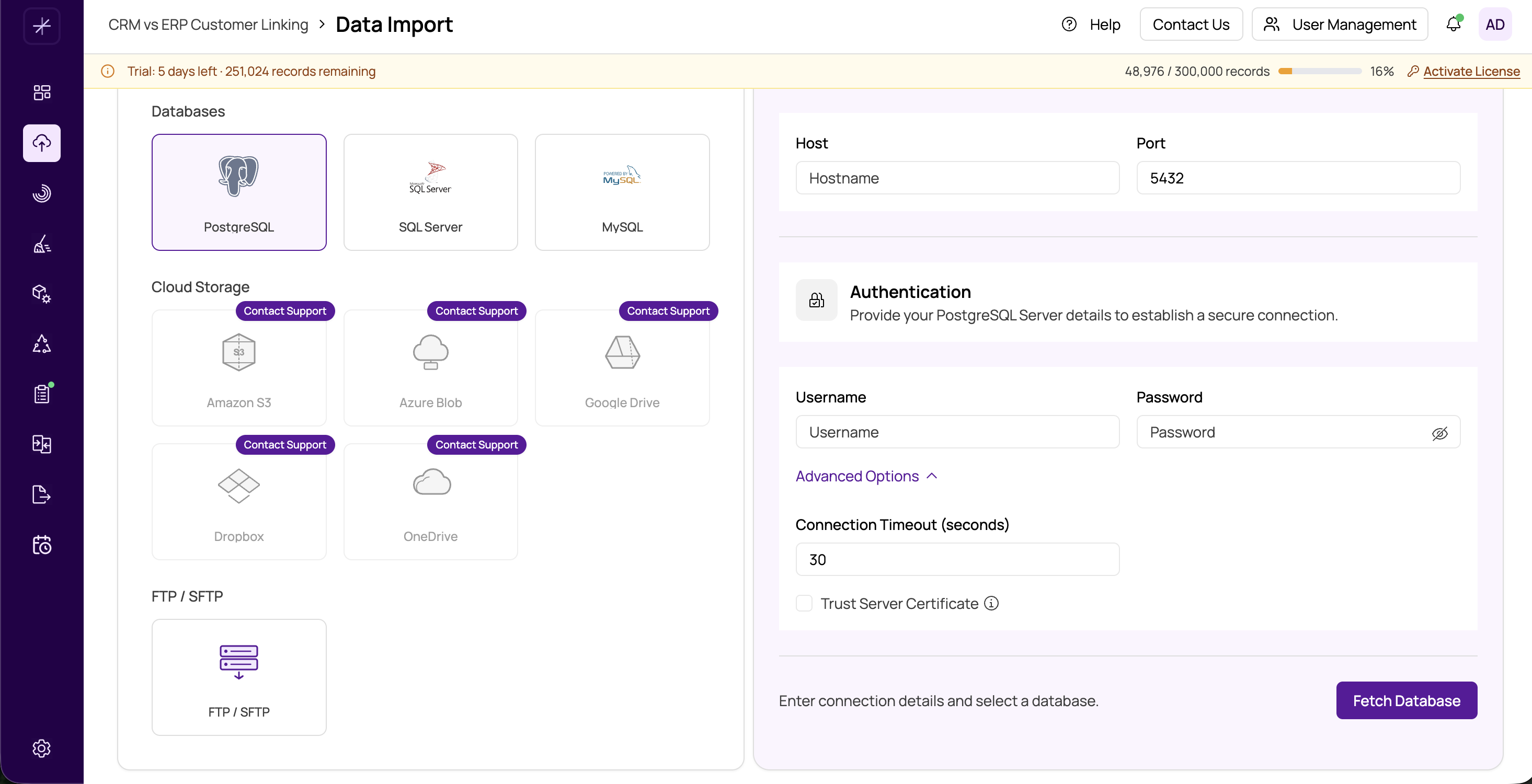
Database Connection Options
Trust Server Certificate
When enabled, this option tells MatchLogic to skip SSL/TLS certificate verification when connecting to your database server. This is useful in development or testing environments where the database uses a self-signed certificate that would otherwise cause the connection to fail.
Important
Do not enable Trust Server Certificate in production environments. Skipping certificate verification makes the connection vulnerable to man-in-the-middle attacks. Only use this setting when you trust the network between MatchLogic and the database server.
Connection Timeout
The maximum number of seconds MatchLogic will wait when attempting to establish a connection to the database. The default value is 30 seconds. Increase this value if:
- The database server is geographically distant, resulting in high network latency.
- The server is under heavy load and takes longer to accept new connections.
- You are connecting through a VPN or proxy that adds latency.
If connections consistently time out even with an increased timeout value, check your network configuration and ensure the database server is accessible from the machine running MatchLogic.
Amazon S3 Advanced Options
Session Token
Required when using temporary AWS credentials obtained through AWS Security Token Service (STS). This is common in enterprise environments that use IAM role assumption or federated access. Enter the session token provided alongside your temporary access key and secret key.
Custom Endpoint
Use this field to specify the URL of an S3-compatible storage service instead of the default AWS S3 endpoint. This is necessary when working with:
- MinIO — A popular open-source S3-compatible object storage server.
- DigitalOcean Spaces — Enter the endpoint for your Spaces region (e.g.,
https://nyc3.digitaloceanspaces.com). - Wasabi — Enter the Wasabi service endpoint for your region.
- Other S3-compatible services — Any service that implements the S3 API.
Path Style Addressing
By default, S3 uses virtual-hosted-style URLs (e.g., bucket-name.s3.amazonaws.com ). Some S3-compatible services require path-style URLs instead (e.g., s3.amazonaws.com/bucket-name ). Enable this option if you are connecting to a service that does not support virtual-hosted-style addressing. This is commonly needed for MinIO and some older S3-compatible implementations.
Tip
If you are using standard AWS S3, you typically do not need to set any of these advanced options. They are designed for non-standard or S3-compatible environments.
CSV File Options
When importing CSV files, MatchLogic automatically detects the delimiter and encoding in most cases. However, if auto-detection fails or produces incorrect results, the following aspects may need attention:
- Delimiters — MatchLogic handles standard comma-separated files by default. Files using semicolons, tabs, or pipe characters as delimiters may require verification during the preview step.
- Encoding — UTF-8 is the expected encoding. Files saved in legacy encodings (e.g., Windows-1252, ISO-8859-1) may display garbled characters. If you notice encoding issues in the preview, re-save the file as UTF-8 before importing.
Excel File Handling
MatchLogic supports both modern Excel files (XLSX) and legacy Excel files (XLS). Some considerations:
- XLSX files are processed using modern parsing and handle large datasets efficiently.
- XLS files (Excel 97-2003 format) are supported but may process more slowly for very large files.
- Password-protected Excel files are not currently supported. Remove the password before uploading.
- Formulas in Excel cells are evaluated and the resulting values are imported, not the formula text.
Important
If you encounter issues with any advanced settings, use the Test Connection button (for databases and cloud storage) or the Preview tab (for files) to verify your configuration before proceeding with the full import.
For general import instructions, see https://help.matchlogic.io/article/212-importing-from-a-file, https://help.matchlogic.io/article/213-connecting-to-a-database, or https://help.matchlogic.io/article/214-connecting-to-cloud-storage.