Pairs View
The Pairs view in the Detailed Analysis tab shows match results as individual record pairs. Each pair consists of two records — Record A and Record B — that the matching engine identified as potential duplicates. This view is ideal for inspecting individual matches and understanding why two records were linked.
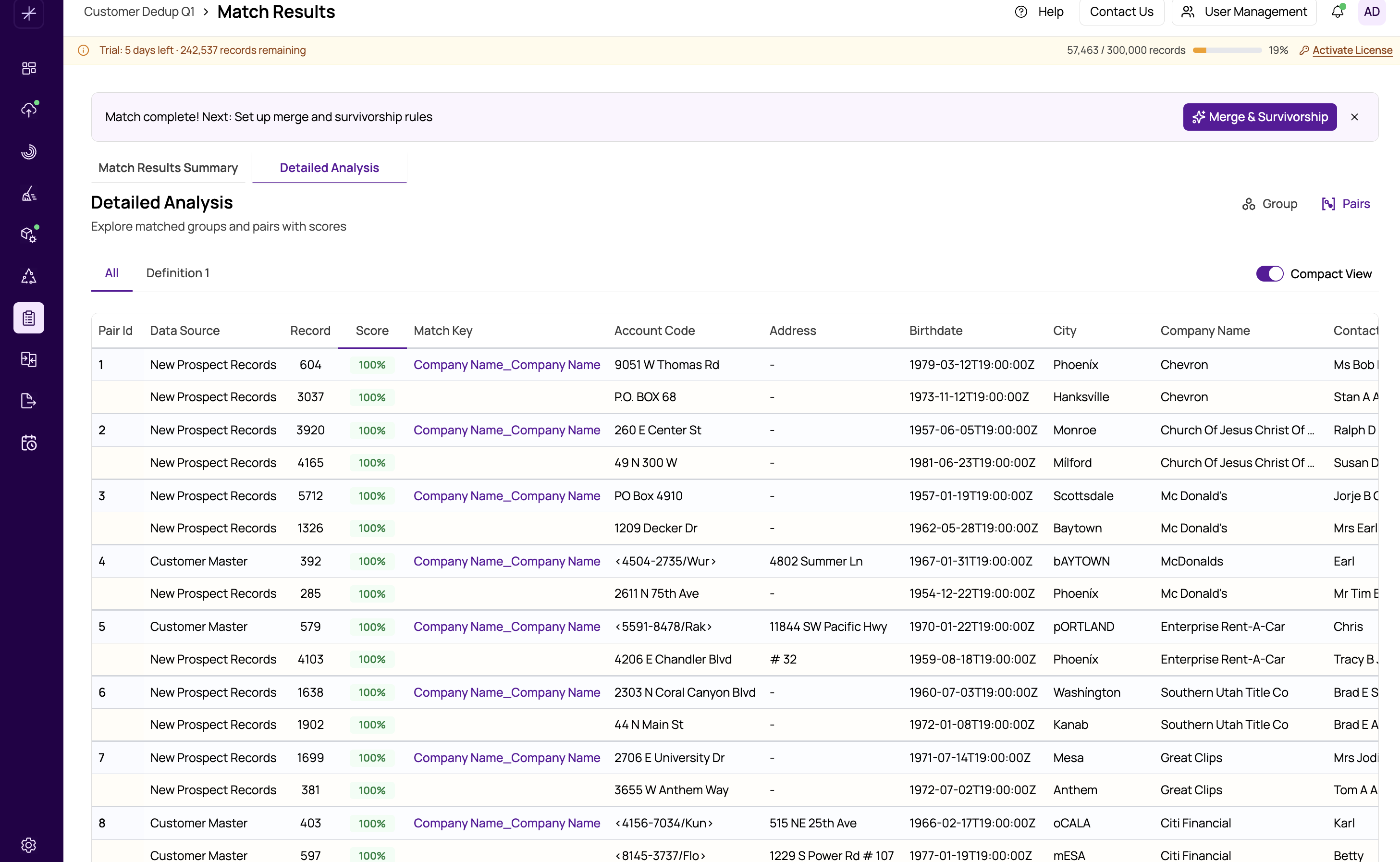
Table Columns
The pairs table displays the following columns:
- Pair ID — a unique identifier for the pair
- Data Source — which datasource the record belongs to, labeled A or B
- Record Number — the row number from the original datasource
- Max Score — the highest score this pair received across all definitions, displayed as a color-coded badge
- Per-definition scores — individual score columns for each match definition, so you can see which definition contributed the match
- Match Key — the field names from the winning definition (for example, "FirstName + LastName")
- Data fields — the actual field values from each record, allowing direct comparison
Visual Layout
Records are displayed in alternating pairs. Record A rows have a blue background, and Record B rows have an amber background. This makes it easy to visually distinguish which record is which within each pair.
The Max Score badge is color-coded according to the confidence bands described in https://help.matchlogic.io/article/271-score-distribution-confidence-bands. A green badge means the pair scored 95 or above, while a red badge indicates a score below 20.
Inspecting Field Values
Data field columns show the actual values from each record side by side. Long values are truncated in the table cell — hover over any truncated value to see the full text in a tooltip.
Sorting and Searching
Click any column header to sort the table by that column. Use the search box above the table to filter pairs by any field value. You can also filter by confidence band and definition — see filtering-by-definition for details.
Tip
Start by sorting by Max Score in ascending order to review the weakest matches first. These are the most likely false positives and should be checked before proceeding to merge and survivorship. Mark false positives using the Not Duplicate flag in the groups-view.
Important
The Pairs view shows individual matches, but a single record can appear in multiple pairs. To see all related records together, switch to the groups-view which clusters records by transitive closure.