Previewing Export Data
The Preview tab on the Final Export page shows a paginated table of what your export will contain, based on your current export settings. Reviewing the preview before executing the export helps you catch misconfigured settings before writing data to a file or database.
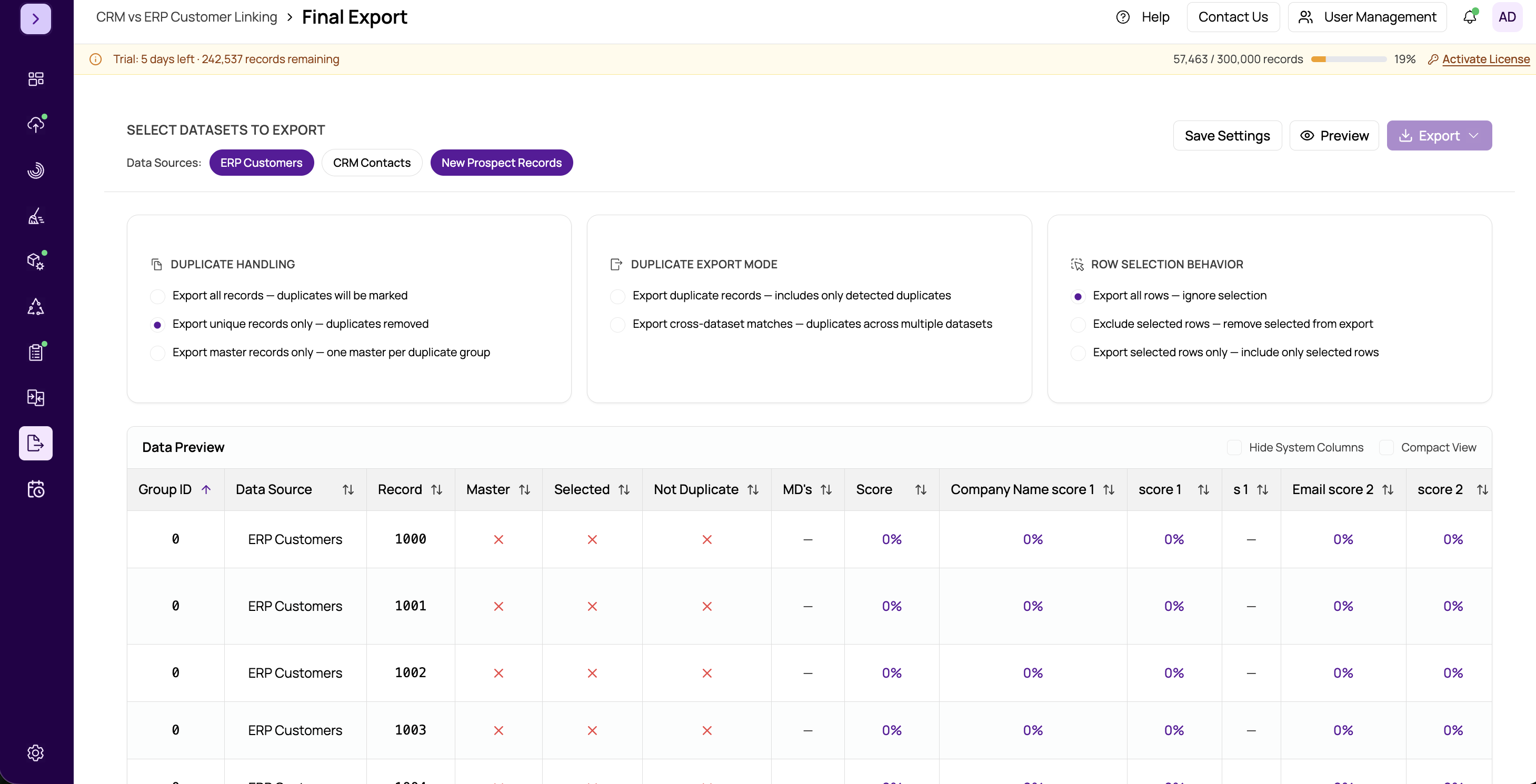
Accessing the Preview
Navigate to the Final Export page and click the Preview tab (next to the Settings tab). The preview loads automatically using your most recently saved settings. If you have not saved settings yet, save them first using the Save Settings button on the Settings tab.
What the Preview Shows
The preview table reflects your full export configuration:
- Columns displayed — determined by your chosen export action, and whether you have enabled score fields and system fields.
- Rows included — filtered according to the export action (e.g., only master records, only non-duplicates, all records with duplicate flags).
- Data sources included — limited to the selected data sources in your settings.
Navigating the Preview Table
Pagination
The preview is paginated. Use the pagination controls at the bottom of the table to navigate between pages. The page size selector lets you choose how many rows to display per page: 10, 25, or 50 rows.
Sorting
Click any column header to sort the table by that column. Click again to reverse the sort order. An arrow indicator shows the current sort column and direction. Sorting is applied server-side and affects which rows appear on each page.
Searching
Use the search box above the table to filter rows by value. Enter any text and the table updates to show only rows where at least one cell contains the search term. This is useful for spot-checking specific records before export.
Changing Settings and Re-Previewing
The preview reflects the saved settings. If you change an option on the Settings tab (such as toggling score fields on or off), you must save the settings and then return to the Preview tab to see the updated result. The preview does not update live as you change settings.
Tip
Use the preview as a final validation step. Check that the expected number of columns appears, score columns are present if required, and a few key records look correct. This is especially important for database exports where column mismatches can cause errors.
Preview vs Full Export
Preview is a Sample
The preview table shows a sample of the export data, not the complete dataset. The total record count in the full export may be much larger. Use the record count shown at the bottom of the preview (if displayed) as an indicator, and verify it against your match results before proceeding.
When you are satisfied with the preview, return to the Settings tab and click Execute Export to run the full export job. See Choosing an Export Action for information on each export mode.