Manually Triggering a Workflow
Any workflow in the Workflow Scheduler can be triggered immediately regardless of its configured schedule. The Run Now action queues an execution that runs as soon as server resources are available — typically within seconds.
Where to Find Run Now
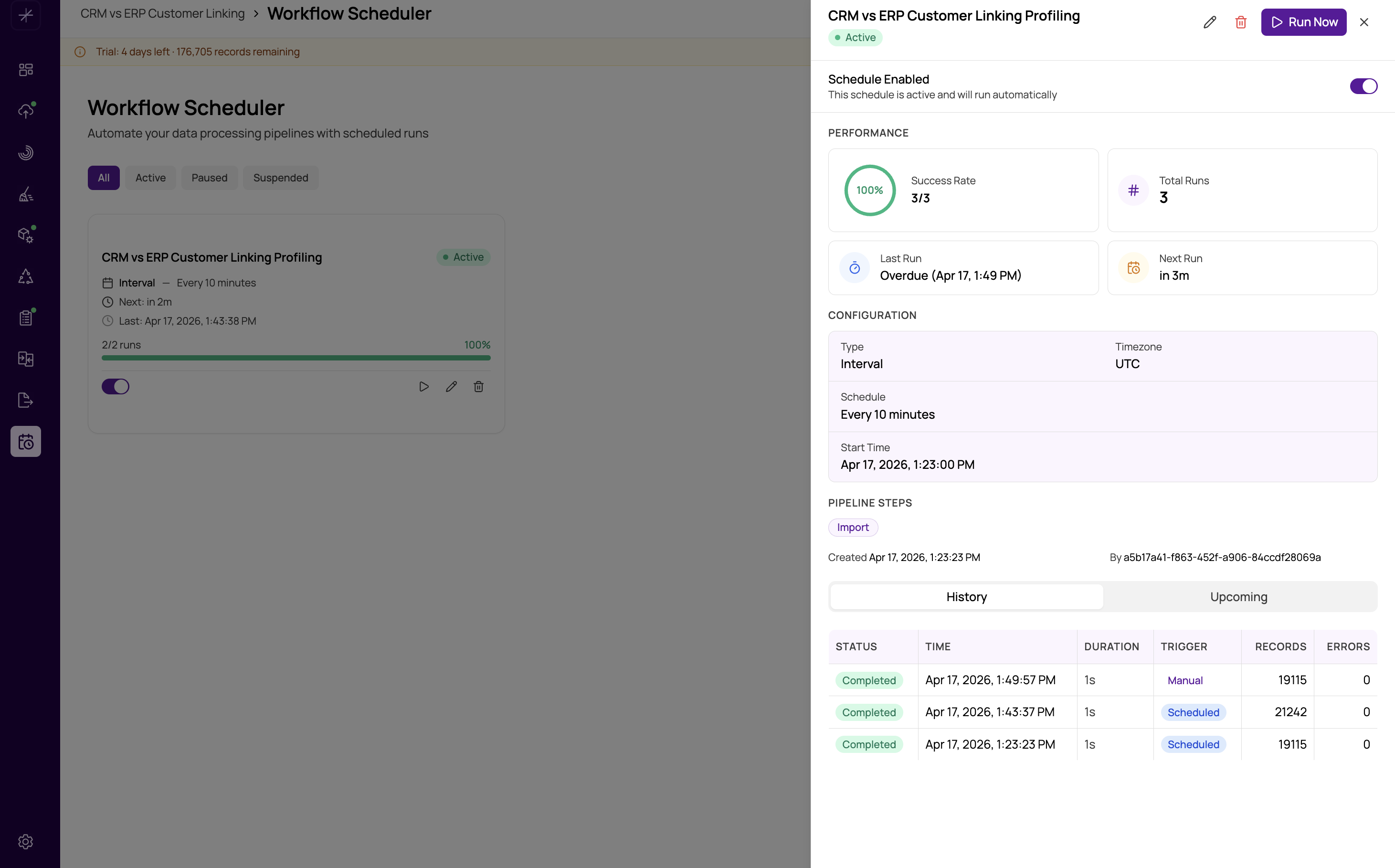
The Run Now button appears in two places:
- Workflow list card — a Run Now button or action menu item on each workflow card in the main scheduler view.
- Workflow detail page — a prominent Run Now button at the top of the workflow's detail page, next to the Pause and Edit actions.
What Happens When You Trigger Manually
Clicking Run Now:
- Immediately queues a new execution for the workflow.
- Runs the same pipeline steps and configuration as a scheduled execution — there is no difference in what gets executed.
- Records the run in Execution History with a "Manual" trigger indicator.
- Sends notifications on completion or failure if notifications are configured.
- Uses the same retry configuration as scheduled runs if the execution fails.
A manual trigger does not affect the schedule — the next scheduled execution still fires at the configured time regardless of when you last triggered manually.
If a workflow is currently running when you click Run Now, the new execution is queued and will start after the current one finishes. Executions for the same workflow do not run concurrently.
When to Use Manual Triggers
Testing a New Workflow
After creating a workflow, manually trigger it to verify the configuration is correct before the first scheduled run. Check the execution history for any step failures and review the output. This is especially important if you chose On-Demand schedule type, since the workflow will never fire automatically.
Re-Running After a Failure
If a workflow failed and you have resolved the underlying issue (for example, the source database was restored after an outage), use Run Now to immediately re-run rather than waiting for the next scheduled occurrence. This is faster than waiting for the schedule and confirms the fix worked.
Responding to a Data Update
If source data is updated outside the normal schedule — for example, a batch of new records was loaded manually into the source database — trigger the workflow immediately to process the fresh data rather than waiting hours for the next automatic run.
On-Demand Workflows
For workflows configured with the On-Demand schedule type, Run Now is the only way to execute them. These workflows are designed for event-driven use cases where the timing is determined by an operator or an upstream process, not a clock.
Cancelling a Running Execution
If you need to stop an in-progress execution — whether it was triggered manually or by the schedule — you can cancel it from the workflow detail page while the status shows "Running." The execution will be stopped at the current step and recorded as Cancelled in the execution history. Partial results from steps that completed before cancellation may remain in the project, so re-running the workflow from the beginning after a cancellation is recommended.
Cancelling a running execution during the Export step may result in a partially written output file or incomplete database writes. If you cancel during Export, verify the export destination before treating the output as complete.