(Advanced) Export Options in Scheduled Workflows
When the Export step is included in a scheduled workflow, you have options for what gets exported, where it goes, and how output files are managed across recurring runs. This article covers the advanced export configuration available for scheduled workflows.
The scheduled Export step uses the export settings you have already configured in the Final Export module for the project. Set up and test your export settings there first, then include the Export step in your workflow.
What Gets Exported
The Export step in a scheduled workflow can produce several types of output depending on the Final Export settings configured for the project:
- Matched and merged data — the primary output: de-duplicated records with survivorship applied, written as CSV, Excel, or into a target database table.
- Match quality report — a summary of match statistics (total records, match rate, group counts, score distribution). Useful for tracking data quality trends over time.
- Profiling report — column-level data quality statistics from the Profile step. Only included if the Profile step is also part of the workflow.
- Cross-reference output — when the ExportAction is set to CrossReference, exports a mapping of original record IDs to their group/master record IDs, useful for downstream system integration.
The export action (what subset of records to output) is controlled by the ExportAction setting in Final Export:
- All Records and Flag Duplicates
- Suppress All Duplicate Records
- Non-Duplicates and Master Record
- Duplicates Only
- Cross Reference
Export Destination
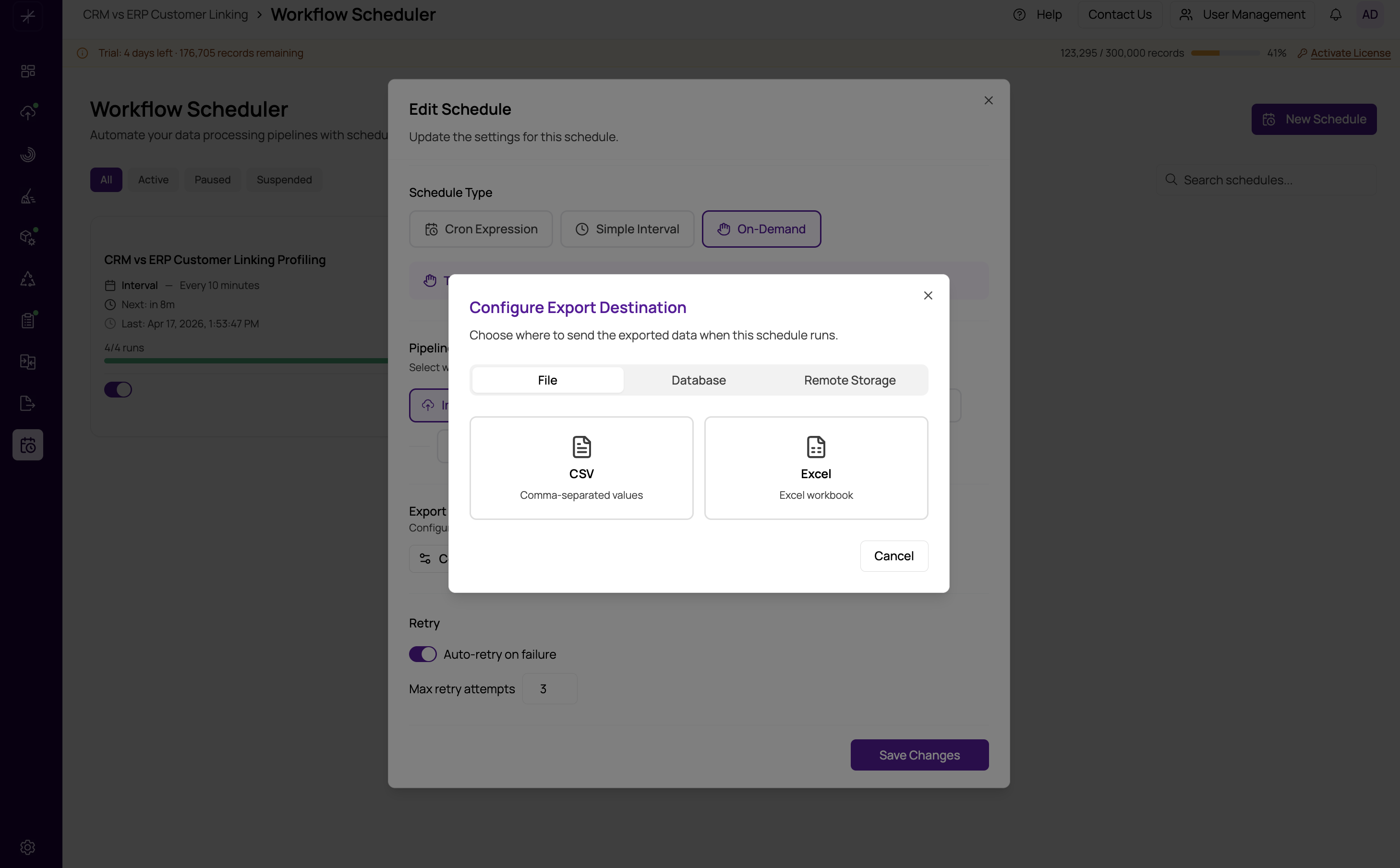
Scheduled exports write to the same destination configured in the Final Export module. Supported destinations include:
- File download — generated on the server and available for download from the Final Export module or from the execution history entry.
- Database table — writes directly to a configured target database (SQL Server, MySQL, PostgreSQL, Snowflake).
- Remote storage — writes to S3, Azure Blob, FTP/SFTP, or cloud drives if remote storage integration is configured. See the remote storage integration documentation for setup details.
Managing Output Files Across Recurring Runs
When a workflow runs repeatedly, each run generates a new set of output. You have two strategies for managing these files:
Overwrite Mode
Each run writes to the same fixed destination path, overwriting the previous output. The destination always contains the most recent run's data. This is the simplest approach and is appropriate when consumers only need the latest version of the golden record.
- For database targets: the target table is truncated and repopulated on each run.
- For file targets: the output file is replaced on each run.
Timestamped Files Mode
Each run generates a file with a timestamp in the filename (for example, customers_matched_2026-03-30T02-00-00.csv ). Previous exports are preserved, building a historical archive of snapshots.
Timestamped mode can accumulate a large number of files over time, consuming significant storage. If you enable timestamped exports, plan for periodic cleanup or set a retention policy on the destination storage location.
Database Export Considerations
When exporting to a database on a schedule, consider whether the target table should be truncated and replaced on each run or appended to. Truncate-and-replace is the most common approach for a golden record use case, ensuring the target always reflects the current match results. Append mode can cause duplicate rows if the same records are exported on multiple runs without deduplication at the destination.
Also ensure the database user configured in the export settings has sufficient permissions to write to the target table, and that the target database is available during the scheduled run window. Connection failures during the Export step will trigger retries if configured. See Retry Configuration.
Verifying Export Output
After a scheduled run completes successfully, verify the export output from the workflow's Execution History. The expanded step details for the Export step will confirm how many records were written and the destination path used. For file exports, a download link is available directly from the history entry.